Report Parameters Properties
The Report Parameters property page specifies the report generation options. Use the Report Parameters properties to define the report template file, the names of the CygNet site and services from which to retrieve data, and the data parameter values to include in the report.
The following example shows report parameters defined for a Morning Report for the PNT service.
|
Report Parameters Properties |
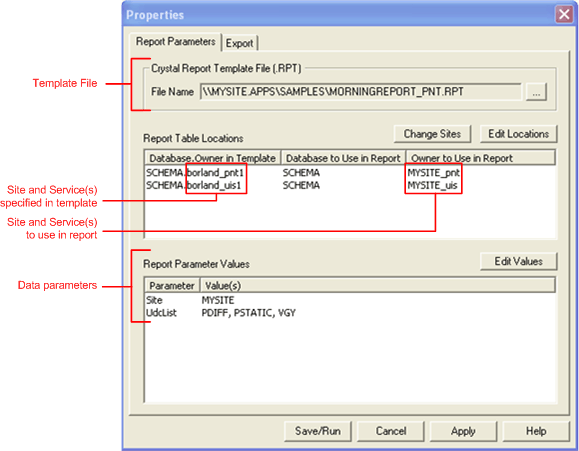
Configuring Report Parameters Properties
Crystal Report Template File
The Crystal Report Template File section shows the name of the template file that is opened. To open a different template, click … next to the File Name box and select another template file.
Report Table Locations
The Report Table Locations section contains a list showing the CygNet site and service(s) that are in the template and those that are to be used in the report.
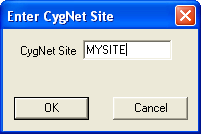
To change the site, click the Change Sites button. Enter the name of your site in the CygNet Site box and click OK. The field is not case sensitive.
|
Change Sites |
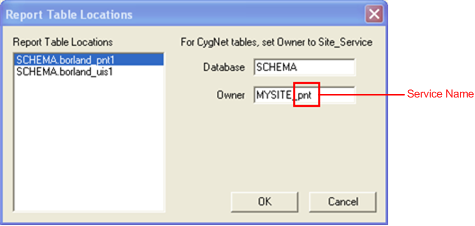
To change the service(s), click Edit Locations in the Properties dialog box to display the Report Table Locations dialog box. In the Report Table Locations list, select a service, and type the name of the applicable service from your system in the Owner box. The format of the field is SITE_SERVICE. Repeat for all services listed; then click OK. The field is not case sensitive.
|
Report Table Locations |
The names of your services may be different than those listed in a template. The services used by the various reports are listed below.
| Report Type | Service(s) |
|---|---|
|
Alarm Activity |
Service that stores alarm history, probably in the Event Logging Service (ELS). |
|
Alarm Activity C70 |
Service that stores alarm history in an alarm record table format used by the Alarm Event Logging Service (ELSALM). This record format is more recent than the record format used for the ELS. |
|
Comm Efficiency PNT |
Point Service (PNT). |
|
Universal Interface Service (UIS). |
|
|
GNS Log |
Service that stores notification history. Generally, it is the ELSALM. In older installations, it may be the Event Logging Service (ELS). |
|
Morning Report_PNT |
Point Service (PNT). |
|
Universal Interface Service (UIS). |
|
|
MorningX Report |
Facility Service (FAC). |
|
Point Service (PNT). |
|
|
Universal Interface Service (UIS). |
If you are not sure of the names of the services in your system, use CygNet Explorer to view your service hierarchy.
The Report Parameter Values section lists the data parameters for the report. A parameter may have one value or multiple values, depending upon the parameter. For example, the "Order By" parameter in the Alarm Activity can be set to one value — "Point" or "Time"; whereas, the "Filter Activity" parameter can be set to multiple values ("SET", "RESET", "ACK," "HIDE," etc.).
The parameters are dependent on the report type.
| Report Type | Parameter | Description |
|---|---|---|
|
Alarm Activity Alarm Activity_C70 |
Filter Activity |
Value set determines the alarm events to include in the report (alarm set, reset, acknowledge, clear, hide, unhide, force, purge). |
|
Filter Date Range |
Date range of alarms. See Date Parameters. |
|
|
Filter Priority Range |
If using the CygNet Standard Point Scheme, the valid range is 0 to 99, with 0 being the lowest and 99 the highest. From represents the lowest (00); To represents the highest (99). To include all priorities, disable Clear Value to Missing (Enter at Run Time) and set the range from 00 to 99. |
|
|
Filter System |
Represents the "System" field from the PNT. This is a list box. You must enter the system’s table entry, not the table description. This field is not case sensitive. To include all systems, disable Clear Value to Missing (Enter at Run Time) and leave the field blank. |
|
|
Order By |
Options are "Time" and "Point." |
|
|
Site |
Defaults to the Site set using the Change Sites button. |
|
|
Comm Efficiency |
Comm Stats Date |
Options are "Today" and "Yesterday." |
|
Site |
Defaults to the Site set using the Change Sites button. |
|
|
Gns.Log (Notification History) |
Filter Date Range |
Date range of notifications. See Date Parameters section below. |
|
Site |
Defaults to the Site set using the Change Sites button. |
|
|
Morning Report |
Site |
Defaults to the Site set using the Change Sites button. |
|
UDC List |
User-defined Value Set. Select from the UDCs in the Value field or type one into the field, and click Add. |
|
|
Morning ReportX |
FacCon |
The facility contact. You can use an asterisk (*) as a wildcard. To retrieve all facility contacts, leave blank. |
|
FacLoc |
The facility location. You can use an asterisk (*) as a wildcard. To retrieve all facility locations, leave blank. |
|
|
FacType |
The facility type. To retrieve all facility types, leave blank. |
|
|
Site |
Defaults to the Site set using the Change Sites button. |
|
|
UdcList |
User-defined Value Set. Select from the UDCs in the Value field or type one into the field, and click Add. |
Report Parameter Values
The Report Parameter Values section contains a list showing the parameters particular to the report type. To specify the value(s) for a parameter, select the parameter name from the list. To edit parameter values, click Edit Values button to access the Report Parameters Values dialog box.
When the Clear Value to Missing (Enter at Run Time) option is enabled, users will be prompted to enter the parameter value when they run the report. When the option is not enabled, the parameter must be defined before running the report.
A Value Set field will be displayed for parameters that can contain multiple values. To add values to the set, select the value in the Value field and then click Add. In the Morning Report, you can select from the list or type a UDC into the value field. To remove a value from the Value Set, select the value in the Value Set list and click Remove.
Defining Date Ranges
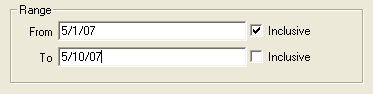
Date Range parameters are provided for some reports, and consist of From, To, and Inclusive. From is the starting date, or the furthest date to go back. To is the ending date, or the most recent date. The Inclusive option means to include the specified date. In the example below, the report would return data from 5/1/07 to 5/10/07. Since Inclusive was disabled on the To field, the report will contain data up to but not including 5/10/07.
|
Date Range |
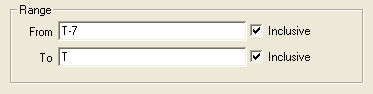
Date values can be specific, or they can be date wildcard values that allow the report to be dynamic, and eliminate the need to edit the date parameters every time the report is run. The date wildcard is T (for today). You can subtract from T to go back in time; for instance, T-7 represents seven days ago. Therefore, a range from T-7 to T would be from seven days ago to today. See Date and Time Wildcards for more information about using wildcards.
|
Date Range |
Saving Report Properties and Running Reports
You can save and run the report from this dialog box. Once all properties for a report are defined (Report Parameters Properties and Export Properties), click Apply and then click Save/Run to both save the report properties and run the report.
You can also save the report properties without running the report. Once all properties for the report are defined (Report Parameters Properties and Export Properties), click Apply and then click Cancel to save the report properties and cancel the running of the report.
You can save the parameters to a local drive or to a Blob Storage Service (BSS). You must have proper CygNet security authorization to write files to a BSS.


