Building a Setpoint Screen
The following example shows how to create a simple setpoint screen for changing the value of a specific point.
See SetPoint Button Tool for more information about adding a configurable SetPoint button to a screen.
To Build a Setpoint Screen
- Open CygNet Studio. In the File menu, click New to create a blank screen.
- Click the Text tool button
 and drag a text label on the screen.
 - Right-click the text tool to display its properties.
- Type "New Value" for the Text property. For the DisplayItem property, choose Text.
- Click the Edit Box tool
 and drag an edit box next to the text tool.
 - In the Edit Box’s properties, type "txtValue" for the ObjectCode.
- Click the Button tool
 and drag a button below the text fields.
 - In the Button’s properties, type "btnSetPoint" for the ObjectCode and "Setpoint" for the Text property. For ButtonType, choose Standard.
- Right-click an empty area of the screen to open properties for TheView. Enter "Setpoint Dialog" for the Title property.
- Press Ctrl+E to run the screen (save the screen when prompted). Of course, nothing works at this point. The screen will look something like the following:
|
Setpoint Dialog Box |
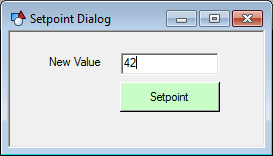
- Press Ctrl+E again to return to Edit mode.
- Click the
 icon in the Layout toolbar to open the script window for the screen.
 - In the Object drop-down menu, choose btnSetPoint. This displays its EventClick procedure by default.
- Enter the following lines of code in this procedure. Replace CYGDEMO.UIS:RTU1_PSTATIC with relevant names for the tag string of any numeric-valued point.
Copy
SetPoint Screen
Sub btnSetPoint_EventClick()
Dim This : Set This = btnSetPoint
Dim strPoint
strPoint = "CYGDEMO.UIS:RTU1_PSTATIC"
Err.Clear
'Enable live mode (required for setpoint function)
EnableLiveMode(True)
'Check text box value and execute setpoint if valid
If Not IsNumeric(txtValue.Text) Then
MsgBox "Enter a numeric value."
Else
On Error Resume Next
SetPoint strPoint, CDbl(txtValue.Text)
'Check Err object for possible errors
If Err.Number <> 0 Then
MsgBox "Setpoint failed."
Exit Sub
End If
MsgBox "Setpoint of " + strPoint + " succeeded."
End If
End Sub- Press Ctrl+E to run the screen.
- Enter a value in the text box and click the Setpoint button.
- Open CygNet Explorer and navigate the point’s current value service to verify that the value was updated.


