Configuring Alarm Settings from CygNet Studio
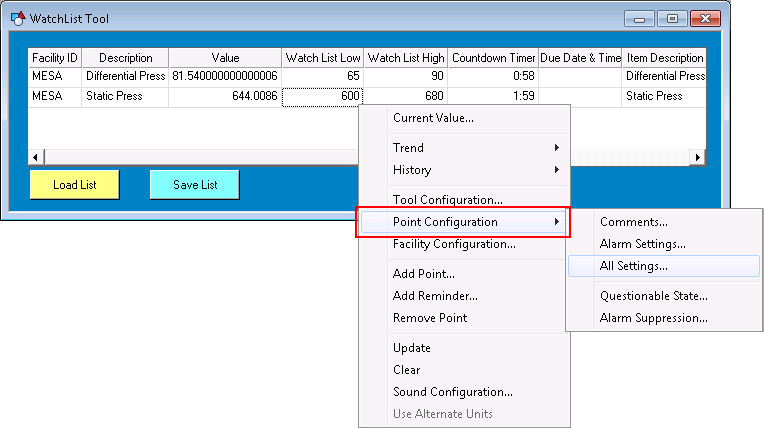
Most CygNet Studio objects provide access to the point properties associated with Alarm Settings for a selected point via the right-click context menu in Run mode. Select Point Configuration > on the context menu to view and/or edit various point configuration record properties for the selected point.
These properties can also be manipulated via script using the COM API exposed through the CxPnt.dll.
|
Configuring Alarm Settings |
Alarm Settings and PNT Security Events
Access to and configuration of alarm settings properties in CygNet Studio (and CygNet Vision) is governed by a user's permissions levels.
Each time a user attempts to perform an action that requires a certain security access level for a given application (for example, view a comment or suppress an alarm for a point), access is granted or denied by the ACS based on the built-in security event that governs that property.
These alarm settings properties use either the ACCESS security event or the extended PNT security event(s) specified below, whichever is greater. For example, if a user has an ACCESS level of 3 and COMMENT level of 2, they will be granted a security level of 3.
The following table describes the context menu options and the applicable security events. See the PNT Service security reference for more information.
|
Point Configuration > |
Action | PNT Security Event(s) |
|---|---|---|
|
Comments… |
Opens the Comments page of the PNT Editor where you can view and edit point comments. |
|
|
Alarm Settings… |
Opens the appropriate Analog/Digital/Enumeration/String Alarm Settings page of the PNT editor where you can view and edit alarm setpoints. |
ALARMSET or CFGBITxx (Point record configurable bit (Config Bit 01 - Config Bit 15)) Note: Note the following differences in functionality available via ALARMSET vs. CFGBITxx. If you have ALARMSET level 3 (or greater), then you can retrieve and set all alarm settings including all settings for all Configurable Bits. If you have CFGBITxx level 3 (or greater), but level 0 for ACCESS and ALARMSET, then you may change all CFGBITxx specific settings (Enable/Disable, Calc. Value 1, Calc. Value 2, Alarm Priority, Report to CAS, Report to GNS, Delay Reporting, etc.). |
|
All Settings… |
Opens the General page of the PNT Editor where you can view and edit all point configuration settings. |
ACCESS (+ others as applicable) |
|
Questionable State… |
Opens the Edit Questionable State dialog box where you can view and edit point Questionable/Verified flags. The Questionable/Verified flag is configured on the Application page of the PNT Editor. |
QUESTION |
|
Alarm Suppression… |
Opens the Alarm Suppression Settings dialog box where you can view and suppress point alarms. Alarm Suppression is configured on the Analog/Digital/Enumeration/String page of the PNT Editor. |
Configuration via Script
Alarm settings properties can also be manipulated via script in a similar manner using the CxPnt.PntClient automation interface. These functions use either the ACCESS security event or the extended PNT Security Event(s) specified below, whichever is greater. For example, if a user has an ACCESS level of 3 and QUESTION level of 2, they will be granted a security level of 3.
The following table describes the related functions and applicable security events. See the PNT Service security reference for more information.
|
Point Configuration Settings |
Related CxPnt Functions | PNT Security Event(s) |
|---|---|---|
|
Comments |
||
|
Alarm Settings |
Note: Note the following differences in functionality available via ALARMSET vs. CFGBITxx. If you have ALARMSET level 3 (or greater), then you can retrieve and set all alarm settings including all settings for all Configurable Bits. If you have CFGBITxx level 3 (or greater), but level 0 for ACCESS and ALARMSET, then you may change all CFGBITxx specific settings (Enable/Disable, Calc. Value 1, Calc. Value 2, Alarm Priority, Report to CAS, Report to GNS, Delay Reporting, etc.). |
|
|
Questionable State |
||
|
Alarm Suppression |


