Standard Context Menus
Standard context menu items can be configured to appear on the right-click context menu on just TheView itself or of any object on the TheView.
|
Standard Context Menu Configuration |
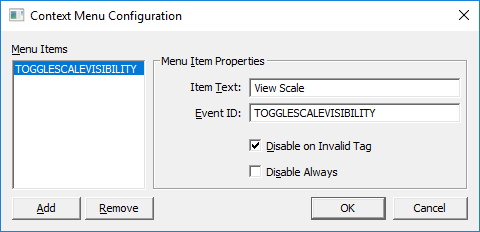
For a detailed example of configuring a Standard Context Menu, see Standard Context Menu Example below.
TheView
TheView has a [ContextMenuView] property that can be configured in design time. Context menu items added here are visible only when the user right-clicks on the TheView, not on an object. These items are appended to the standard context menu.
View Configuration
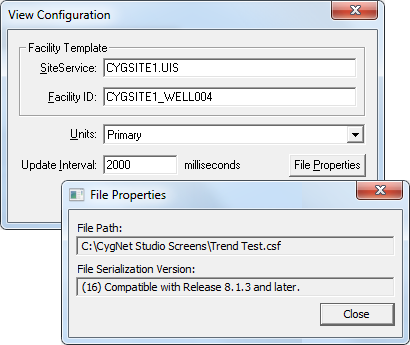
One of the options on the right-click menu on the TheView is Configuration, which displays the View Configuration dialog box. From this dialog box you have Facility Template information, and can set Units, Update Interval, and view File Properties (File Path and File Serialization Version).
|
View Configuration Dialog Box |
CygNet Studio Objects
TheView also has a [ContextMenuObjects] property that sets the default items for context menus opened on objects, not on TheView itself. These commands can be added to and overridden for individual objects using their [ContextMenu] properties.
Each context menu item is configured with an Event ID, which must be unique within a context menu. When a context menu item is clicked, an event handler on TheView (EventContextMenuView or EventContextMenuObjects) or on individual objects (EventContextMenu) can perform an action based on the Event ID and the calling object.
Standard Context Menu Example
The following example creates a small screen using a Slider object to set a "scale factor," which could be used in graphical applications or to otherwise scale data sets. A context menu item, "Reset" is used on the value a Text tool to reset the value to the default scale factor. A context menu item on TheView toggles the visibility of the scale controls.
To Configure a Context Menu
- Create a new Studio screen.
- Add a Slider and a Text control to TheView. Name the Slider control "sldScaleFactor" and the Text control "txtScaleFactor" in the (ObjectCode) property of each tool.
- In the Slider control’s properties, set MinimumEq to 0.1 and MaximumEq to 0.8.
- In the Text control’s properties, set [DisplayItem] to Text.
- Add a menu item to the Text control.
- In the Text control’s properties, click [ContextMenu]. This opens the Context Menu Configuration dialog box.
- Click Add to add a new menu item.
- For the new menu item, set the Item Text to "Reset" and the Event ID to RESET.
- Click OK.
- Add a menu item to TheView.
- In TheView’s properties, click [ContextMenuView]. This opens the Context Menu Configuration dialog box.
- Click Add to add a new menu item.
- For the new menu item, set the Item Text to "Toggle Scale Visibility" and the Event ID to TOGGLESCALEVISIBILITY.
- Click OK.
- Add the following script to the general declarations section.
- Open the Script Editor and navigate to (General), (Declarations).
- Enter the following script to set a default scale factor.
'(Declarations)
Dim defaultScaleFactor
defaultScaleFactor = 0.1
'End of (Declarations)- Add script to initialize the Slider and Text controls.
- In the script editor, enter the following script in the Text control’s EventInitialize event.
Sub txtScaleFactor_EventInitialize()
Dim This : Set This = txtScaleFactor
This.Text = defaultScaleFactor
End Sub- In the script editor, enter the following script in the Slider control’s EventInitialize event.
Sub SldScaleFactor_EventInitialize()
Dim This : Set This = SldScaleFactor
This.Value = defaultScaleFactor
End Sub- Add script to synchronize the Slider with the Text control.
- In the script editor, navigate to the Slider control’s EventInitialize event.
- Enter the following script.
Sub SldScaleFactor_EventChange()
Dim This : Set This = SldScaleFactor
txtScaleFactor.Text = This.Value
End Sub- Add script to handle the Reset command on the Text control’s context menu.
- In the script editor, navigate to the Slider control’s EventInitialize event.
- Enter the following script. Note that checking for the EventID value is not necessary because only one menu item exists. However, this would be necessary for multiple menu items.
Sub txtScaleFactor_EventContextMenu(EventID)
Dim This : Set This = txtScaleFactor
If EventID = "RESET" Then
This.Text = defaultScaleFactor
SldScaleFactor.Value = defaultScaleFactor
End If
End Sub- Add script to handle the visibility toggle command on the View’s context menu.
- In the script editor, navigate to the View’s EventInitialize event.
- Enter the following script. Note that checking for the EventID value is not necessary because only one menu item exists. However, this would be necessary for multiple menu items.
Sub TheView_EventContextMenuView(EventID)
Dim This : Set This = TheView
If EventID = "TOGGLESCALEVISIBILITY" Then
If txtScaleFactor.Visible = 1 Then 'True
txtScaleFactor.Visible = False
SldScaleFactor.Visible = False
Else
txtScaleFactor.Visible = True
SldScaleFactor.Visible = True
End If
End If
End Sub- Save the screen and switch to Run mode. Try changing the Slider value, then right-click the Text control and click Reset on the Context menu. Then try right-clicking View to use the Toggle Scale Visibility menu item.


