Customizing Point State Colors
The default colors for a CygNet system are defined in the system’s Point Scheme.
The default colors for the CygNet Standard Point Scheme (0) are shown in the following table.
| State by Point Type | ||||||
|---|---|---|---|---|---|---|
|
Point State Color |
Analog |
Digital |
Enumeration |
String |
||
|
|
Green |
|
Analog Normal |
Digital Normal |
Enumeration Normal |
String Normal |
|
|
Cyan |
|
Uninitialized
|
Uninitialized |
Uninitialized |
Uninitialized |
|
|
Magenta |
|
Unreliable Analog Low Out of Range Analog High Out of Range |
Unreliable Digital Warning |
Unreliable Enumeration Alarm 1 |
Unreliable String Alarm 1 |
|
|
Yellow |
|
Analog Low Warning Analog High Warning |
Digital Chattering |
Enumeration Alarm 3 Enumeration Alarm 4 |
String Alarm 3 String Alarm 4 |
|
|
Red |

|
Analog Low Alarm Analog High Alarm Analog High Deviation |
Digital Alarm |
Enumeration Alarm 2 Enumeration Alarm 5 Enumeration Alarm 6 |
String Alarm 2 String Alarm 5 String Alarm 6 |


In CygNet Studio, you can use custom colors instead of the default colors. Custom colors can be specified for TheView and for each individual object. Colors are specified on a per point type, per alarm type basis.
See Understanding the CVS Metadata File for more information about configuring point state properties. Also see Point State and Alarm Condition for more information.
To Override Default Point State Colors
Note: If TheView has the custom state colors property enabled but an object does not, that object will not show custom colors. If an object has this property enabled but TheView does not, only that object will show custom colors.
- Access the Configure Point State Colors dialog box in one of the following ways:
For TheView and Most CygNet Studio Controls:
- In the Property Sheet, do the following:
- On the Normal property page, set the [UseCustom State Colors] property value to 1 - Yes to enable the use of custom colors.
- On the Normal property page, select the [Custom State Colors] property and then click ..., or double-click on the property, to access the Configure Point State Colors dialog box.
For the CygNet GCM Nomination Grid
- In the Property Sheet, do the following:
- Select the [OCXProperties] property and then click ..., or double-click on the property, to access the CygNet GCM Nomination Grid Properties dialog box and then click the Display tab. Configure the color properties on this page. See Configuring Display Settings for more information.
For the Group Grid Tool
- In the Property Sheet, do the following:
- Select the [OCXProperties] property and then click ..., or double-click on the property, to access the CygNet Group Grid Control Properties dialog box and then click the Default tab. In the Point State section, click Custom Colors to access the Configure Point State Colors dialog box. See Group Grid Tool - Default Page for more information.
For the Trend Tool
- In the Property Sheet, do the following:
- Select the [OCXProperties] property and then click ..., or double-click on the property, to access the CygNet Trend Control Properties dialog box and then click the Colors tab. Configure the color properties on this page. See Trend Tool - Configuring Colors for more information.
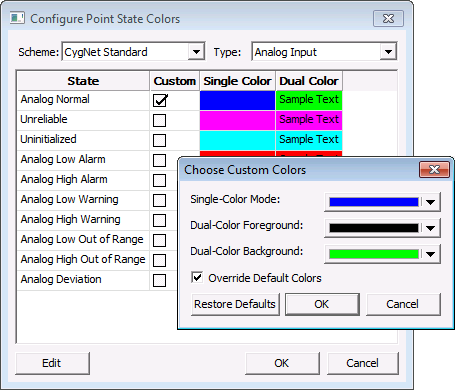
- In the Configure Point State Colors dialog box, do the following.
- Select the Point Scheme.
- Select the Point Type (each point type has its own color scheme).
- Click a point State to configure and then click Edit to access the Choose Custom Colors dialog box.
- Click the Override Default Colors check box to enable/disable the option to use the color selectors.
- Use the drop-down color selector menus to select a new color for each applicable element:
- Single-Color Mode
- Dual-Color Foreground
- Dual-Color Background
- Click OK to commit your custom color selections, or click Restore Defaults to return to the default colors.
- Repeat for other states, point types, and schemes as necessary.
- When all custom color selections are configured, click OK to save the custom color(s). The Custom box adjacent to each State appears selected (checkmark) when a custom color has been defined for it.
|
Configure Point State Colors |
See the following properties for more information about color settings in CygNet Studio objects.
- [AlarmElement]
- [BackgroundColorMode]
- [CustomStateColors]
- [StateColorEvaluation]
- [StateColorMode]
- [UseCustomStateColors]
- BackColor
- ForeColor
- UseColors


