CygNet CAS View Control – Configuring Grid Properties
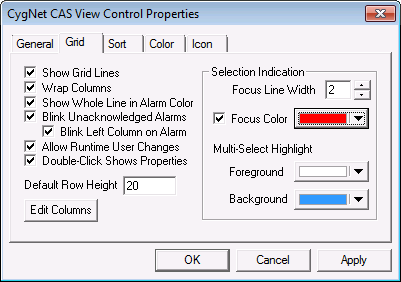
The Grid page specifies how the grid and its columns are displayed in Studio. These settings specify the default view settings for the grid, and they can be overridden on a per column basis using the Edit Column button.
|
CAS View Control Grid Properties |
| Option | Description |
|---|---|
|
Show Grid Lines |
Enables grid lines to shown. |
|
Wrap Columns |
Enables word wrap in each column. |
|
Show Whole Line in Alarm Color |
Enables the whole line to be displayed in the alarm color. |
|
Blink Unacknowledged Alarms |
Enables Unacknowledged Alarms to blink. Note: Alarm blinking is available only for points created using the CygNet Enhanced Point Scheme (Point Scheme number 1 - 15). The blinking feature is not available for points created using the default CygNet Standard Point Scheme (Point Scheme number 0). |
|
Blink Left Column On Alarm |
Enables the left column of the alarm screen to blink rather than the whole line. Note: Alarm blinking is available only for points created using the CygNet Enhanced Point Scheme (Point Scheme number 1 - 15). The blinking feature is not available for points created using the default CygNet Standard Point Scheme (Point Scheme number 0). Additionally, you can configure any other column to flash if the alarm is unacknowledged. See Blink on unacknowledged alarm below. |
|
Allow Runtime User Changes |
Enables runtime changes by user. |
|
Double-Click Shows Properties |
Enables display of the properties of CVS value in alarm by double-clicking. |
|
Default Row Height |
Specifies the default row height in the grid. |
|
Edit Columns |
Click Edit Columns to configure what columns are displayed, and their order. See Configuring Alarm Columns below for more information. |
| Selection Indication | |
|
Focus Line Width |
Select the width of the line around the selected area when highlighted. |
|
Focus Color |
Select the color of line around selected area. |
|
Multi-Select Highlight |
Specifies the foreground and background colors of the items when multi-selected. |
Configuring Alarm Columns
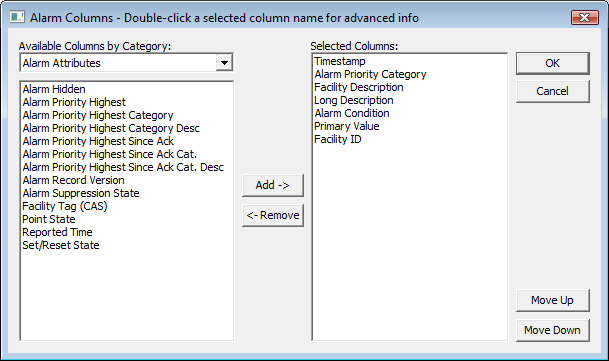
Use the Edit Columns button on the Grid page to access the Alarm Columns dialog box. Configure what columns you want displayed on the alarm control and their order of appearance. Double-click on a selected column to open its Column Info dialog box, to configure additional column settings and overrides.
|
Alarm Columns |
| Option | Description |
|---|---|
|
Available Attributes by Category |
Displays all attributes that are defined in the CygNet system. |
|
Selected Columns |
List of attributes that are displayed as columns in order from left to right on the CAS View Control. Double-clicking on any of the Selected Columns displays additional options for the column, including default override options. See Configuring Column Info below for more information. |
|
Add -> |
Adds the selected item to the Selected Columns list and adds it to the alarm display. |
|
<- Remove |
Removes the selected item from the Selected Columns list and removes it from the alarm display. |
|
Move Up |
Moves the selected column up in the list and to the left on the CAS View Control display in Run mode. |
|
Move Down |
Moves the selected column down in the list and to the right on the CAS View Control display in Run mode. |
Configuring Column Info
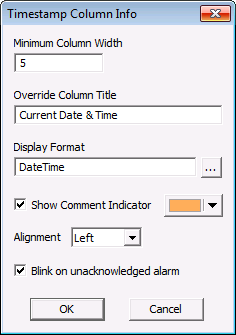
Double-clicking on an item in the Selected Columns list opens the Column Info screen where grid defaults can be overridden for an individual column.
|
Column Info |
| Option | Description |
|---|---|
|
Minimum Column Width |
Specifies minimum column width for the selected column only. |
|
Override Column Title |
Specifies the name of the column that will be displayed instead of the default attribute name in the system. |
|
Display Format |
Specifies a custom display format for the values that are shown in the control. Click … to view the Display Format dialog box. |
|
Show Comment Indicator |
Enables the comment indicator and specifies the color of the indicator. |
|
Alignment |
Specifies whether the text is displayed on the Left, Right or Center of the column. |
|
Enables the column to Blink on unacknowledged alarm. Note: Alarm blinking is available only for points created using the CygNet Enhanced Point Scheme (Point Scheme number 1 - 15). The blinking feature is not available for points created using the default CygNet Standard Point Scheme (Point Scheme number 0). |


