Configuring the CygNet Event Summary Control
The following procedure describes a basic workflow for configuring an Event Summary Control. The specific appearance and functionality of the Event Summary Control depends on your needs and implementation of the tool's properties. Although many standard properties are available for use with this tool, ActiveX properties are required to configure a functional tool.
The items to configure in the CygNet Event Summary Control include:
- Adding the ELS and AUD Service(s)
- Changing the Time/Date range (if necessary)
- Adding Filter options (if necessary)
- Adding Columns
Any of these items, excluding adding columns, may also be altered in Run mode. Column configuration must be done in Edit mode.
Configuring an Event Summary Tool
To Add and Configure the CygNet Event Summary Tool
- Create a new CygNet Studio screen.
- On the Standard Tools palette, click the ActiveX tool
 , drag the icon outline to the screen, and then release the mouse button to access the Insert OLE Control dialog box.
 - In the Insert OLE Control dialog box, double-click CygNet Event Summary Control to create the control.
- Right-click the control to open its property sheet.
- On the ActiveX page, click … for (OCXProperties) to access the control properties dialog box.
- Configure properties of the tool on the Event Summary Control Properties using the following property pages.
Configuring Columns
Use the Columns page to add, edit, or delete columns from the Event Summary Control grid.
|
Columns tab |
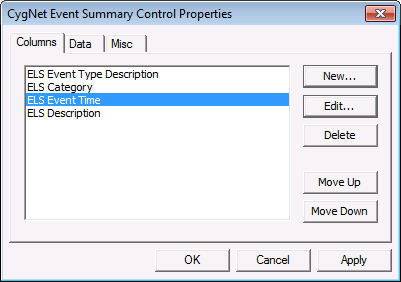
To Add Columns
- On the Event Summary Control Properties dialog box, click New to open the Column Editor.
- Enter a description for the column in the Description box.
|
Column Editor |
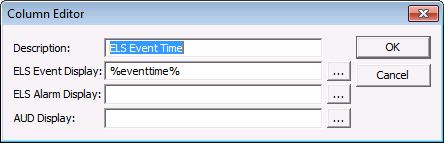
- Click … next to the ELS Event Display, the ELS Alarm Display, or the AUD Display text boxes to edit the text for the column label.
|
ELS Event Display |
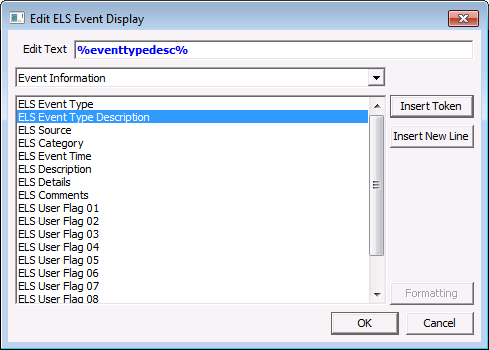
Note: The column text can be dynamic, static, or a combination. Dynamic text is built using tokens, which can represent Event Information, Alarm Record Information, Alarm Record Point State, Alarm Record Status Bits, Alarm Record Changed Items, Alarm Record Durations, Audit Transaction Properties, Audit Value Properties, point configuration, facility, and CVS point record properties. Data formatting can be specified. See Using Text Tokens for more information about building dynamic text using tokens.
- Select a category of record attributes, then select the attribute and click Insert Token (or double-click the attribute) to add it to the Edit Text box. Multiple attributes can be added to a column by clicking Insert New Line (or use Ctrl+Enter), or inserting other formatting. Click Formatting for help on formatting the string.
- Click OK to enter the column string.
- Click OK to close the Column Editor.
Note: Columns can be reordered on the Columns page using Move Up and Move Down. Columns cannot be reordered at runtime.

Configuring Data
Use the Data page to set the data range, custom attributes, and filters for the CygNet Event Summary control.
|
Data Page |
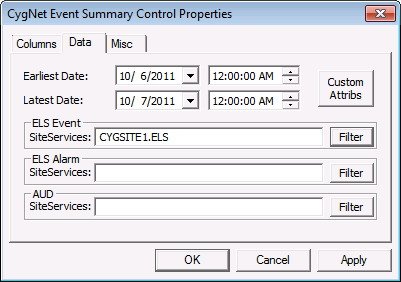
To Change the Time/Date Range
- On the CygNet Event Summary Control Properties dialog box, select the Data page.
- Next to Earliest Date, specify the earliest date and time to display data for in the grid. The date range of the grid can be modified in runtime.
- Next to Latest Date, specify the latest date and time to display data for in the grid. The date range of the grid can be modified in runtime.
- Click OK.
To Add Services to the Control
- On the CygNet Event Summary Control Properties dialog box, select the Data page.
- Enter the ELS, ELS Alarm, and/or AUD service name(s) you want to view data from in Site.Service format, separated by semicolons. If only one service type is to be used, the other may be left blank. Note that the ELS Alarm SiteServices refers to alarm records, not the ELSALM.
- Click OK.
To Configure Custom Attributes
Custom Attributes allow you to filter using any of the custom attributes selected. The CygNet Event Summary control has a set of 20 generic attributes that can be configured and used by the filter rules.
- On the CygNet Event Summary Control Properties dialog box, select the Data page.
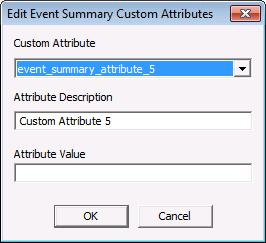
- Click Custom Attribs to access the Edit Event Summary Custom Attributes dialog box, where you can select from twenty custom attributes. Once a selection is made it will be displayed in the Attribute Description field, and an Attribute Value can then be entered.
|
Edit Event Summary Custom Attributes |
- Click OK.
To Change the ELS/AUD Filters
Use filtering to focus results on a desired scope of records. The CygNet Event Summary Control is limited to 20,000 records from each source (ELS, ELSALM, and AUD, for a total of 60,000), so filtering is also helpful to keep returned results below these limits.
- On the CygNet Event Summary Control Properties dialog box, select the Data page.
- Click the ELS, ELS Alarm, or AUD Filter button, depending on the service type to filter. This displays a Filter Events dialog box.
- Click Add to add a filter to the list. Any number of filters can be added. See Using CygNet Filter Rules for more information about using CygNet filter rules.
- If configuring filters for an AUD service, a list of audited services can be entered into the Source SiteServices field, in semicolon-delimited Site.Service format. If services are listed in this box, only audit records for those services will be displayed.
- Click OK.
Configuring Context Menu Items
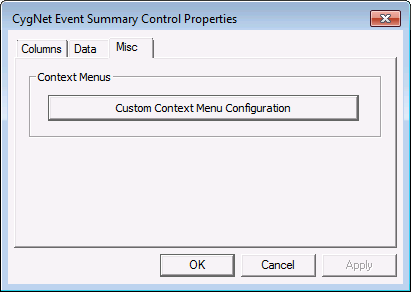
On the Misc page, use the Custom Context Menu Configuration button to configure custom context menu options for the CygNet Event Summary control. The custom options will be added at the bottom of the right-click menu on the control in Run mode. The context menus are customizable and can be set up to perform any tasks or fire off events through scripting.
|
Misc Page |
To Add a Context Menu
- On the CygNet Event Summary Control Properties dialog box, select the Misc page.
- Click Custom Context Menu Configuration to access the context menu configuration screen.
|
Custom Context Menu Configuration (Event Summary Control) |
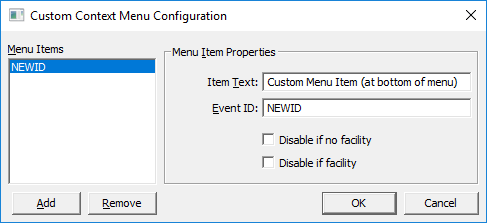
- Configure desired menu items. See Custom Context Menus and Configuring Context Menus for more information.
- Optionally, click the Disable if no facility or Disable if no point check box(es) to hide the custom menu item if no facility or no point is available.
- Click OK.
- Click OK to close the CygNet Event Summary Control Properties dialog box.

