Facility Navigation Bar Tool – Configuring the Drop-Down Levels
Note: You can change configuration settings for this tool in Run mode. However, these settings usually only persist for the current runtime session. When you close the CygNet Studio screen on which the tool resides, the tool settings may revert to those originally configured in Edit mode. To learn how to override this behavior, see RuntimeCfgAutoPersist.
You use the Levels property to define the number of drop-down levels in the Facility Navigation Bar Tool and to describe the behavior of each level. "Levels" are the drop-down menus that filter facilities.
Typically, each level shows a different aspect of the facility selected in the leftmost (level 0) drop-down. You can create multiple levels to filter and search facilities based on different facility attributes.
This topic includes the following sections:
- Configure the General properties of the Facility Navigation Bar Tool, as described in Configuring the Facility Navigation Bar Tool, then click on the Levels tab to display the following dialog box:
|
Facility Navigation Bar Tool - General tab |
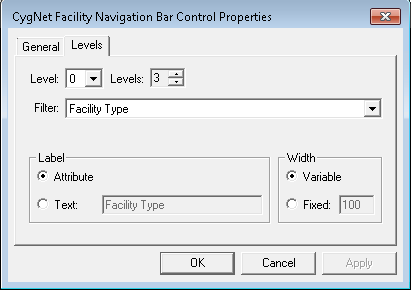
- With the Levels chooser, select the total number of drop-down levels you want the tool to include.
- With the Level menu, select a drop-down level to configure.
- With the Filter menu, select the attribute that the level will use to filter the facilities.
- If you selected a table attribute with the Filter menu, use the Show Descriptions check box to specify whether you want the level to show descriptions instead of table entry names.
- Select Attribute or Text to describe the Label that will appear over the level in Run mode, provided that Labels > Visible is selected on the General page:
- Attribute: Sets the label to the Attribute name that appears in the dimmed Text field.
- Text: Sets the label to the text you specify in the Text field.
- Use Variable and Fixed to define the width of the drop-down level:
- Variable: Specifies that the drop-down is scalable in Edit mode. Levels are scaled in relation to each other unless you specify a width for one or more of them using the Fixed option.
- Fixed: Sets the drop-down width to a value that you specify. Enter the drop-down width (in pixels) in the field. The default is 100 pixels. To hide a level, select Fixed and enter 0 (zero) in the field.
- When you finish defining this level, click Apply to save your settings. Then select another drop-down level to configure with the Level menu and perform steps 2 to 8 for this level. Continue until you have configured all levels.
- Click OK to save your level settings. Open the tool in Run mode to verify that it is working as expected.

Level Properties
The following table describes the level properties:
| Property | Description |
|---|---|
|
Level |
Specifies the drop-down level to which the properties apply. |
|
Levels |
Specifies the total number of drop-down levels in the tool. The default is 3. |
|
Filter |
Defines the attribute that must be assigned to a facility for it to be included in the level. Default is Facility Desc. |
|
Show Descriptions |
Specifies whether descriptions (rather than table entry names) are shown for table facility attributes. This check box appears only if you select a table attribute with the Filter menu. |
|
Label |
Defines a label for the drop-down level.
|
|
Width |
Specifies the width (in pixels) of the drop-down level.
|

