Adding Filter Rule Definitions
Click Add on the Filter dialog box to access the Rule Definition dialog box. You can also double-click on an existing rule to open the Rule Definition dialog box.
Use the Rule Definition dialog box to create a filter logic rule to assist in grouping items together, comparing items against each other, or any combination of filter logic to assist with filtering the selected data.
|
Rule Definition |
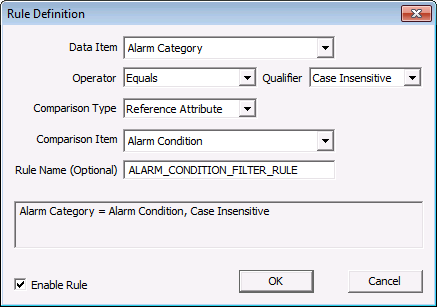
The properties on the Rule Definition dialog box are described below.
| Parameter | Description |
|---|---|
|
Data Item |
Select a reference Attribute (any Attribute may be used to create the first variable for the filter rule to use). See Filter Attributes for a complete list. |
|
Operator |
Select a filter operator to use in the equation that will assist users to build a complete statement for the filter rule logic. Filter options include:
|
|
Select a Qualifier value that the definition is expecting to read from the Data Item. Qualifier options include: Case Insensitive, Case Sensitive, Integer, Real Number, Timestamp. Note:
|
|
|
Comparison Type |
Select the filters-by option:
|
|
Comparison Item |
|
|
Rule Name (Optional) |
Enter an optional name of the filter rule. This can be used to easily identify template or default rules. Note: Some implementations of filter rules in CygNet Software do not allow the naming of child rules. Only the root compound rule may be named. |
|
Text Box |
Displays a visual reference of how the filter rule will be displayed in a multi-line textual string. |
|
Enable Rule |
Click to enable the selected rule. |


