Modifying Filter Rule Definitions
The CygNet Filter Tree View page provides a mechanism to construct and maintain rules, including adding and deleting simple and complex rules, editing, and moving rules via drag and drop.
Edit or Modify Single Rules
Once rules are created, there are multiple ways to edit or modify the rules from the Tree View page. To edit or modify a single filter rule, open the Filter dialog box, and double-click on a single rule to edit the rule.
Right-clicking on a rule displays a context menu for the selected filter rule. Options are available to edit, delete or add rule. You can also convert any single rule to a compound rule, and expand or collapse rules.
|
CygNet Filter Tree Context Menu |
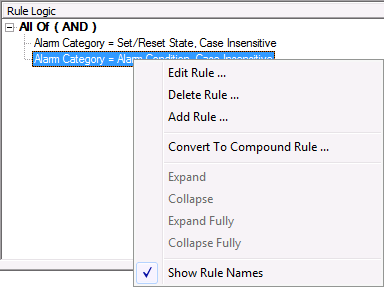
Select Edit Rule to edit the selected rule set using the CygNet Filter dialog box.
Context Menu
Use the context menu to edit and refine rules and rule logic. Right-click on a selected rule element to access the following context menu options.
| Option | Description |
|---|---|
|
Edit Rule |
Click Edit Rule... to access the Rule Definition dialog box to edit the selected rule definition. |
|
Delete Rule |
Click Delete Rule... to delete the selected rule. A confirmation message will appear to confirm the deletion. Click Yes to delete the rule. |
|
Add Rule |
Click Add Rule... to access the Rule Definition dialog box to add a new rule definition. |
|
Convert to compound rule |
Click Convert to Compound Rule... to access the Compound Rule Properties dialog box to configure the selected rule as a compound rule. Use this option to evaluate the selected rule in one of the following ways.
In addition, you can evaluate the selected rule by exclusion as follows.
You may optionally assign a Rule Name to the defined compound rule. Click the check box to select/clear the option to Enable Compound Rule. |
|
Expand |
Click Expand to expand the Tree View from the point selected. |
|
Collapse |
Click Collapse to collapse the Tree View to the point selected. |
|
Expand fully |
Click Expand Fully to expand the Tree View entirely. |
|
Collapse fully |
Click Collapse Fully to collapse the Tree View entirely. |
|
Show rule names |
Click Show Rule Names to display a column containing rule names for rules that have names. |
Edit or Modify Compound Rules
To edit or modify compound rules, select the All Of (AND) or Any Of (OR) root rule, double-click or right-click the compound rule, select Edit Rule from the Context Menu. This will display the Compound Rule Properties dialog box for the rule.
|
Compound Rule Properties |
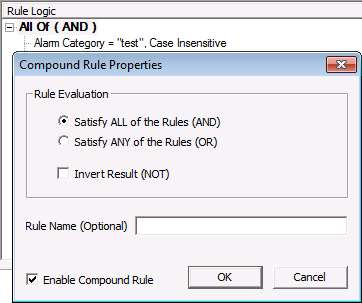
Use the Compound Rule Properties dialog box to create (AND) or (OR) filter rules.
| Parameter | Description |
|---|---|
|
Satisfy ALL of the Rules (AND) |
All the rules defined must be meant to display data from the filter rule. |
|
Satisfy ANY of the Rules (OR) |
Any one of the rules defined will be meant and display data from filter rule. |
|
Invert Result (NOT) |
If selected, data will not be selected from the filter rule, but other data outside the filter can be displayed. |
|
Rule Name (Optional) |
Enter an optional name of the compound filter rule. This can be used to easily identify template or default rules. |
|
Enable Compound Rule |
Click to enable the selected compound rule. |
Scripting
Each ActiveX control has a scripting interface to manipulate the configuration and options of the rules. See Scripting for each control for more information about the scripts and methods available.


