Graphics ActiveX Controls
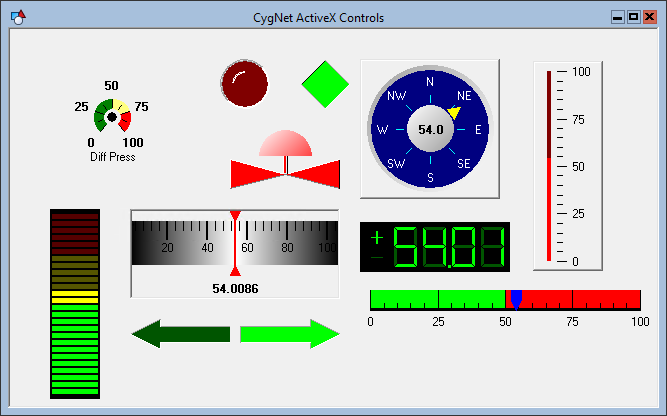
Use selected buttons from the CygNet Studio Tools toolbars to insert a variety of Graphics ActiveX control objects into TheView. The following graphics tools are CygNet-aware ActiveX controls, and can be used for data display in TheView.
|
Formatting Properties listed on the ActiveX page |
Dynamic Properties
In a templated environment it may be desirable to dynamically set some of the configuration properties of a tool based on properties of a point. For example, your screen includes an Angular Gauge tool showing static pressure. In one facility the scale is 0 to 100. In another facility the scale is 50 to 250. You could set the scale of the gauge at 0 to 250 to meet the full range of values, or to give users a better visual representation of the data within the expected scale you can dynamically set the range.
The tools that have this option include an [ActiveX] property on the Normal page on the Property Sheet. These properties can be set based on a property of the current point (that is, the object’s UDC) or another point. The properties of the tools listed below can be dynamic.
| ActiveX Property | Source Properties | Tools | |||||||
|---|---|---|---|---|---|---|---|---|---|
| Display Item | Color Mode Options |
|
|
|
|
|
|
|
|

|

|

|

|

|

|

|
|||
|
Current Max |
Value |
N/A |
|
|
|
|
|
|
|
|
Current Min |
Value |
N/A |
|
|
|
|
|
|
|
|
Position Max |
Maximum Setpoint |
N/A |
|
|
|
|
|
|
|
|
Position Min |
Minimum Setpoint |
N/A |
|
|
|
|
|
|
|
|
Section Color 1 - 5 |
Low Alarm Color Low Warning Color Normal Color High Warning Color High Alarm Color Low OOR Color High OOR Color Unreliable Color |
Single Color Mode Dual Color Mode Foreground Dual Color Mode Background |
|
|
|
||||
|
Section End 1 - 4 |
Low Alarm Color Low Warning Color High Warning Color High Alarm Color Low OOR Color High OOR Color |
N/A |
|
|
|
||||








See the following topics for more information about the configuration of these ActiveX properties.
- Angular Gauge Tool - Dynamic Configuration of ActiveX Properties
- Knob Tool - Dynamic Configuration of ActiveX Properties
- LED Bar Tool - Dynamic Configuration of ActiveX Properties
- Linear Gauge Tool - Dynamic Configuration of ActiveX Properties
- Slider Tool - Dynamic Configuration of ActiveX Properties
- Tank Tool - Dynamic Configuration of ActiveX Properties
- Thermometer Tool - Dynamic Configuration of ActiveX Properties
To Add a Graphics ActiveX Control to TheView
- Click the desired tool button and then drag to place the object on TheView.
- For a Knob or Slider Tool, the button appears on the Command Tools toolbar.
- For an Angular Gauge, LED Bar, Linear Gauge, Tank, or Thermometer Tool, the button appears on the Graphics Tools toolbar.
- Configure the properties of the control. Most of the properties will be on the ActiveX page on the Property Sheet. See Configuring Object Properties for more information.
Themes
The Themes option of the Graphics Tools is not supported.
OPC
The OPC option of the Graphics Tools is not supported.


