Group Navigation Bar Tool - Configuring the Root Node
You identify elements of the group navigation hierarchy root node using the General page of the CygNet Group Navigation Bar Control Properties dialog. You also specify whether the Group Navigation Bar drop-down levels will be auto-configured or manually configured with this page.
This topic describes how you use the General page to configure the Root Node of the Group Navigation Bar Tool. It includes the following sections:
General Page Properties
|
Group Navigation Bar Control Properties - General Page |
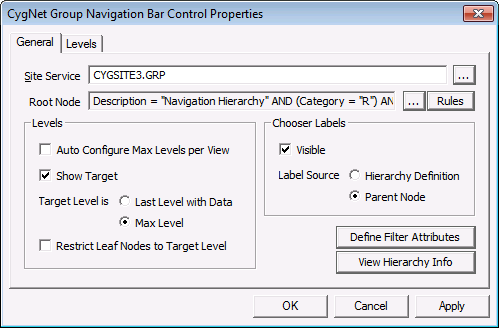
The following table describes General page properties:
| Property | Description |
|---|---|
|
Site Service |
[SiteService] identifies the CVS, Facility Service, or Group Service for the settings. The format for the value is Site.Service. If this field is blank, the Site.Service specified for TheView is used. If Site.Service is defined for both TheView and the object, the value specified for the object is used. |
|
Root Node |
You use the Root Node property to identify elements of the group navigation hierarchy root node. Click … next to the Root Node box to display the Choose Navigation Root Node dialog box, which is used to add a Root Node. For details see To Add a Root Node, below. Click the Rules button to display the Define Navigation Root Filter Criteria dialog box, which is used to add a Root Node Rule. For details, see To Add a Root Node Rule, below. |
|
Levels |
Auto Configure Max Levels per View determines whether drop-down levels are automatically configured or manually configured. If Auto Configure Max Levels per View is selected:
To manually configure the drop-down levels, clear the Auto Configure Max Levels per View check box and go to the Configuring the Drop-Down Levels topic for details. Show Target determines whether the Group Navigation Bar displays the leaf nodes (facilities) of the hierarchy or the last grouping level in the hierarchy.
The Target Level settings specify whether the last level displays the Last Level with Data or the Max Level specified. Restrict Leaf Nodes to Target Level specifies whether leaf nodes can always be targeted, or can be targeted only when their parent nodes are displayed. Select Restrict Leaf Nodes to Target Level if leaf nodes can be targeted only when their parent nodes are displayed. |
|
Chooser Labels |
Select Visible to display labels for levels. Then specify whether you want to use the Hierarchy Definition or the Parent Node description as the Label Source. |
|
Define Filter Attributes |
Click Define Filter Attributes to create an additional way to include facilities. |
|
View Hierarchy Info |
Click View Hierarchy Info to view information for the current hierarchy. |
- Using CygNet Studio in Edit mode, click the Group Navigation Bar tool icon in the Standard Tools palette, then click on the TheView.
- Right-click on the Group Navigation Bar tool you added to open its Property Sheet.
- Click on the ActiveX tab, then click the … button next to (OCXProperties) to display the CygNet Group Navigation Bar Control Properties dialog box.
- If the General page is not displayed, click on the General tab in the CygNet Group Navigation Bar Control Properties dialog box.
- Click the … button next to the Root Node field to display the Choose Navigation Root Node dialog box:
|
Choose Navigation Root Node |
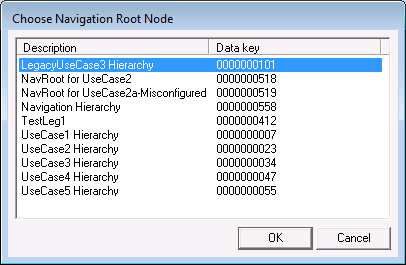
- Select the Root Node from the list and click OK.
- Using CygNet Studio in Edit mode, click the Group Navigation Bar tool icon the Standard Tools palette, then click on the TheView.
- Right-click on the tool to open its Property Sheet.
- Click the ActiveX tab, then click the … button next to (OCXProperties).
- If the General page is not displayed, click on the General tab in the CygNet Group Navigation Bar Control Properties dialog box to display it.
- Click the Rules button to right of the Root Node field to display the Define Navigation Root Filter Criteria dialog box:
|
Define Navigation Root Filter Criteria |
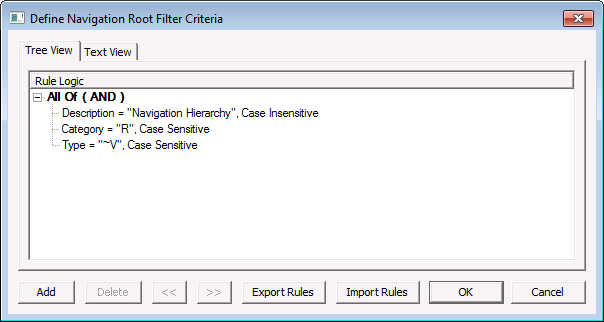
- Click the Add button on the Define Navigation Root Filter Criteria dialog box and begin specifying rules for the filter. For information about CygNet filter rules, see Using CygNet Filter Rules.
Note: If you select the Reference Attribute option for the Comparison Type field, the Comparison Item field will list Group Navigation Bar Custom Attributes.


