Slider Switch Tool
 A Slider Switch Tool object provides a selector for a predefined set of command "value" options. The object must be associated with an enumeration point. The point’s enumeration table defines the set of value options and sets the position of the indicator.
|
Slider Switch Tool Example |
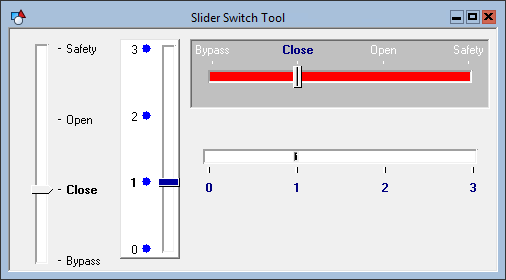
Use the point identifier properties to form a fully qualified CygNet tag string. The point identifier properties are [1:SiteService], [2:Point ID], [3:Long Point ID], [4:Facility ID], and [5:UDC]. If the object is on a templated screen, only use the [5:UDC] property.
The position labels, values, and label order can be based on the table entries or entry descriptions. These are specified by the [PositionLabel], [PositionValue], and [PositionOrder] properties.
|
Slider Switch Tool - Position Options |
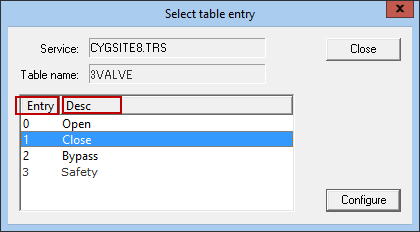
Optionally, the switch can be configured to prompt the user to confirm the command before it is sent.
The pointer can be moved by dragging the pointer, clicking in the track, using the arrow keys, or the Page Up and Page Down keys. The amount of movement for the key options is specified by the KeyArrowStepSize and KeyPageStepSize properties.
The style of the Pointer is defined by the PointerStyle, PointerWidth, and PointerHeight properties. If the style of the pointer is LED, Light Bar, or Bar Color, the color specified by the PointerIndicatorActiveColor is shown when the pointer is being moved.
If the PointerStyle property is set to Bitmap, you can use the PointerBitmap property to specify a bitmap image to use for the indicator.
The orientation of the object can be vertical or horizontal. If you change the orientation, you will also have to adjust the object’s boundary to match. The scale can go left-right, right-left, top-bottom, or bottom-top. The scale is reversed using the ReverseScale property. The number, length, precision, and color of the tick marks can be configured.
The [AlarmElement] property can be set to show the point state color in the object’s Background Color, the Track Color, or not at all (None). When set to None, the color specified for each component is shown. If set to one of the other options, the component color is replaced with the point state color.
The [UseCustomStateColors] property enables the object to use its own custom point state colors. If set to 1 - Yes, the colors used are those defined by the object’s [CustomStateColors] property. If set to 0 - No, the colors are those defined by the TheView’s [CustomStateColors] property.
CygNet Studio also has the following similar tools:

|
Slider object, which displays a sliding scale used to set a constant value. |

|
Slider Tool, which displays a slider used for UIS commands that require an analog value. |

|
Sliding Scale Tool, which displays a slider showing a value within a given span. |
More:
 Slider Switch Tool - Command Name
Slider Switch Tool - Command Prompt
Slider Switch Tool - Properties, Events, and Methods
Slider Switch Tool - ActiveX Properties


