Trend Tool – Configuring Alarm Limits
Note: You can change configuration settings for this tool in Run mode. However, these settings usually only persist for the current runtime session. When you close the CygNet Studio screen on which the tool resides, the tool settings may revert to those originally configured in Edit mode.
The Alarm Limits page enables the set-up and display of horizontal alarm limit lines. These lines show the setpoints configured in the Point Service (PNT) for the point associated with a selected series's UDC.
Alarm limits configured on the Alarm Limits page only appear on the trend if corresponding alarms are configured for the series points in the PNT. For instance, if you want a High Alarm alarm limit to display on a trend for a given series, the series's UDC must be mapped to a point in the PNT that is configured for a High Alarm. The properties for the alarms must be configured for each defined Point Scheme separately.
|
Trend Tool - Alarm Limits Page |
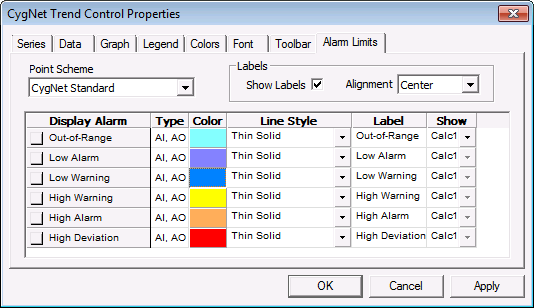
To Display Configured Alarm Limits
- Open the relevant trend in Run mode.
- Right-click on the trend > Properties > Alarm Limits.
- Select the series tag of the series for which you want to display alarm limits.
Alarm Limits Page Properties
The following table lists and describes Alarm Limits page properties.
| Option | Description |
|---|---|
|
Point Scheme |
Defines which Point Scheme is used to display alarm limits. |
| Labels | |
|
Show Labels |
If enabled, displays a descriptive label for each alarm limit activated. |
|
Alignment |
Specifies the placement of the alarm limit label on the trend. |
| Alarm Columns | |
|
Display Alarm |
Check to display this alarm on the trend. The alarm will only appear on the trend if it is active in both the point record and here. |
|
Type |
The point type for the defined alarm. Only Analog Input and Analog Output alarms are displayed, and if the alarms for each type share a description, the configurations are shared and the type will be displayed as 'AI, AO'. |
|
Color |
The color of the alarm limit to be drawn on the trend. Click the color box to select a color for the alarm limit line. |
|
Line Style |
The style of the line to be drawn for the alarm limit. Click the arrow button to select the line style to be used for the alarm line. |
|
Label |
If Show Labels is enabled, the text displayed adjacent to the alarm limit line when shown. The text can be aligned to the right, left, or center of the line. Default text is the alarm description. |
|
Show |
Specifies the alarm value to display. If an alarm has more than one value defined, as in the case of Out-of-Range Alarm in the default CygNet Standard Point Scheme, you may configure either value to display or both values to display. For alarms with one value, only the Calc 1 value is available. |
Scripting
CxTrend contains some functions to modify Alarm Limits settings through script:


