Trend Tool – Configuring Font
Note: You can change configuration settings for this tool in Run mode. However, these settings usually only persist for the current runtime session. When you close the CygNet Studio screen on which the tool resides, the tool settings may revert to those originally configured in Edit mode.
The Font page specifies the size and style of fonts for various trend elements. Font settings are not inherited from TheView.
|
Trend Tool - Font Page |
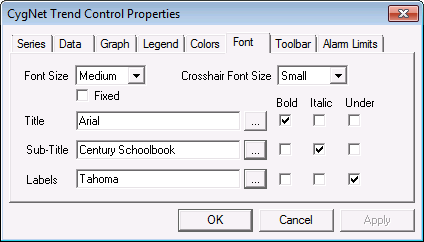
Font Page Properties
The following table lists and describes Font page properties.
| Property | Description |
|---|---|
|
Font Size |
Font size is relative to the size of the graph. You can select Small, Medium, or Large. If Fixed is enabled, trend fonts do not auto-resize if you change the size of the trend. See also FontSize. |
|
Crosshair Font Size |
The Crosshair Font Size property specifies the font size of the value that is displayed when using the Display Value at Crosshair feature. See also CrosshairFontSize. |
|
Fixed |
Check to prevent fonts from increasing in size as the trend is resized. See also FixedFonts. |
|
Title |
You can specify the font and style for the Title by using the Browse button and checking or unchecking the Bold, Italic, and Under boxes. See also TitleFont, TitleFontBold, TitleFontItalic, and TitleFontUnderline. |
|
Sub-Title |
You can specify the font and style for the Sub-Title by using the Browse button and checking or unchecking the Bold, Italic, and Under boxes. See also SubTitleFont, SubTitleFontBold, SubTitleFontItalic, and SubTitleFontUnderline. |
|
Labels |
You can specify the font and style for the Labels by using the Browse button and checking or unchecking the Bold, Italic, and Under boxes. See also LabelFont, LabelFontBold, LabelFontItalic, and LabelFontUnderline. |


