Using a Radio Button to Select a Background Color
The following example shows how to configure a Radio Button object to have three options, and then to use the options to set the BackColor property of the View.
Note: This example reads the radio button control’s Value property to determine which item is selected. In some situations, you may want to programmatically set which item is selected. This can be done by setting the Value property to the index of an item in the list.
To Configure a Radio Button Object to have Three Options and Set the BackColor Property
- Add a Radio Button object to the View. Set its (ObjectCode) to "rdoColor."
|
Change BackColor |
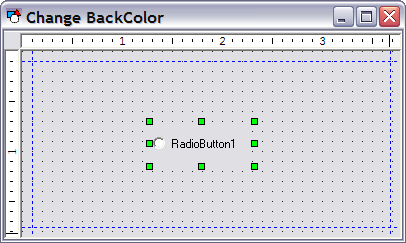
- Click ListItems property. Rename the default list item from "RadioButton1" to "Red."
- Use the Add button to add two more items: "Blue" and "Magenta."
|
List Choices |
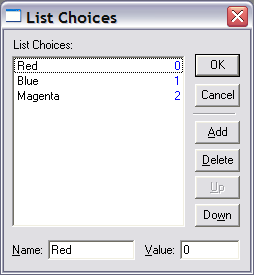
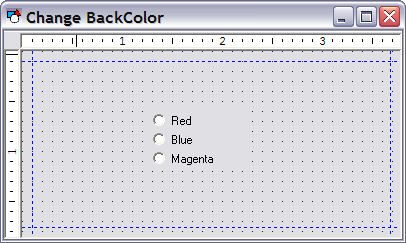
- Click OK to save the list items. Notice that the ListItems property now says "3 Item(s)" and the control looks like that shown below. If you save the screen and switch to Run mode, the buttons will behave like regular option buttons, allowing you to select only one at a time. Since there is no script attached to the object, clicking the button will have no effect.
|
Radio Button |
- Add the following code to the Radio Button’s (rdoColor) EventInitialize event. This sets its Value property to 0, which in turns sets the background color of TheView to red when the screen is opened in Run mode.
Sub rdoColor_EventInitialize()
Dim This : Set This = rdoColor
This.Value = 0
End Sub- Add the following code to the Radio Button’s (rdoColor) EventChange event. This code checks the rdoColor’s Value property and sets TheView’s background color accordingly. Colors are defined by VBScript color constants (vbRed, vbBlue, and vbMagenta). Note that the Value property attached to each ListItem can be changed using the ListItem’s dialog box, but in this case, you are using the default zero-based values.
Sub rdoColor_EventChange()
Dim This : Set This = rdoColor
If This.Value = 0 Then
TheView.Color = vbRed
Elseif This.Value = 1 Then
TheView.Color = vbBlue
Elseif This.Value = 2 Then
TheView.Color = vbMagenta
End If
End Sub- Save the file and switch to Run mode. Click the radio buttons to change the background color of TheView. Note that when the screen starts, the background is red by default, even though no code was added to an initialize event to set the color to red. This is a result of the EventChange script being called during initialization in addition to user changes to the control.
The example above reads the radio button control’s Value property to determine which item is selected. In some situations, you may want to programmatically set which item is selected. This can be done by setting the Value property to the index of an item in the list.


