Using the WatchList Tool in Run Mode
In Run mode, right-click on the WatchList in a blank area to add points. The right-click options applicable to the WatchList are described in the tables below.
|
Context Menu in Run Mode |
Configuring New Points
When adding a new point to the Watchlist the following options are available.
| Context Menu Option | Description | |
|---|---|---|
|
Add Point… |
Add a point to the WatchList from the Select Point dialog box. See Watched Point Properties below. |
|
| Add Reminder… |
Add a reminder to the Watchlist. See Configuring a Timed Reminder. |
|
|
Update |
Update all points from the cache. |
|
|
Clear |
Clear all points from the WatchList. |
|
|
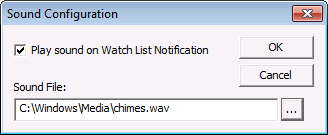
Sound Configuration… |
Select to enable the sound and specify the sound file. Click OK.
|
|
|
Use Alternate Units |
Check to enable showing alternate unit point values. |
|
| Select Print Range… | Specify the desired range in the Select Print Range dialog box. Click OK. | |
| Print Report… | Select to print the whole WatchList. Click OK. |
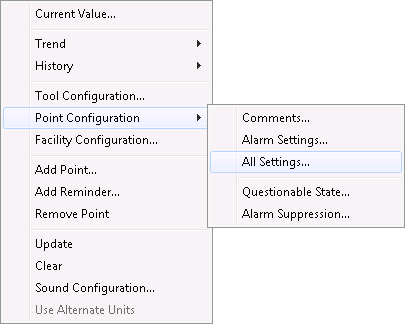
Configuring Existing Points
When viewing a previously added point the following options are available.
| Context Menu Option | Description |
|---|---|
|
Current Value |
Select to view and/or edit the point's Current Value on the Point Properties dialog box. |
|
Trend |
Select to trend the point's values on a Default Trend. Options include:
See Tool-Specific Trends for configuration details. |
|
History |
Select to view and/or edit the point's History Values or Alarm History. |
|
Tool Configuration… |
Change the Watched Point Properties. See settings below. |
|
Point Configuration |
Select to view or edit various point configuration record properties for the point:
See Configuring Alarm Settings for more information. |
|
Facility Configuration |
Select to view and/or edit the point's facility configuration. |
|
Add Point… |
See above. |
|
Add Reminder… |
See above. |
|
Remove Point |
Remove a point from the WatchList. |
|
Update |
See above. |
|
Clear |
See above. |
|
Sound Configuration… |
See above. |
|
Use Alternate Units |
See above. |
Watched Point Properties
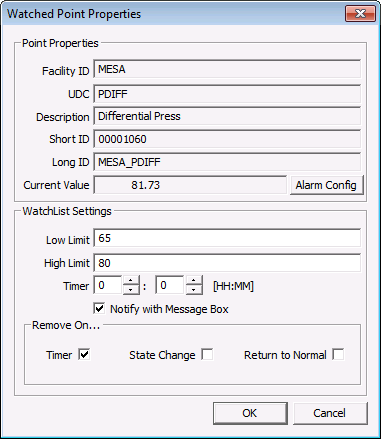
After selecting the point to add to the WatchList configure WatchList Settings on the Watched Point Properties dialog box.
|
Watched Point Properties |
| Property | Description |
|---|---|
|
Low Limit |
Specify the low limit for the value for the point to trigger the notification. |
|
High Limit |
Specify the high limit for the value for the point to trigger the notification. |
|
Timer |
Specify the time to trigger the notification. |
|
Notify with Message Box |
Select to notify the user with a Message Box. |
| Remove On | |
|
Timer |
Select to automatically remove the point from the WatchList when its timer expires. |
|
State Change |
Select to automatically remove the point from the WatchList when its state changes. Note: State Change is based on alarm setpoints, not WatchList configuration. |
|
Return to Normal |
Select to automatically remove the point from the WatchList when its state returns to normal. Note: Return to Normal is based on alarm setpoints, not WatchList configuration. |
More:


