Workspace
A Workspace is a collection of CygNet Studio screens. The purpose of a Workspace is to allow you to open a group of screens in the same configuration, and to optionally set default properties for those screens.
When you save a Workspace, it saves the name of each screen that is open, the screen’s storage location, its operational mode (Run or Edit), its position in the Studio window, its [SiteService] and [Facility], and its [Type]. It also saves the stack order of the screens.
Screen Type
The [Type] property of a screen determines the screen’s position and size within the Workspace. Each time a screen of the same type is opened, it is positioned in the same location and given the same dimensions as its predecessor of the same type. The idea is that only one screen of a given type will be open in the Workspace. You can have multiple screens of the same type opened, but as you open them they will be stacked directly on top of one another.
Workspace Properties
A Workspace also has its own set of properties. These properties, which are optional, serve as defaults for all of the workspace’s member screens. The Workspace properties are accessed via the Workspace Properties item on the File menu and are described below.
|
Workspace Properties Dialog Box |
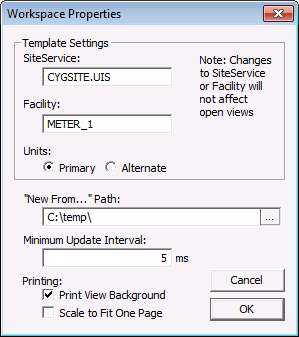
| Property | Description |
|---|---|
| Template Settings | |
|
SiteService |
The default [SiteService] for all screens in the Workspace. If a screen has its own [SiteService] defined, the value of this property will be ignored. Also, changes to this property will not be applied to currently open screens, but will be applied as screens are opened. |
|
Facility |
The default [Facility] for all screens in the Workspace. If a screen has its own [Facility] defined, the value of this property will be ignored. Also, changes to this property will not be applied to currently open screens, but will be applied as screens are opened. |
|
Units |
The default [Units] (engineering units) for all screens in the Workspace. A screen’s [Units] property must be set to 0 - Workspace or the value of this property will be ignored. |
| Other Settings | |
|
"New From…" Path |
The default directory where a user can put a set of prototype .csf files for use as a starting point in building new .csf files. When the directory is specified in the Workspace Properties dialog box, New From… appears as an available option on the File menu. |
|
Minimum Update Interval |
The default [UpdateInterval] for all screens in the Workspace. The value of this property takes precedence over the value defined on a screen. Changes are applied immediately to all open screens. |
|
Print View Background |
Enables printing of the background color when a screen is printed. |
|
Scale to Fit One Page |
Enables scaling of a large screen to fit on one page when printing. |
Saving/Opening a Workspace
A Workspace can be saved to or opened from the Blob File System or the Standard File System.
To Open or Save a Workspace
- On the File menu, click Workspace.
- Click the action you want to perform.
To Close a Workspace
- On the File menu, click Workspace then click Close Workspace.
- Close CygNet Studio or CygNet Vision.
Workspace Settings
Default Workspace
The Settings item on the Option menu provides a method for you to specify a default workspace to open each time you open CygNet Studio/Vision.
The options for the Default Workspace are:
- Blank — open CygNet Studio/Vision without a Workspace.
- Last Opened Workspace — open the Workspace that was last opened.
- File — the Workspace specified file. This is for a Workspace file (.csw), not a CygNet Studio file (.csf).
Last Opened Workspace and File take precedence over version management command-line parameters for the startup screen.
Save On Close
The Settings item on the Option menu provides a method for you to save or confirm Workspace changes. The options are:
- Prompt — prompt to save changes.
- Always — always save changes without prompting.
- Never — close the Workspace and discard changes.
Scripting the Workspace
See Workspace Object for information about interacting with the Workspace’s member screens via script.


