Building a Blueprint to Configure Facilities
In this topic you will configure the facilities for your system. This will include defining facility types and the filters that define those types, the points that correspond to each facility type, the required attributes for each facility, and the UIS commands that will update the facility’s points.
|
Facility Definitions |
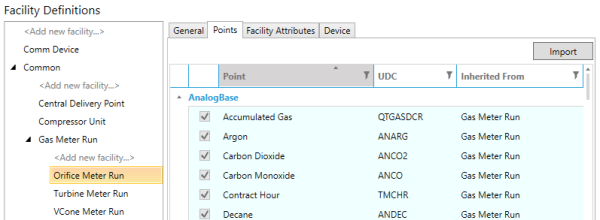
The Facility Definitions work area is broken into two sections: the facility tree on the left and the tabbed property controls on the right.
The tree shows a list of all facility definitions in your blueprint. To add a new facility definition, click <Add new facility…> and enter a unique name.
Facility Definition Inheritance
Facility definitions can inherit from each other. This feature is used to help streamline the process of creating facility definitions with similar settings. You can inherit Points, Facility Attributes, and UIS Commands.
For example, we create a facility definition called Common. Common has only a single point: Facility Info, or SYFACINFO. Most of our facilities in the CygNet system have that point, so rather than add it to each definition, we can add it to Common and then have other facility definitions inherit from Common.
You can also create multiple levels of inheritance. In the example above you can see an example. We have a facility definition called Orifice Meter Run, which inherits from Gas Meter Run, which inherits from Common. Configuration will propagate down the tree, allowing you to group and quickly configure similar facility definitions.
The tabbed property controls on the right are separated into four groups; each is describe below:
General
The General tab has two sections: Inheritance and Filter.
|
Facility Definitions — General Tab |
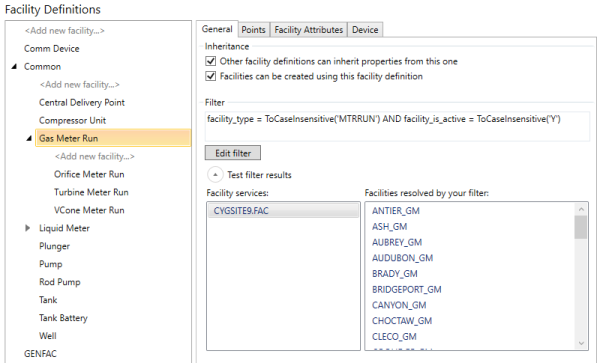
In the Inheritance section, there are two options:
- Other facility definitions can inherit properties from this one — This setting determines if other facility definitions can inherit the settings from this definition. You will be able to add child facility definitions to the selected definition only if this check box is checked.
- Facilities can be created using this facility definition — This setting designates which facility definitions will correspond to facilities in your system (for example, a definition for Well facilities) and which are strictly in the blueprint to help group facility definitions and share similar settings (for example, Common as described above). Enabling this setting will enable the Filter section below.
In the Filter section, you specify what it means to be a facility that is included in this definition. For example, if in your system the facility type attribute is sufficient to determine the different kinds of facilities you need to represent, you can use that attribute to build your filters:
- Well facilities: facility_type = ToCaseInsensitive('WELL')
- Pump facilities: facility_type = ToCaseInsensitive('PUMP')
For facilities that use multiple attributes, you can build more complex filters:
- Orifice Meter Run facilities: facility_type = ToCaseInsensitive('MTRRUN') AND facility_table1 = ToCaseInsensitive('ORIFICE')
- Turbine Meter Run facilities: facility_type = ToCaseInsensitive('MTRRUN') AND facility_table1 = ToCaseInsensitive('TURBINE')
Click Edit filter to modify the facility filter.
Click Test filter results to see the facilities resolved by the configured filter.
Points
On the Points tab, you configure which points should be on the facilities that meet the facility filter.
|
Facility Definitions — Points Tab |
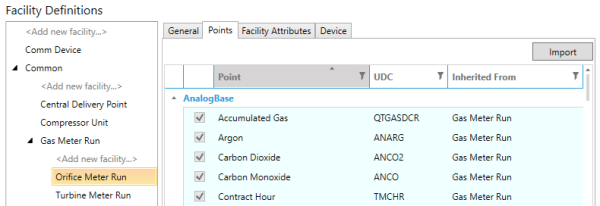
The list of points you can choose to select correspond to your list of point definitions. If you want to include a point for a facility and it is not in the list, you need to add a point definition for that point first. Then add it to your facility.
Note: Point definitions are categorized by their point base as configured in the Points section of the Designer. You can click the arrow next to each group name to collapse / expand the entire group.
Import Points from Facilities
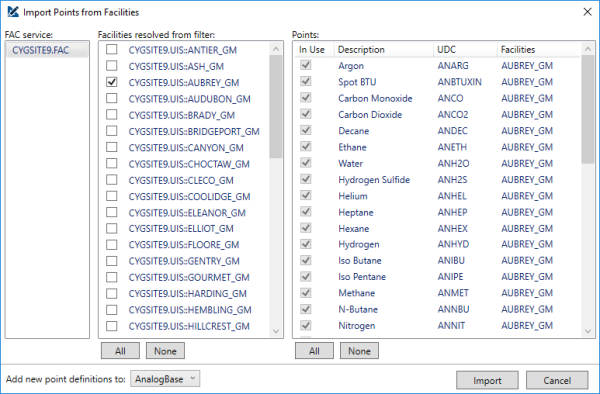
You can also import points for the selected facility from a running site by clicking Import. This will automatically create point definitions for your imported points; it won’t, however, import point attributes for those points. To import attributes, go to the Points section and import per point definition.
In the Import Points from Facilities dialog box, select the Facility service you want to import from, then the facility or facilities you want to see the points for, then the points you want to import. Lastly, select which point base you want to add the imported points to.
|
Import Points from Facilities |
Facility Attributes
On the Facility Attributes tab, you specify which facility attributes are required for this facility.
|
Facility Definitions — Facility Attributes Tab |
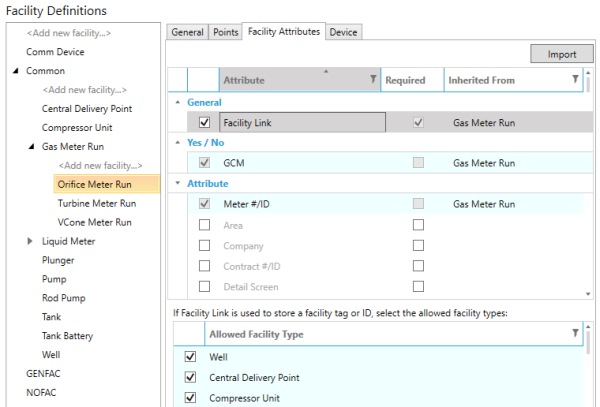
The list of attributes to choose from includes only those attributes enabled in the Facility Attributes section of the Designer.
For attributes whose value will represent a facility tag or ID, you can optionally specify what facility types are allowed. For example, if your Gas Meter facilities always link to a Well facility, you can require the Facility Link attribute’s facility tag for your Gas Meters always correspond to a Well.
Import Attributes from Facilities
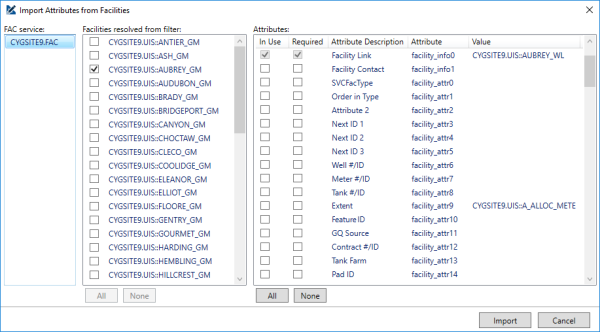
You can import settings for your attributes from a running site by clicking the Import button in the top right. You will not be importing facility attribute definitions with this step; instead you will be using the running site’s facilities to give you appropriate context in deciding which facility attributes should be enabled for this facility definition.
In the Import Attributes from Facilities dialog box, select a Facility service to populate the list of facilities to choose from. That list will be further filtered by the selected facility definition’s facility filter. Then select the facility or facilities to reference, then enabled and require the appropriate attributes using the appropriate check boxes.
|
Import Attributes from Facilities |
Device
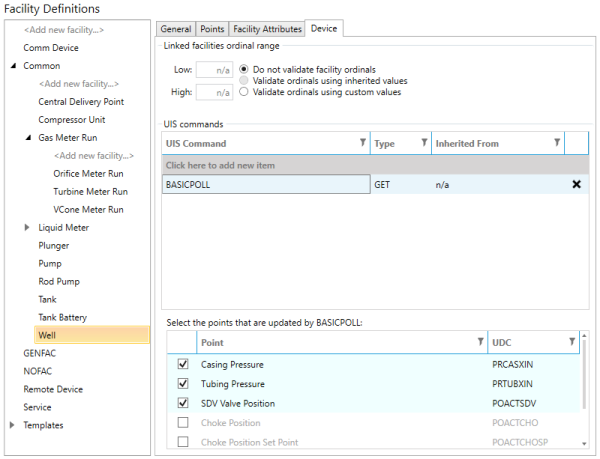
On the Device tab you will specify some basic connectivity between your facility definition’s points and the UIS command’s data groups and the acceptable ordinal ranges for linked facilities.
If you assign points to a UIS command in your blueprint, validation will ensure that the UIS command exists, and that one of its associated data groups has point mappings for each of the points you selected.
|
Facility Definition — Device Tab |
Linked Facility Ordinals
You can specify the correct range for linked facility ordinals.
|
Linked facility ordinals |
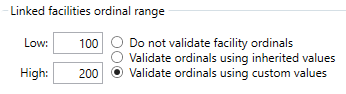
This range can be specified per facility definition or inherited from a parent definition.


