Building a Blueprint to Configure Facility Attributes
In this topic you will configure which facility attributes are enabled, what descriptions they will have, what categories they use, and optionally additional validation done against the value of the attribute.
|
Facility Attribute Definitions |
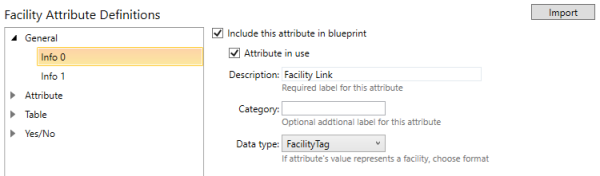
The Facility Attributes Definitions work area is broken into two sections: a tree on the left that separates the facility attributes into groups: General, Attribute, Table, and Yes/No. Under each group, attributes that are in use are marked in bold text. By selecting an attribute you can configure additional options in the area on the right:
- Include this attribute in blueprint — Click to add this attribute to your blueprint. Otherwise this attribute will be ignored during validation
- Attribute in use — Click to mark this attribute as in use by your CygNet site
- Description — Indicates the string to describe the expected use for this attribute
- Category — Indicates a string for additional categorization of attributes. This field is not commonly used.
- Data type — If the value of this attribute is expected to represent a facility (for example, in CygNet for Production the Info 0 attribute is used to link facilities together so that a meter can reference its well, etc.) then you can specify if the value should be a Facility Tag (in the format: SITE.SERVICE:FACILITY_ID) or just a FacilityID. The syntax and existence of the facility will be verified during validation. This field is not available for Yes/No attributes.
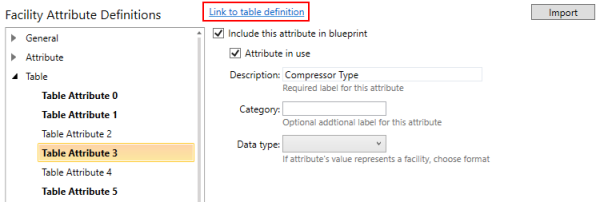
Link to Table Attribute
For table attributes, you can use the Link to table definition link to quickly move back-and-forth between the facility table attribute and its corresponding system table definition.
|
Facility Attribute Definitions — Link to table definition |
Import Facility Attributes
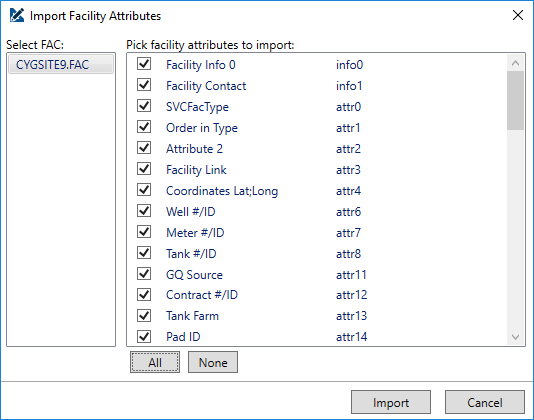
You can import your facility attribute settings from an existing system by clicking Import in the top right of the work area.
To import, select the Facility service you wish to import from, then the attributes you wish to import. You can click All to select all attributes for the selected service. Then click Import to add these attributes and their settings to your blueprint.
Note: Since data type is not stored in CygNet, this will have to be configured manually after an import.
|
Import Facility Attributes |