Validating Your System
One of the primary uses for your blueprint is to validate a CygNet site against your rules. You can run that validation through the Designer, which will assist you in resolving errors, or through the API which allows you to schedule your validation.
Use the CygNet Designer to Validate Your System
Once you build or load your blueprint in the Designer, you can validate via the button in the toolbar. Once the validation completes, the Validation Results dialog box will open.
|
Validation Results |
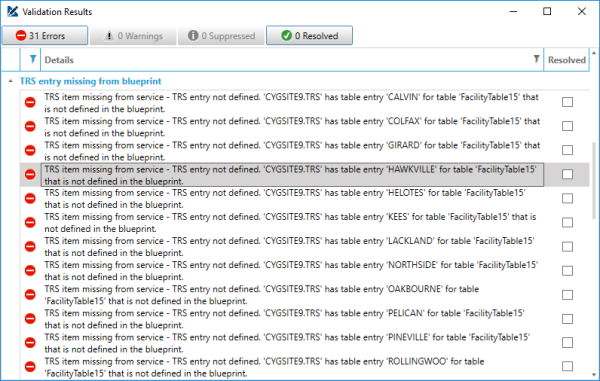
The results returned will be grouped by type:
|
Validation Results by Type |
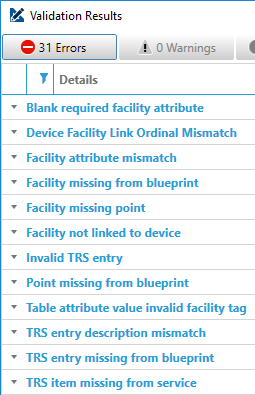
As you can see in the image above, those results are grouped as TRS entry missing from blueprint.
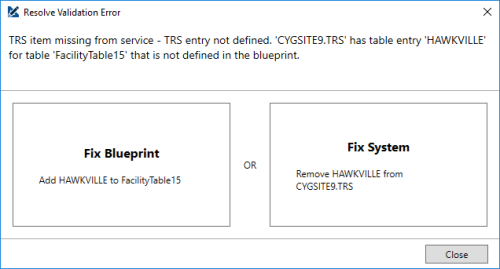
Double-clicking on any result will attempt to help you resolve the issue. Most issues can either be a problem with your blueprint, or with your system, and we will prompt you to select which applies in this case.
Note: Some resolution helpers, such as deleting some records, require appropriate ODBC access.
|
Resolve Validation Error |
You can also filter errors, warnings, suppressed, and resolved results by clicking the associated button at the top of the dialog box.
Use the API to Validate Your System
You can also execute validation via VBScript from a Studio screen or the HSS. This can be particularly helpful if you configure the validation to write status to a facility and schedule validation to run on a regular basis. That will allow you to use standard CygNet alarming and notification to be alerted if anything in your system becomes non-compliant with your blueprint.
The results from the validation will be written as XML to the location you specify. You can review the XML to see what errors have been generated, or run the Designer’s validation to assist in fixing up any problems.
Note: The Validate() function requires an XML file that describes the options to use in validation. This file can be created manually or via the Designer. See the options.xml file in the \Designer folder where Designer is installed.
Be aware that depending on the size of your system and the complexity of your blueprint, validation can be a lengthy process. Consider using the Job Runner to off-load the work to a separate thread.
The API for blueprint system validation is the CygNet.AE.BlueprintAPI assembly, which is installed with the Designer.
Assembly: CygNet.AE.BlueprintAPI
Namespace: CygNet.AE.BlueprintApi
Class: Validation
Method: Validate()
Parameters:
strBlueprintPath — path to the .blu file to use in validation
strValidationOptionsPath — path to the options XML file for validation (see note above)
strResultOutputPath — path to write the results of the validation
Example
|
Dim objValidation Set objValidation = CreateObject("CygNet.AE.BlueprintAPI.Validation")
objValidation.Validate "C:\Blueprints\blueprint.blu", "C:\CygNet\Utilities\Designer\options.xml", "C:\Results\results.xml" |


