Configuring Reports — Columns
The Columns page of the New/Edit Report Configuration dialog box defines the column components for the type of report.
The attributes of the columns for the report depend on the type of report. Current Value Reports, Historical Value Reports (One value per row), and Historical Value Reports (Group all values by facility) all have slight differences in their report column configurations.
Every report, no matter the type, must have at least one column defined.
Current Value Report Columns
|
Current Value Report columns |
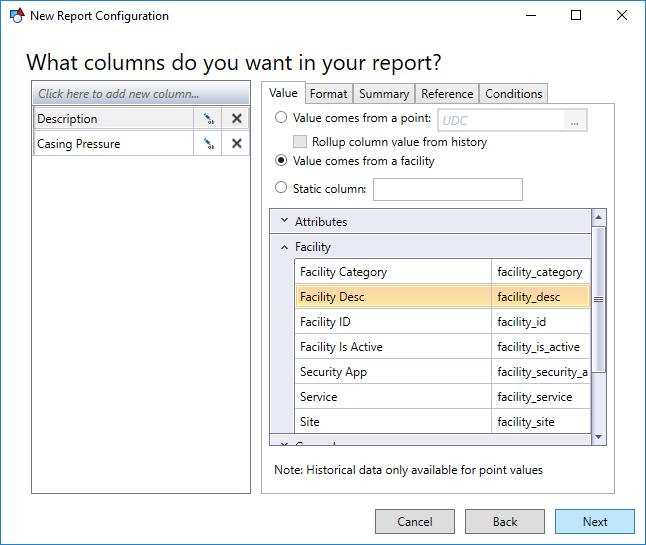
For Current Value Reports, columns have five components:
- Name — The name of the column. This appears in the column header area of the final report. It is required.
- Value — The value that will appear in this column in each row. Any point attribute to be selected as a column value. The value can either come from a point (e.g., Primary Value, Timestamp, etc.), from the facility (Facility Description, Facility Type, etc.), or can be static text. Value selection is required.
- Point value requires an associated UDC. It can be the current value property or a rollup of historical values for the point.
- Click … on the UDC drop-down menu to open the CygNet UDC Selector dialog box. You can sort on the UDC and Description columns to find the desired UDC. Select the CVS, UDC category, and UDC.
- Select any point or value-based attribute to be added as a column value.
- For a historical rollup, select a value-based attribute, or primary or alternate value.
- Point value requires an associated UDC. It can be the current value property or a rollup of historical values for the point.
- Format — Allows you to specify the data type (String, Number, or Date/time) for the column and optionally configure additional formatting.
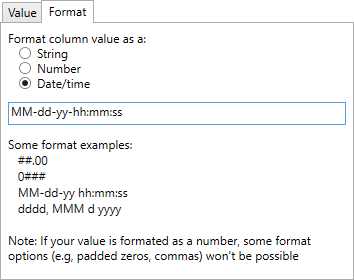
Column Format Date/Time
- Reference — You can also use facility referencing to include data from linked facilities in a column. For example, if the report was displaying information from a Well facility but you wanted to display data from a referenced Meter facility, you would set the appropriate filter and facility attribute.
- Reference filter. A string that describes the link between facilities. For example:
- facility_type=WELL
- facility_type=MTRRUN;facility_table0=PROD
- facility_type=WELL:facility_type=MTRRUN;facility_table0=PROD
- Reference facility attribute. The attribute of the facility that contains the referenced facility's tag.
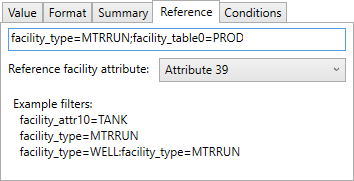
Column Reference
- Reference filter. A string that describes the link between facilities. For example:
- Conditions — Allows you to specify value conditions that must be satisfied in order for it to be reported. For example, you can create a device report based on a critical communications state. You can specify which conditions of the value that must be true in order for the value to be reported. In the second screen example below, there is a configuration of a column called Tubing Pressure where the primary value must be greater than or equal to 160 and less than or equal to 190. All conditions must be true in order for the value to be reported. If multiple columns are configured with conditions, all conditions across all columns must be true.
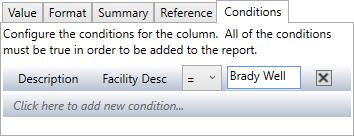
Column Conditions
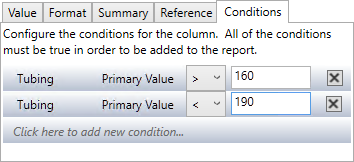
Column Conditions
Click Next to move to the next page of the New/Edit Report Configuration dialog box.
Historical Value Report Columns (One value per row)
|
History Value Report columns — One value per row format |
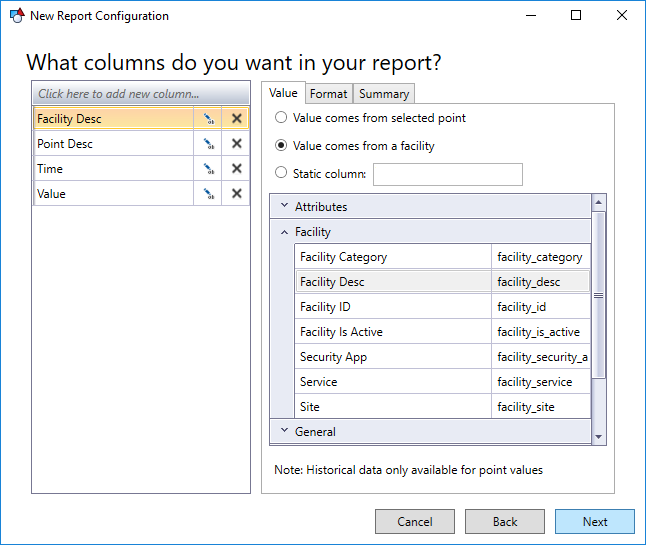
For Historical Value Reports using the One value per row format, columns have three components:
- Name — The name of the column. This appears in the column header area of the final report. It is required.
- Value — The value that will appear in this column in each row. Any point attribute to be selected as a column value. The value can either come from a point (e.g., Primary Value, Timestamp, etc.), from the facility (Facility Description, Facility Type, etc.), or can be static text. Value selection is required.
- Point value requires an associated UDC. It can be the current value property or a rollup of historical values for the point.
- Click … on the UDC drop-down menu to open the CygNet UDC Selector dialog box. You can sort on the UDC and Description columns to find the desired UDC. Select the CVS, UDC category, and UDC.
- Select any point or value-based attribute to be added as a column value.
- For a historical rollup, select a value-based attribute, or primary or alternate value.
- Point value requires an associated UDC. It can be the current value property or a rollup of historical values for the point.
- Format — The format for numeric column values. Follows existing VBScript formatting rules (e.g., #,#00.00). This is not required.
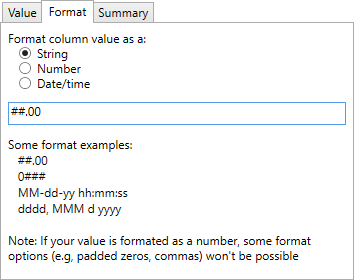
Column Format String
-
Summary — Select and order the summary calculations you want to appear at the end of this column. Summary calculation labels are optional.
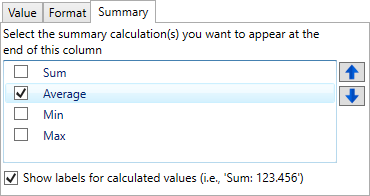
Column Summary
Click Next to move to the next page of the New/Edit Report Configuration dialog box.
Historical Value Report Columns (Group all values by facility)
|
History Value Report columns — Group all values by facility |
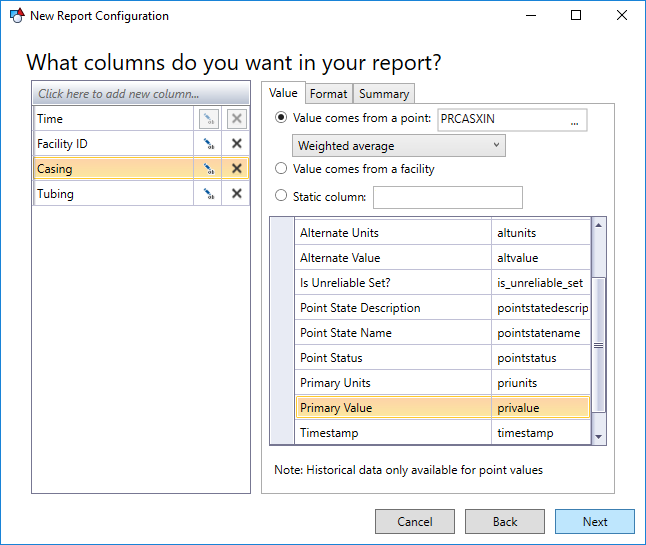
For Historical Value Reports using the Group all values by facility format, columns have three components:
- Name — The name of the column. This appears in the column header area of the final report. It is required.
- Value — The value that will appear in this column in each row. Any point attribute to be selected as a column value. The value can either come from a point (e.g., Primary Value, Timestamp, etc.), from the facility (Facility Description, Facility Type, etc.), or can be static text. Value selection is required.
- Point value requires an associated UDC. It can be the current value property or a rollup of historical values for the point.
- Click … on the UDC drop-down menu to open the CygNet UDC Selector dialog box. You can sort on the UDC and Description columns to find the desired UDC. Select the CVS, UDC category, and UDC.
- Select any point or value-based attribute to be added as a column value.
- For a historical rollup, select a value-based attribute, or primary or alternate value.
- Point value requires an associated UDC. It can be the current value property or a rollup of historical values for the point.
- Format — The format for numeric column values. Follows existing VBScript formatting rules (e.g., #,#00.00). This is not required.
Column Format Date/Time
Time is required as the first column for reports using this format. You can configure the format for this column but not its value.
Click Next to move to the next page of the New/Edit Report Configuration dialog box.


