CygNet BSAP Configurable Data Group Migration Utility
Note: The BSAP EIE device-level data group (formerly called "Device Specific Data Group") is now called the "Configurable Data Group" (cfgBSAP). CygNet v8.5.0 or later requires that any BSAP device-specific data groups be converted to the new "Configurable Data Group" type. The cfgBSAP data group is an ordinalized data group.
The BSAP EIE offers the ability to add data groups on an ad hoc basis to a device instance without configuring them first in the device template file. This functionality, formerly offered by the "Device Specific Data Group", is now handled through the "Configurable Data Group" (cfgBSAP) data group. The BSAP Configurable Data Group Migration utility (BSAPMigration.exe) converts any "Device Specific Data Group" to the new "Configurable Data Group" (cfgBSAP). UIS commands using the previous device-specific data groups can also updated.
Note: The data group type name of cfgBSAP cannot be changed by the user.
For more information about the BSAP "Configurable Data Group" (cfgBSAP), see Configuring Array-Related Data Groups and Configuring Signal-Related Data Groups.
The BSAP Configurable Data Group Migration utility is stored in the CygNet\Bin directory (BSAPMigration.exe) on the host server. To start the utility, use Windows Explorer to browse to the directory and double-click the program icon.
Important: The BSAP Configurable Data Group Migration utility requires that the Microsoft .NET Framework is installed on the computer where the utility is run, in accordance with the CygNet system requirements. See the CygNet v9.8 System Requirements for more information.
|
Click the thumbnail to see |
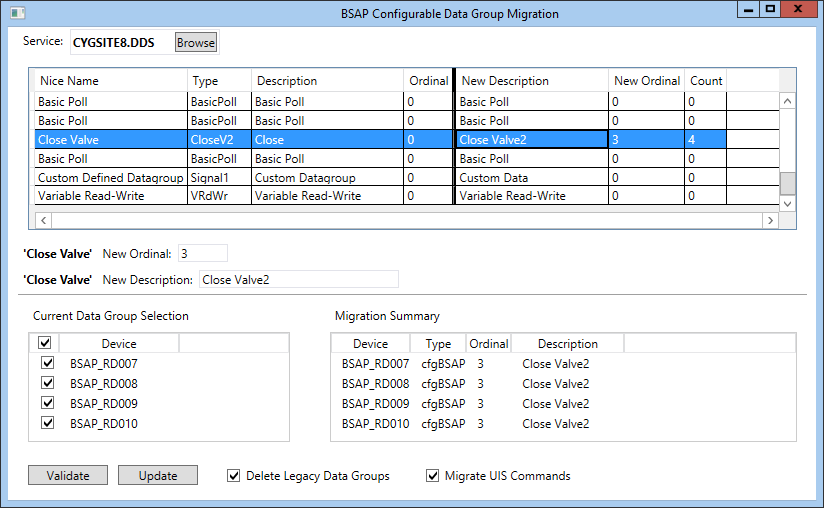
For more information, see the subsections below:
- To Migrate a Device-Specific Data Group to a Configurable Data Group
- BSAP Configurable Data Group Migration Utility Properties
To Migrate a Device-Specific Data Group to a Configurable Data Group
- Go to the CygNet\Bin directory on the host server and open the BSAP Configurable Data Group Migration utility (BSAPMigration.exe).
- Click Browse to select the DDS containing the data groups to be migrated. The utility populates with a list of BSAP device-specific data groups.
- Select the device-specific data group to be migrated. The fields on the left side of the screen display the current information for the data group. Fields on the right show the results after migration.
- If desired, enter a different description either by double-clicking on the row in the New Description column or by typing in the New Description box below the list.
- If necessary, change the ordinal number either by double-clicking on the row in the New Ordinal column or typing in the New Ordinal box below the list.
- Select the devices that you want to include from the list of devices in the Current Data Group Selection pane by clicking the box next to each device. Checking the box in the header row selects all listed devices.
- To delete legacy data groups from the migration, check Delete Legacy Data Groups.
- To enable migration of UIS commands, check Migrate UIS Commands. To disable UIS command migration, leave the box unchecked.
- Review the list of devices in the Migration Summary section.
- Click Validate to identify any conflicts for the selected devices prior to committing the change. The outcome of the validation displays either the Validation Passed or the Validation Failed dialog box. Make note of any conflicts and click OK to close the dialog box.
- Resolve any conflicts, if any, and revalidate the changes.
- When all issues are resolved, click Update to commit the changes.
- Click Close to exit the utility.

BSAP Configurable Data Group Migration Utility Properties
The following table lists and describes the various properties of the BSAP Configurable Data Group Migration utility.
| Property | Description |
|---|---|
|
Service |
Click Browse to select the DDS containing the data groups to be migrated. |
|
Nice Name |
Displays the nice name of the device-specific data groups intended for migration. When migrated, nice name is "Configurable Data Group" and cannot be changed. |
|
Type |
Displays the data group type of the device-specific data groups intended for migration. When migrated, data group type is cfgBSAP and cannot be changed. |
|
Description |
Additional description field beyond the Type field. |
|
Ordinal |
The ordinal number of the data group. |
|
New Description |
Free-form user-defined description for the converted data group. Displayed in both the New Description column and field. |
|
New Ordinal |
Displayed in both the New Ordinal column and field. Note: The "Configurable Data Group" is an ordinalized data group. The user must select an ordinal that does not conflict with another cfgBSAP data group ordinal already used in the device. |
|
Count |
The number of selected devices that contain the data group to be migrated. |
|
Current Data Group Selection |
Displays a list of devices that contain the selected data group. select the box next to each device to select a device for data group migration or check the header box to select all devices listed. |
|
Migration Summary |
Displays the list of devices that were selected in the Current Data Group Selection pane. Devices can be cleared from this section by unchecking the box next to the device in the Current Data Group Selection pane. |
|
Validate |
Click to validate the changes. Doing so identifies any conflicts for the selected devices prior to committing the change. |
|
Update |
Click to commit the changes. |
|
Delete Legacy Data Groups |
Provides the option to delete legacy data groups when migrating. |
|
Migrate UIS Commands |
Provides the option to enable or disable migration of UIS commands. |
Log File Format
Logged information for the BSAP Configurable Data Group Migration Utility is written to the BSAPMigration001.csv file stored in the CygNet\Bin directory on the host server. Note that a comma-separated values file is best viewed using a spreadsheet program such as Microsoft Excel.

