CygNet CRC Generator Utility
Warning: This is an unsupported utility. Use this utility at your own risk. It is an advanced diagnostic tool; it does not check security. Troubleshooting implications of each piece of information produced by the CygNet CRC Generator Utility is outside the scope of this document. For a simpler and supported alternative to the CygNet CRC Generator Utility, see the Communications Data Viewer in CygNet Explorer.
The CygNet CRC Generator utility (CrcGenerator.exe) is a protocol analyzer used to troubleshoot field device communication responses. It can be used to determine if a response returned from a field device has meaningful data in it, if the response is formatted correctly, and if the response has noise in it. It can also perform ad hoc Cyclic Redundancy Check (CRC) calculations. Enter byte data into CygNet CRC Generator Utility and manipulate the data to troubleshoot communication issues.
|
Click the thumbnail to see |
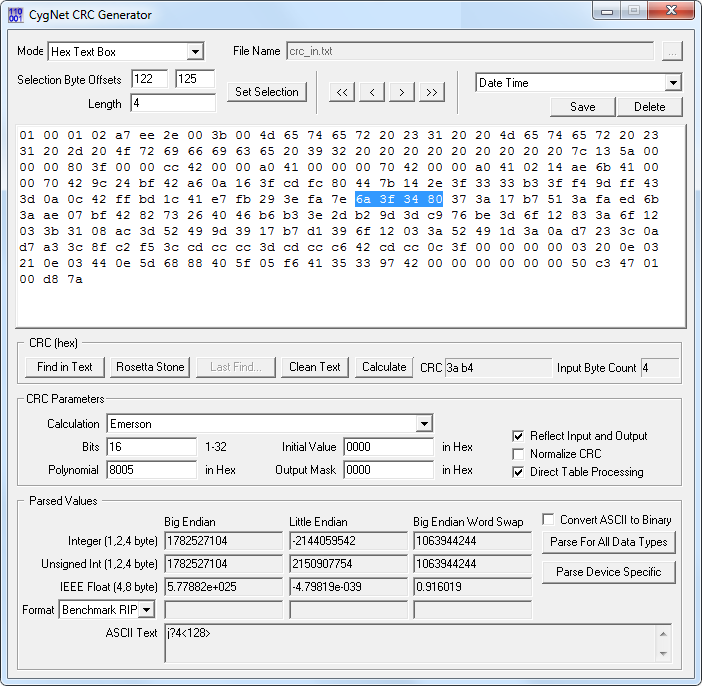
CygNet CRC Generator utility is stored in the CygNet\Utilities directory (CrcGenerator.exe) on the host server. To start the utility, browse to the directory using Windows Explorer and double-click the program icon.
Note: You can also set up this utility to be installed and launched (started) via CygNet Client Installer so that the application can be version managed. See Version Management for instructions on how to do this.
To Use the CygNet CRC Generator Utility
- Go to the CygNet\Utilities directory on the host server and open the CygNet CRC Generator Utility (CrcGenerator.exe).
- Select the appropriate byte source from the Mode drop-down menu to correctly enable the text box or enable the file Browse button to search for an import file.
- Select the remote device type from the Calculation drop-down menu in the CRC Parameters area to ensure the appropriate algorithm is used to generate CRC calculations. The CRC Parameters options change depending on the remote device driver selected for the Calculations drop-down menu. Any changes made to CRC Parameters override the appropriate CRC algorithm. CygNet does not recommend altering any of these settings.
- Highlight hex bytes in the large text box to view converted values in the Parsed Values area. Select different sets of bytes to display different converted values.
CygNet CRC Generator Utility Properties
The following table lists and describes properties of the CygNet CRC Generator Utility.
| Property | Description |
|---|---|
|
Mode |
The Mode field defines the way bytes are read. Options include:
|
|
File Name |
The name of the file to import bytes from. |
|
Selection Byte Offsets |
Displays the byte offset of the first and last selected byte. Note: This option might return untrustworthy results. |
|
Length |
Displays the number of bytes in the highlighted selection. Note: This option might return untrustworthy results. |
|
Set Selection |
Click to change highlighted selection according to the Selection Byte Offset and Length properties. For example, if Selection Byte Offset is 1 and the Length is 2, this changes the selection to the first byte and the following two for a total of 3 bytes. |
|
< > |
Jump through the message forward or backward one byte at a time. |
|
<< >> |
Jump through the message forward or backward one selection length at a time. For example, if 4 bytes are highlighted, the >> button will highlight the next set of 4 bytes. |
|
Byte Profiles |
You can save any calculated byte profile for later viewing. Give the current byte profile a name and click Save. All saved profiles will appear in this drop-down menu. |
|
Save |
Click Save to save the current byte profile with a user-defined name. Type the name in the Byte Profile Name dialog box. |
|
Delete |
Click Delete to remove a current byte profile in the drop-down menu above. |
| CRC (hex) | |
|
Find in Text |
Click Find in Text to search all the bytes to find a valid message. If a valid CRC is found, the valid data bytes appear in the Find CRC Results dialog box along with a summary of total bytes, CRC, and how many bytes of header and footer noise were found. If a valid CRC is not found, a dialog box appears indicating this. This tool is especially helpful when analyzing large messages that might have a lot of noise bytes. |
|
Rosetta Stone |
Click Rosetta Stone to sort through known calculation types. The results are displayed in the Find CRC Results dialog box. |
|
Last Find… |
Click Last Find to display the last successful output from the Find in Text function. |
|
Clean Text |
Click Clean Text to strip off all unneeded bytes surrounding the message so that only the valid data stream and CRC are displayed. This function is useful to simplify the data before running additional analyses. |
|
Calculate |
Click Calculate to force a calculation with current settings. |
|
CRC |
Displays ad hoc CRC calculations. Highlight all bytes except CRC to find out if the generated CRC is valid by comparing to the ad hoc calculation displayed in the * box. |
|
Input Byte Count |
Displays number of selected bytes to be used in ad hoc CRC calculation. |
| CRC Parameters | |
|
Calculation |
For advanced users only. Select the remote device type to ensure the appropriate algorithm is used to generate CRC calculations. |
|
Bits |
For advanced users only. |
|
Polynomial |
For advanced users only. |
|
Initial Value |
For advanced users only. |
|
Output Mask |
For advanced users only. |
|
Reflect Input and Output |
For advanced users only. |
|
Normalize CRC |
For advanced users only. |
|
Direct Table Processing |
For advanced users only. |
| Parsed Values — View parsed data in Big Endian, Little Endian and Big Endian Word Swap formats. | |
|
Integer (1, 2, 4 byte) |
Indicates the integer equivalent for the selected bits/bytes. |
|
Unsigned Int (1, 2, 4 byte) |
Indicates the unsigned integer equivalent for the selected bits/bytes. |
|
IEEE Float (4, 8 byte) |
Indicates the IEEE float equivalent for the selected bits/bytes. |
|
Format |
Indicates the custom float equivalent for the selected bits/bytes. Options include:
|
|
ASCII Text |
Indicates the ASCII text equivalent for the selected bits/bytes. |
|
Convert ASCII to Binary |
Check to convert ASCII to binary. |
|
Parse for All Data Types |
Click Parse for All Data Types to display each selected value byte as its own row in a grid in various numeric formats such as hex, binary, decimal, floating-point, double, and so forth. The ASCII format is displayed as well. See To Parse for All Data Types below. |
|
Parse Device Specific |
Some remote devices might have device-specific features. Click Parse Device Specific to display device-specific byte information such as item, value, and description in the Device Specific Information dialog box. You also have the option to build data groups from this dialog box. If this option is not applicable to the selected remote device type, a dialog box appears stating "No features specific to this device have been implemented." |
Parse for All Data Types displays value bytes on their own rows in a grid in various numeric formats. Numeric formats include hex, binary, integer, decimal, floating-point, and other. The ASCII format is displayed as well.
|
Click the thumbnail to see |
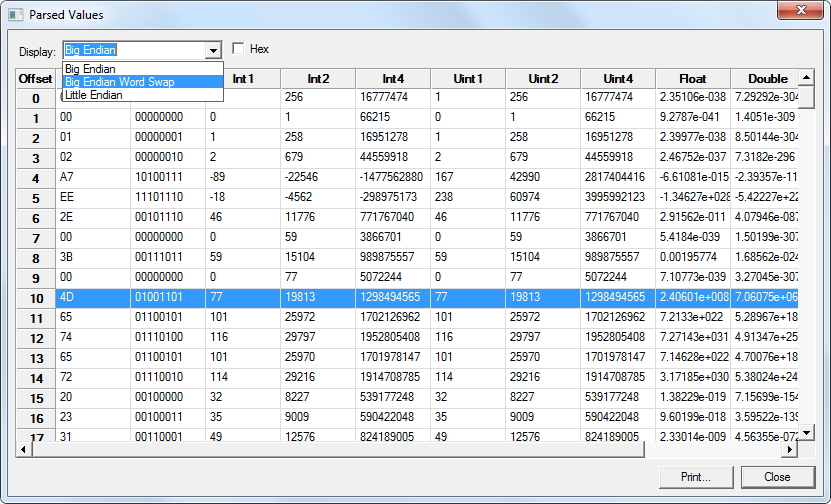
The Parsed Values table provides the following functionality:
- Use Display to display values in either Big Endian, Big Endian Word Swap, or Little Endian format.
- View Offset for the bit offset of the value byte.
- Check Hex to convert all standard table values into Hex.
- Print the table by clicking Print.


