MQTT Comm EIE
The MQTT Comm EIE communication device provides a connection with IoT EIE and IoT Sparkplug EIE remote devices to the MQTT server.
|
MQTT Comm EIE Device Editor |
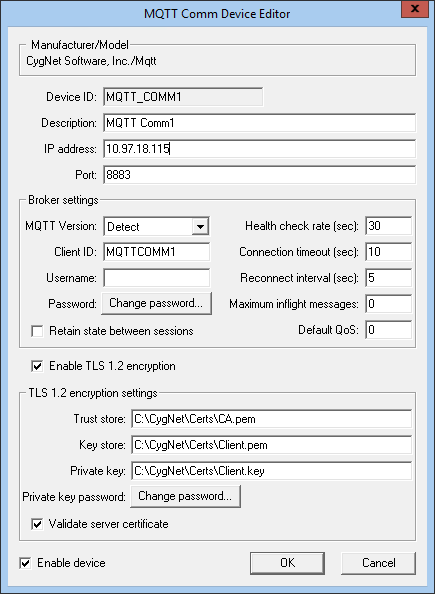
Properties
The following table lists and describes properties for the MQTT Comm Device Editor dialog box.
| Property | Description | ||||||
|---|---|---|---|---|---|---|---|
|
Device ID |
The unique identifier of an instance for this device. This free-form name must be unique in the DDS and the FAC. That is, it must be a name not used by any other communication device, import/export device, remote device, or facility. CygNet naming standards for device ID are as follows:
|
||||||
|
Description |
A free-form description of the device. 32 character maximum. |
||||||
|
IP address |
Specifies the name (IP address or DNS hostname) of the remote computer on which the MQTT server is running. |
||||||
|
Port |
Port address of the MQTT server (1883 for unencrypted, and 8883 if using TLS/SSL encryption). |
||||||
| Broker settings | |||||||
|
MQTT Version |
Allows you to select the MQTT version used by the server. The Detect option auto-detects the correct version. Menu options include:
|
||||||
|
Client ID |
Allows a user to specify a unique client ID for MQTT server connections. |
||||||
|
Username |
The username to connect to the MQTT server. If the server is set up only to allow specific users, this option is required and must match a valid user. | ||||||
|
Password |
The password to connect to the MQTT server. If the server requires a password, it will use this username/password combination. Click the Change password button to open the Change Password dialog. Note: The username/password may be ignored if overridden with the files specified in the TLS encryption settings. |
||||||
|
Retain session state between sessions |
When selected, the server retains state information for this session and resumes from that state on a reconnect after a disconnection. If not checked, a reconnect restarts as a new session. | ||||||
|
Health check rate (sec) |
If no message is received from the server for the specified number of seconds, the client sends a message to the server to verify the connection is still active. Default is 30. |
||||||
|
Connection timeout (sec) |
Minimum amount of time in seconds that the client can be disconnected from the server before a reconnect is attempted. Default is 10. See failover Note below this table. |
||||||
|
Reconnect interval (sec) |
Specifies the reconnect attempt rate in seconds for the client to reconnect with the server when the client is disconnected. Default is 5. See failover Note below this table. |
||||||
|
Maximum inflight messages |
Sets the maximum number of MQTT messages that can be in flight simultaneously. Default is 0. |
||||||
|
Default QoS |
The Default QoS value specified in the MQTT Comm Device Editor is used by a data group of an IoT or IoT Sparkplug remote device when the Use comm default option is checked on the Data Group Properties page. Default is 0. For more information, see Data Groups. |
||||||
| Enable TLS 1.2 encryption | Check to enable TLS 1.2 encryption settings fields. | ||||||
| TLS 1.2 encryption settings | |||||||
|
Trust store |
The path to a pem-formatted trusted certificate file used to create the server certificate for the server (also used to create client certificate, if applicable). |
||||||
|
Key store |
The path to a pem-formatted certificate file. This file may also include the client’s private key. | ||||||
|
Private key |
The path to a key file that is the client’s private key (if not included in the keystore). | ||||||
|
Private key password |
The password for the keystore. If the keystore is not password-protected, this property can be left blank. Click the Change password button to open the Change Password dialog. | ||||||
|
Validate server certificate |
When selected, this option forces the server to send a certificate to the client. The client then validates that the certificate is valid, which is a method of validating a secure connection to a secure server. Default is checked. |
||||||
|
Enable device |
Select whether to enable or disable the device. The default setting is disabled. If an invalid configuration is detected, the device will automatically be disabled. The device can be re-enabled after the invalid configuration is fixed. |
||||||
Note: When failover is enabled on the remote device, these settings work in conjunction with the Initial fail (sec) and Subsequent fail (sec) settings. Failover will not occur in an interval shorter than the Reconnect interval (sec) setting. See Configuring Device Failover for more information.


