Configuring Device Properties
The Device page contains general information about the import. Once the import is fully defined (on all pages), use the Import Now button to process the import.
|
Device Page |
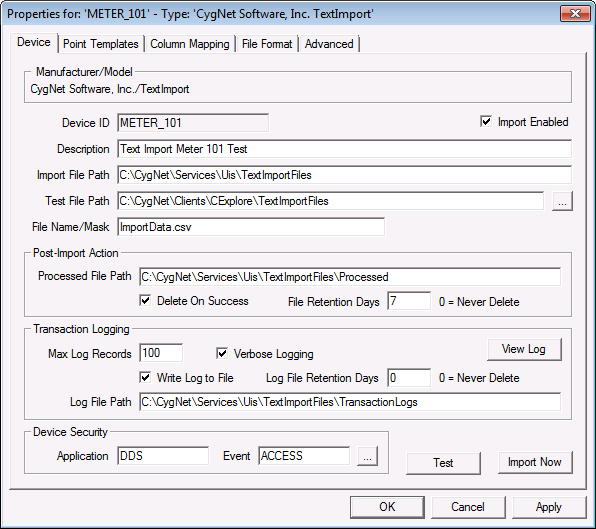
Device Settings
| Property | Description | ||||||
|---|---|---|---|---|---|---|---|
|
Device ID |
The unique identifier of an instance for this device. This free-form name must be unique in the DDS and the FAC. That is, it must be a name not used by any other communication device, import/export device, remote device, or facility. CygNet naming standards for device ID are as follows:
|
||||||
|
Import Enabled |
Select whether to enable or disable the device. The default setting is disabled. If an invalid configuration is detected, the device will automatically be disabled. The device can be re-enabled after the invalid configuration is fixed. Note: The import cannot be enabled until Column Mapping is defined. |
||||||
|
Description |
A free-form description of the device. 32 character maximum. |
||||||
|
Import File Path |
The path to the directory that contains the source file. This path is relative to the host server. (Do not include the source file name in this field.) See File Paths for more information. |
||||||
|
Test File Path |
The path to the directory that contains the test file. This path is relative to your client. (Do not include the source file name in this field.) See File Paths for more information. |
||||||
|
File Name/Mask |
The source file name. Wildcards ("*" and "?") can be used. |
Post-Import Action
Once the import is complete, the source file can be deleted or saved. If the file is saved, it will be appended with the date/time that the import was completed and moved to the directory specified in the Processed File Path box.
| Property | Description |
|---|---|
|
Processed File Path |
The path to the directory in which the imported file will be stored. Files will be stored for the number of days entered in the File Retention Days box. This path is relative to the host server. See File Paths for more information. |
|
Delete on Success |
If enabled, the source file will be deleted upon successful completion of the import. |
|
File Retention Days |
Number of days the processed file will be stored. |
Transaction Logging
When an import is performed, a DDS transaction is generated detailing the results of the import. This import transaction history can be stored in the DDS or it can be written to file. If written to the file system, one log file is created for each file imported. Log file names will include the corresponding processed file name, a timestamp, and a .log extension. Log file cleanup is performed with each import.
| Property | Description |
|---|---|
|
Max Log Records |
The maximum number of transaction history records that can be maintained for the device. Each UIS command executed by the device will generate a single transaction log. If the device is setup for active monitoring, one transaction will be created whenever a new file is detected. If multiple files are detected at the same time, it will still result in one transaction. |
|
Verbose Logging |
Verbose logging is recommended for testing, but not for production. In verbose mode, each data group element for each tag is logged as it is imported. |
|
View Log |
Click to view transaction and status log entries. |
|
Write Log to File |
If enabled, transactions will be written to the log file. |
|
Log File Retention Days |
Number of days the transaction log files will be retained before deletion. |
|
Log File Path |
The path to the directory that contains the log files. This path is relative to the host server. |
Device Security
The security fields define the application and event that controls which user(s) can perform the import.
See Component-Level Security - Text Import Device for more information about component-level security.
| Property | Description |
|---|---|
|
Application |
Defines the ACS security application name used to validate the users of this device. See Applications, Events, Permissions. |
|
Event |
Defines the ACS security event used to validate users of this device. Click … to select the security event. See Applications, Events, Permissions. |
Execution Buttons
There are two options for performing the import: Test and Import Now.
| Button | Description |
|---|---|
|
Test |
Test can be used to ensure that the import will produce the desired results without writing data to the current value service or the Point Service. The file that is tested is the one that resides in the Test File Path. |
|
Import Now |
Process the import. This will cause the UIS to perform the import from file specified in the Import File Path on the host server.
|


