Single Point Data Group
The "Single Point" (SinglePt) data group enables you to read from and write to a single user-specified point type and point index. You can use a single point data group on an ad hoc basis from a data group editor or you can set up a UIS command that uses a single point data group.
The Point drop-down box in the upper left of the data group editor is a filter; it narrows your Transaction data based on the point selected. Select All to populate the Transaction list with transactions for all points with which you have previously communicated from this data group. Select a single item to populate the Transaction list with transactions for only that item. Data and settings displayed in the dialog box reflect the selected transaction. The Transaction list only displays transactions up to the maximum number configured for the data group. FacilityID.UDC provides a means to specify a UDC to which to map the specified data point; it requires a corresponding point in the Point Service (PNT).
The "Single Point" data group provides different options for its read and write functions.
Note: It is recommended that you use the "Single Point" data group to write analog output and binary output values.
The following image is an example of a "Single Point" data group send transaction dialog box for the DNP3 EIE:
|
Single Point Data Group |
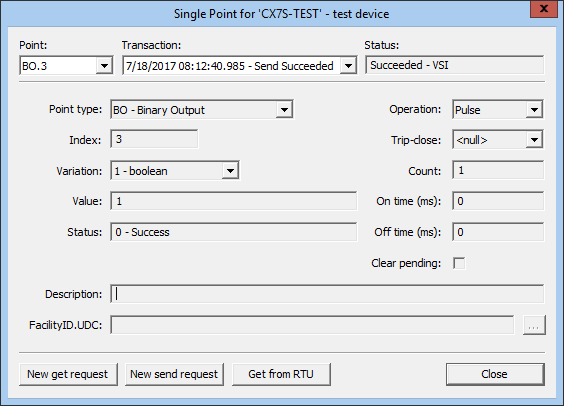
The following table lists and describes all possible "Single Point" data group dialog box properties for both get and send requests.
| Property | Description |
|---|---|
|
Point |
Filters past transactions based on the point option selected from the drop-down menu. |
|
Transaction |
The record of past data transactions requested from or sent to the device and displayed in the dialog box. Time displayed is local time. |
|
Status |
The state of the displayed transaction. Read only. |
|
Point type |
Provides point type options available for a new request and displays the point type of the point selected for past transactions. |
|
Index |
The point index associated with the point. |
|
Variation |
Drop-down menu lists the variations available for each point type for a new request and displays the variation used for a past transaction. Note: It is recommended that, when available, you select vrnt for get requests. |
|
Value |
The value of the point in the request. Writable for new send requests. |
|
Status |
The status value is returned by the device when writing a Binary Output or Analog Output. If the value is not "0" (success), both the numeric value and text description will also appear in the Status field at the top right of the dialog box. |
|
Flags |
The flag value may optionally be returned by the device on a read request. It consists of 8 binary flags that describe the state of the data and communications link. These flags may be configured in the device template file to map to status bits in the PNT for each point. |
|
Description |
Optional field for a user-specified description for both get and send requests. |
|
FacilityID.UDC |
Allows you to specify a UDC to which to map the specified data point; requires a corresponding point in the Point Service (PNT). Available for both get and send requests. |
|
Operation |
Allows selection of operation type. Enabled only when writing a Binary Output. Options include:
|
|
Trip-close |
Option displays in dialog box only when writing a Binary Output for a Pulse operation when the Value is 1. Options include:
|
|
Count |
Indicates the number of times to perform the operation. Enabled only when writing a Binary Output. |
|
On time (ms) |
Indicates how long to hold the setting (in ms) in the on position. Enabled only when writing a Binary Output. |
|
Off time (ms) |
Indicates how long to hold the setting (in ms) in the off position. Enabled only when writing a Binary Output. |
|
Clear pending |
When selected, clears outstanding operations. Enabled only when writing a Binary Output. |
|
New get request |
Changes the dialog box to enable selecting the parameters for a new get request. |
|
New send request |
Changes the dialog box to enable selecting the parameters for a new send request. |
|
Get from RTU |
Initiates a get request according to the parameters displayed. |
|
Send to RTU |
Initiates a send request according to the parameters displayed. Only visible when the point type is writable. |
|
Cancel |
When selecting parameters for a new get or send request, selecting Cancel returns you to the previous transaction dialog box. |


