Editor – Device Page
Use the Device page to view, select, and modify general device settings for a remote device. These settings are the minimum required for remote device functionality. The Device page of a remote device editor typically contains settings unique to its field device type(s) or to the EIE itself.
|
Click the thumbnail to see an example |
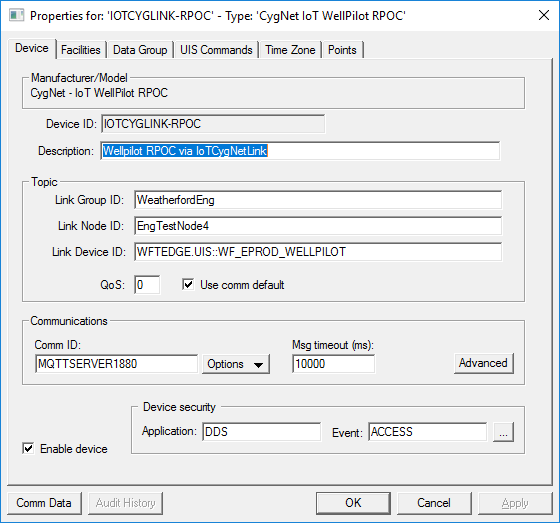
For more information, see Remote Device Editors.
Device Properties
The following table lists and describes specialized Device page properties for this device. See Device Page for common properties.
| Property | Description | ||||||
|---|---|---|---|---|---|---|---|
|
Device ID |
The unique identifier of an instance for this device. This free-form name must be unique in the DDS and the FAC. That is, it must be a name not used by any other communication device, import/export device, remote device, or facility. CygNet naming standards for device ID are as follows:
|
||||||
|
Description |
Displays a user-defined description of the remote device. A free-form description of the device. 32 character maximum. |
||||||
| Topic | |||||||
|
|
Topic Options for IoT CygNet Link DevicesThe IoT CygNet Link EIE device at the CygNet Enterprise level is a mirrored version of the device out on CygNet on the Edge and as such the topic settings are identical. The topic settings must match the topic that Link is configured to receive. The MQTT Topic settings are configured at the device level (here on the Device tab of the IoT CygNet Link remote device editor), and not at the individual data group level, as they are for the IoT EIE and the IoT Sparkplug EIE. |
||||||
|
Link Group ID |
A topic Link Group ID identifies a logical grouping of data from the publisher into the MQTT server and back out to the subscribing clients. Matches the groupId property specified in the Weatherford Link appsettings.json file, e.g., See Link for more information. |
||||||
|
Link Node ID |
A topic Edge node ID uniquely identifies the node topic within the infrastructure. Matches the gatewayNodeId property specified in the Weatherford Link appsettings.json file, e.g., |
||||||
|
Link Device ID |
A topic Device ID identifies the remote device at the CygNet on Edge node. Corresponds to the UIS plus the device ID, e.g. WFTEDGE.UIS::WF_EPROD_WELLPILOT. Note: The IoT CygNet Link EIE automatically manages the MQTT topics and is able to differentiate at the topic level the type of data being published in the payload. With the IoT CygNet Link EIE it is not necessary to specify the DATA_TYPE being published in the data group transaction at the topic level for the Link Device ID, as is required for the IoT Sparkplug EIE. (With the IoT Sparkplug EIE, Link requires that a ?DT or ?DC suffix of "?<DATA_TYPE>" is appended to the Device ID, e.g., MYFACILITY?DT or MYFACILITY?DC. This is NOT required with the IoT CygNet Link EIE). |
||||||
|
QoS |
The Quality of Service. When Use comm default is unchecked, the data group uses the QoS (Quality of Service) value entered in this field. QoS options are:
|
||||||
|
Use comm default |
When checked, the data group uses the Default QoS value specified in the device editor of the associated MQTT comm device. When unchecked, the data group uses the value specified in the QoS field above. |
||||||
| Communications | |||||||
|
Comm ID |
The name of the communication device this remote device uses. Click the Options button to select from the choices in the drop-down menu. See Communication Devices. |
||||||
|
Options |
This button provides several communications-oriented options. Options are as follows:
Note: When selecting a communication device, the only options available in the Select Communications Device dialog box are MQTT Comm devices. |
||||||
|
Msg timeout (ms) |
Msg timeout (ms) displays the time in milliseconds a remote device waits for a valid response from an associated field device before timing out. This setting is not the same as similar settings on the currently active communication device and device failover settings. But these settings work in conjunction with one another. Transaction TimingTiming for the IoT CygNet Link data flow is critical. The Msg timeout (ms) setting on IoT CygNet Link EIE device must be sufficient to allow the full data flow to complete. Commands go out from the IoT CygNet Link device to the MQTT server, Weatherford Link then gets the request from the MQTT server, which then issues the command to the CygNet Edge device, which then polls the RTU, saves the transaction, then Weatherford Link detects any new transactions, then publishes the transaction it back to the MQTT server, the IoT CygNet Link device subscribes to the MQTT server and the requested data comes back to the IoT CygNet Link device. It's a large data flow path, and if the timing isn’t sufficient, or if any component along the data flow loses connectivity, the full data retrieval will fail. |
||||||
|
Advanced |
Click to access advanced communication device failover settings. |
||||||
|
Enable device |
Select whether to enable or disable the device. The default setting is disabled. If an invalid configuration is detected, the device will automatically be disabled. The device can be re-enabled after the invalid configuration is fixed. |
||||||
| Device security | |||||||
|
Application |
Defines the ACS security application name used to validate the users of this device. See Applications, Events, Permissions. |
||||||
|
Event |
Defines the ACS security event used to validate users of this device. Click … to select the security event. See Applications, Events, Permissions. |
||||||
|
Comm Data |
Enables you to open a modeless Communications Data Viewer dialog box. |
||||||
|
Audit History |
Enables you to view the audit trail for the device. |
||||||


