Points Page
Use the Points page to view all points associated with a remote device. You can also access a point’s associated facility, data group, and history using the Points page grid, which displays details of each point. The order of each column is sortable. The Data group column is the default order.
|
Click the thumbnail to see an example |
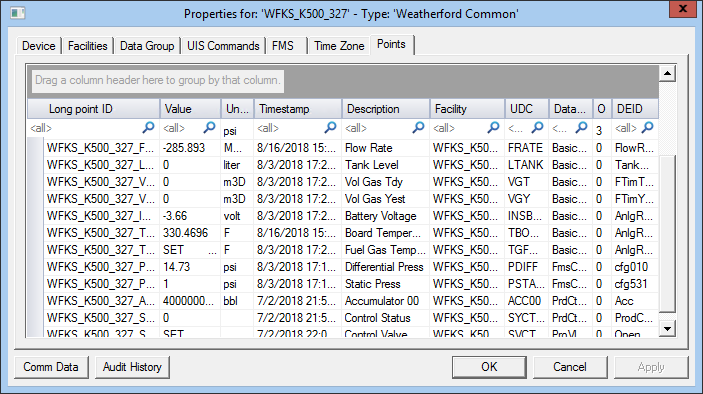
For more information about points, see Points.
Points Properties
The following table lists and describes Points page properties.
| Property | Description |
|---|---|
|
Long point ID |
Displays a combination of facility and UDC for the point. |
|
Value |
Displays the applicable current value for the point. Varies depending on point type. |
|
Units |
Displays primary units of measure for the point. |
|
Timestamp |
Displays the last time that the point was updated. |
|
Description |
Displays a description of the UDC. |
|
Facility |
Displays the Facility ID for the point. |
|
UDC |
Displays the UDC mapped to the point record. |
|
Data group |
Displays the data group where the UDC is mapped. |
|
Ord |
Displays the ordinal of the associated data group. |
|
DEID |
Displays the data element name mapped to the UDC and facility. |
|
Comm Data |
Enables you to open a modeless Communications Data Viewer dialog box. |
|
Audit History |
Enables you to view the audit trail for the device. |
Using the Field Chooser with the Points page
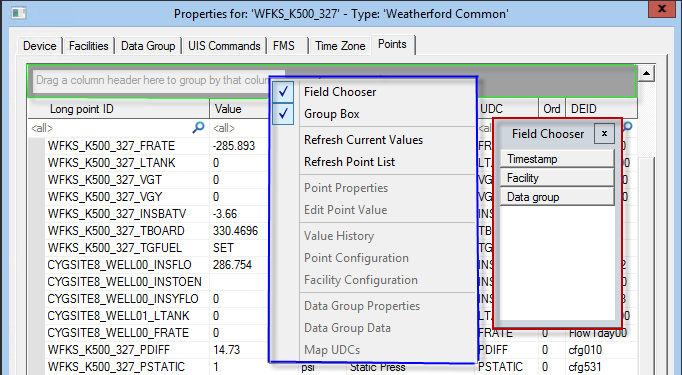
The Points page includes a field chooser feature to help customize the grid view by adding and removing columns as desired.
- Right-click in the points grid column header row to access the Field Chooser option and then click Field Chooser to display/clear the Field Chooser dialog box. Use the Field Chooser to "store" and view available point field column headers that are not currently being displayed in the view. Use the field chooser to add or remove columns to/from the display in order to customize your view. Right-click on the Field Chooser dialog box title to Move or Hide it, or drag the title bar to move the dialog box to a convenient position on your screen.
- Drag column headings (fields) from the header row (or directly from the Field Chooser) to the Group Box to sort points by any number of fields.
- Search directly in the column for any criteria to quickly find points.
The following example shows the Group Box, the context menu, and the Field Chooser dialog box.
|
Field Chooser and Group Box |
Add, Remove, and Reorder Fields
To add a column header to the display from the Field Chooser, drag the selected column header from the Field Chooser to the header row of the grid. As soon as you begin the drag, the vacated list location turns black. As soon as the red positional arrows appear to guide placement of the new column, you are close enough to release the dragged item into the desired position.
To remove a column header from the display and return it to the Field Chooser, you can drag a column header off the grid. You do not have to drag it all the way to the Field Chooser. As soon as you begin the drag, the vacated column location turns black, and a black "X" symbol appears, indicating that you can release the dragged item. As soon as you release it, the column header name automatically appears in the Field Chooser, and the abandoned column location will collapse.
Any column header can be dragged to another location in the grid to reorder your columns as desired.

Sort by Fields
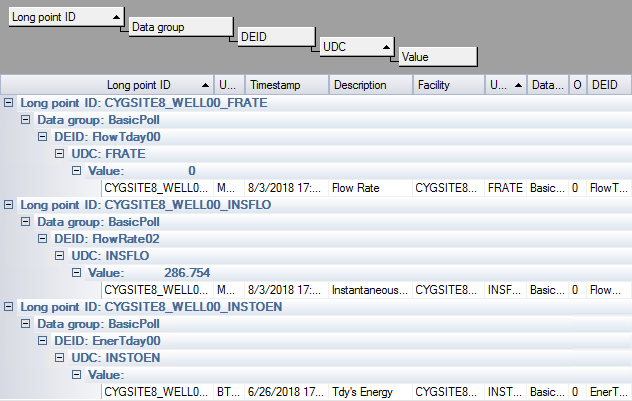
Drag any column heading (or any field directly from the Field Chooser) to the Group Box to sort devices by the selected fields.
|
Sort by fields |
Search in Fields
Type search criteria into the search field at the top of any column. Any matches in the column will be found. Remove the search criteria or click the blue  to return to all data to the column.
Context Menu Options
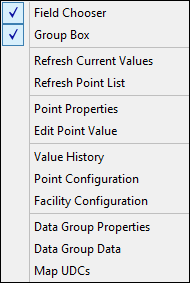
The following table lists and describes options available from the Field Chooser context menu. The Field Chooser and Group Box options apply to the column headers. The Refresh Current Values and Refresh Point List options apply to all the points in the grid. All other menu options become available when you right-click an individual point in the grid.
|
Context Menu |
| Property | Description | |
|---|---|---|
|
Field Chooser |
Use the Field Chooser to select from an extensive list of possible fields by which to view and group your points. Select field options one at a time and drag each to either the column header or the Group Box. You can rearrange field positions by dragging and dropping them where applicable. |
|
|
Group Box |
The Group Box, if opened, appears as a large blank gray field at the top of your grid. It remains unpopulated until you drag and drop field headings into it. Once there, you can rearrange field headings on an ad hoc basis to reformat a hierarchy. Example
|
|
|
Refresh Current Values |
Refreshes the current values for the points in the grid. |
|
|
Refresh Point List |
Refreshes the list of points in the grid. |
|
|
Point Properties |
Right-click a point in the grid and select Point Properties to open the Point Properties dialog box for the selected point. See Point Properties. |
|
|
Edit Point Value |
Right-click a point in the grid and select Edit Point Value to open the Edit value for <Point> dialog box and make any desired changes. See Edit Point Value. |
|
|
Value History |
Right-click a point in the grid and select Value History to open the History Values dialog box for the selected point. See History Records. |
|
|
Point Configuration |
Right-click a point in the grid and select Point Configuration to open the PNT Editor (Properties for Point <Point> dialog box) for the point. See PNT Editor. |
|
| Facility Configuration |
Right-click a point in the grid and select Facility Configuration to open the Facilities (FAC) Editor (Properties for <Facility> dialog box). See Facility Service. |
|
|
Data Group Properties |
Right-click a point in the grid and select Data Group Properties to open the Data Group Properties dialog box for the data group associated with the point. See Data Group Properties. |
|
|
Data Group Data |
Right-click a point in the grid and select Data Group Data to view relevant data for the data group associated with the point. See Data Group Page. |
|
|
Map UDCs |
Right-click a point in the grid and select Map UDCs to open the Uniform Data Code Assignment dialog box for the data group associated with the point. See Mapping UDCs. |


