Configuring Facility Attribute Settings
The System Facility Attribute Settings dialog box is where you configure the CygNet facility attributes used to store several value attributes used by the ELF system.
In ELF, a single facility (meter or meter group) can be a member of up to ten distinct hierarchies (parent groups). Each hierarchy represents a logical group of meters or meter groups. The number of hierarchies and up to ten facility attributes and descriptions can be configured on this dialog box. Each Meter Hierarchy Parent facility attribute is used to build a hierarchy of members. See Meter Hierarchy Settings below.
Additionally, you can indicate whether to import the Description, Energy Content, Owner Parent ID, and/or the Meter Parent IDs from the import files. Alternatively, indicating that Meter Parent IDs are not to be imported will protect a specific manually entered facility attribute value from being over-written unexpectedly.
The actual values for the facility attributes are configured for each given Meter/Meter Group or Input Owner/Input Owner Group on the Meter/Owners page. See Configuring Meter/Meter Group General Settings and Configuring Meter/Meter Group Assignment Settings for more information about these settings.
To Configure Facility Attribute Settings
- Click the System Settings page of the ELF Editor.
- Configure the system properties as described in Configuring System Settings.
- Click Facility Settings to view the System Facility Attribute Settings dialog box.
- Configure the settings using the properties described below.
|
System Facility Attribute Settings |
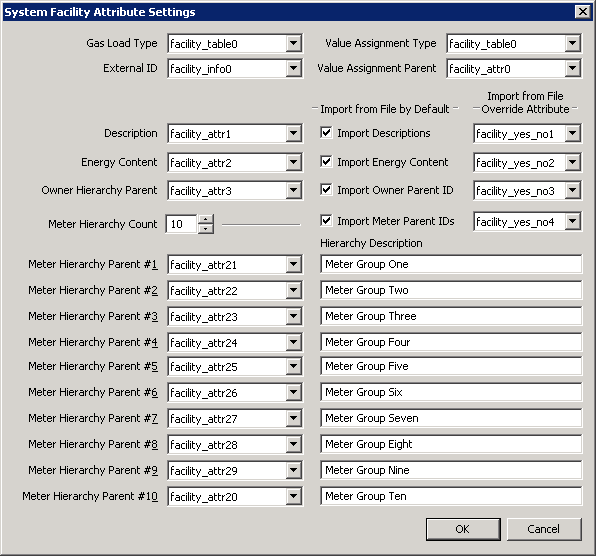
The properties for each section on the System Facility Attribute Settings dialog box are described below.
| Parameter | Description |
|---|---|
|
For meter and meter group facilities, this value specifies a facility attribute that will map the Gas Load Type. The list of available facility attributes includes the facility_table attributes. See Configuring Meter/Meter Group General Settings for information about defining the actual Gas Load Type. The list of available facility attributes includes the facility_table attributes. |
|
|
For meter and meter group facilities, this value specifies a CygNet facility attribute that will map the Value Assignment Type. Value assignments are the different ways in which a meter or meter group can receive its forecasted values. See Configuring Meter/Meter Group Assignment Settings for information about defining the actual Value Assignment Type. The list of available facility attributes includes the facility_table attributes. |
|
|
This specifies the External ID cross-reference CygNet facility attribute that will map the identifying value provided in the import file with a unique CygNet facility record. Each applicable type of facility entity imported must specify a different cross-reference to a CygNet facility attribute. See Configuring Meter/Meter Group General Settings or Configuring Input Owner/Input Owner Group Settings for information about defining the actual External ID. The list of available facility attributes includes the facility text attributes (facility_desc, facility_info, and facility_attr). |
|
|
This specifies a CygNet facility attribute whose value indicates which parent relationship of which configured Meter Hierarchy will be used when determining how a forecasted value is generated when the Assignment from Parent or Aggregation from Children Value Assignment Type is configured for a given meter. See Configuring Meter/Meter Group Assignment Settings for information about defining the actual Value Assignment Parent. The list of available facility attributes includes the facility text attributes (facility_desc, facility_info, and facility_attr). |
Description Settings
| Parameter | Description |
|---|---|
|
Description |
For imported entities, this setting specifies a CygNet facility attribute that will store any meter Description values provided in the import file. The list of available facility attributes will include the facility text attributes (facility_desc, facility_info, and facility_attr). |
|
Import Descriptions |
For specific imported entities, this setting specifies a CygNet facility attribute that will indicate, per facility, whether or not to use Description values supplied in the import file. Click to use the Description supplied in the import file by default. |
|
Import Description from File Override Attribute |
If Import from File by Default is checked and the Import from File Override Attribute for Description is set to "<none>", the Description attribute value will always be imported and stored if provided in an import file. Conversely, if Import from File by Default is not checked and the Import from File Override Attribute for Description is set to "<none>", the Description attribute value will never be imported from an import file. In either case, the import behavior cannot be overridden per facility by virtue of the "<none>" setting. However, if the Import from File Override Attribute for Description is set to something other than "<none>," the value of that attribute (Yes or No) for a given meter facility will determine if a Description provided in the import file will overwrite that facility’s existing Description. The list of available facility attributes include the facility_yes_no attributes. |
Note:
For more information about defining the actual Description settings for the entity, see Configuring Meter/Meter Group General Settings or Configuring Input Owner/Input Owner Group Settings.
Energy Content Settings
| Parameter | Description |
|---|---|
|
Energy Content |
For meter and meter group entities imported, this setting specifies a CygNet facility attribute that will map the Energy Content factor value optionally provided in the import file. The list of available facility attributes will include the facility text attributes (facility_desc, facility_info, and facility_attr). |
|
Import Energy Content |
For specific meter and meter group entities imported, this setting specifies a CygNet facility attribute that will indicate, per facility, whether or not to use Energy Content factor values supplied in the import files. Click to use the Energy Content factor values supplied in the import file by default. |
|
Import Energy Content from File Override Attribute |
If Import from File by Default is checked and the Import from File Override Attribute for Energy Content is set to "<none>", the Energy Content attribute value will always be imported and stored if provided in an import file. Conversely, if Import from File by Default is not checked and the Import from File Override Attribute for Energy Content is set to "<none>", the Energy Content attribute value will never be imported from an import file. In either case, the import behavior cannot be overridden per facility by virtue of the "<none>" setting. However, if the Import from File Override Attribute for Energy Content is set to something other than "<none>," the value of that attribute (Yes or No) for a given meter facility will determine if an Energy Content value provided in the import file will overwrite that facility’s existing Energy Content value. The list of available facility attributes include the facility_yes/no attributes. |
Note:
For more information about defining the actual Energy Content settings for the meter or meter group, see Configuring Meter/Meter Group General Settings.
Owner Parent Settings
| Parameter | Description |
|---|---|
| Owner Hierarchy Parent |
For input owner or input owner group entities imported, this setting specifies a CygNet facility attribute that will store any Owner Hierarchy Parent values provided in the import file. The list of available facility attributes will include the facility text attributes (facility_desc, facility_info, and facility_attr). |
|
Import Owner Parent ID |
For all specific input owner or input owner group entities imported, this setting specifies a CygNet facility attribute that will indicate, per facility, whether or not to use Owner Hierarchy Parent values supplied in the import files. Click to use the Owner Hierarchy Parent values supplied in the import file by default. |
|
Import Owner Parent ID from File Override Attribute |
If Import from File by Default is checked and the Import from File Override Attribute for Owner Parent ID is set to "<none>", the Owner Hierarchy Parent attribute value will always be imported and stored if provided in the Group ID field in the import file. Conversely, if Import from File by Default is not checked and the Import from File Override Attribute for Owner Parent ID is set to "<none>", the Owner Hierarchy Parent attribute value will never be imported from an import file. In either case, the import behavior cannot be overridden per facility by virtue of the "<none>" setting. However, if the Import from File Override Attribute for Owner Parent ID is set to something other than "<none>," the value of that attribute (Yes or No) for a given owner facility will determine if an Owner Hierarchy Parent value provided in the import file will overwrite that facility’s existing Owner Hierarchy Parent value. The list of available facility attributes include the facility_yes/no attributes. |
Note:
For more information about defining the actual Owner Parent settings for the input owner or input owner group, see Configuring Input Owner/Input Owner Group Settings.
Meter Hierarchy Settings
| Parameter | Description |
|---|---|
|
Meter Hierarchy Count |
Select the number of hierarchies of which a single facility can be a member. A single facility (meter or meter group) can have at most 10 parents and therefore be part of up to 10 distinct hierarchies (groups). The Meter Hierarchy Parent fields will enable as you increase the Meter Hierarchy Count. |
|
Import Meter Parent IDs |
For all specific meter and meter group entities imported, this setting specifies a CygNet facility attribute that will indicate, per facility, whether or not to use Meter Hierarchy Parent IDs values supplied in the import files. Click to use the Meter Hierarchy Parent IDs values supplied in the import file by default. |
|
Import Meter Parent IDs from File Override Attribute |
If Import from File by Default is checked and the Import from File Override Attribute for Meter Parent IDs is set to "<none>", the Meter Hierarchy Parent attribute values will always be imported and stored if provided in the Group ID field of an import file. Conversely, if Import from File by Default is not checked and the Import from File Override Attribute for Meter Parent IDs is set to "<none>", the Meter Hierarchy Parent attribute values will never be imported from an import file. In either case, the import behavior cannot be overridden per facility by virtue of the "<none>" setting. However, if the Import from File Override Attribute for Meter Parent IDs is set to something other than "<none>," the value of that attribute (Yes or No) for a given meter facility will determine if a Meter Hierarchy Parent ID value provided in the import file will overwrite that facility’s existing Meter Hierarchy Parent ID value. The list of available facility attributes include the facility_yes/no attributes. |
|
Meter Hierarchy Parent #1 - Meter Hierarchy Parent #10 |
Each Meter Hierarchy Parent setting specifies a CygNet facility attribute that will store a Facility Tag used to build a hierarchy (parent relationship) for a single facility (meter or meter group). The list of available facility attributes will include the Facility Text attributes (facility_desc, facility_info, and facility_attr). |
|
Hierarchy Description |
Specify a description for each Meter Hierarchy Parent, for example, Balance Group, Pipeline Topology, Ad Hoc Group, Accounting Group, Swing Point, etc. This description is used to build a parent hierarchy on the Meters/Group Settings dialog box for a selected facility (meter or meter group). |
Note:
For more information about defining the actual Meter Hierarchy settings for the meter or meter group, see Configuring Meter/Meter Group Assignment Settings for more information.
Input Errors
If the facility attributes are misconfigured in any way or duplicated, a list of input errors will display next to the OK button. Errors must be resolved before OK is enabled.


