Configuring Input Data Items
Use this dialog box to add or edit the Input Data Items that will be accepted as valid from any and all files imported into the system.
To Configure Input Data Items
- Click the Input Items page of the ELF Editor.
- Click Add Item or Edit Item to view the Add/Edit Input Data Item dialog box.
- Configure the items using the properties described below.
|
Input Data Item for |
Input Data Item for |
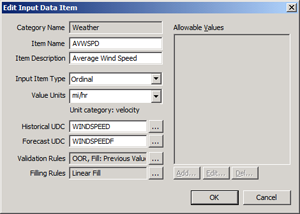
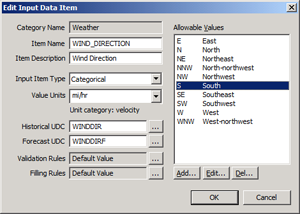
The properties on the Add/Edit Input Data Item dialog box are described below.
| Parameter | Description |
|---|---|
|
Category Name |
Specifies the Input Item Categories type for which this Input Data Item is defined. |
|
Item Name |
The name of the Input Data Item. |
|
Item Description |
An optional description of the Input Data Item. |
|
Input Item Type |
For each defined Input Data Item Type, this setting specifies the Input Item Type for the Input Data Item: Ordinal or Categorical.
|
|
Value Units |
For each defined Input Data Item Type, this setting specifies the expected units of the associated point. A point is associated with an Input Data Item type by the assigned UDC for that type. This setting will only apply for Ordinal Data Item types. If a point is found that does not match the configured units, the import process will attempt to convert the value if the units are convertible. If they are not, an import error will be returned. |
|
Historical UDC |
For each defined Input Data Category Type and subsequent Input Data Item Type defined, this setting specifies the CygNet historical UDC used to store the value provided for the Item Type. This UDC must be unique for each Category Type/Data Item Type pair defined in the system. Click … to select an ELF-Related UDC. |
|
Forecast UDC |
For each defined Input Data Category Type and subsequent Input Data Item Type defined, this setting specifies the CygNet forecast UDC used to store the value provided for the Item Type. This UDC must be unique for each Category Type/Data Item Type pair defined in the system. Click … to select an ELF-Related UDC. |
|
Validation Rules |
For each defined Input Data Item Type, this setting specifies the validation rules for the associated values provided in the input file to be applied during the training and forecasting processes. Click … to Configuring Data Validation Rules. |
|
Filling Rules |
For each defined Input Data Item Type, this setting specifies the filling rules for the associated values provided in the input file to be applied during the training and forecasting processes. Click … to Configuring Data Filling Rules. |
|
A list of the Allowable Values for the Categorical input item type. See Configuring Allowable Values for Categorical Input Item Types.
Note: |
More:
 Configuring Data Validation Rules
Configuring Data Filling Rules
Configuring Allowable Values for Categorical Input Item Type


