Configuring Input Items
The Input Items page is where you configure the settings used to interpret and store the information received from the historical input data and forecast input data files imported into the system. Additionally, Calendar Input types and entries, and Input Owner Categories are configured on this page.
|
Input Items page |
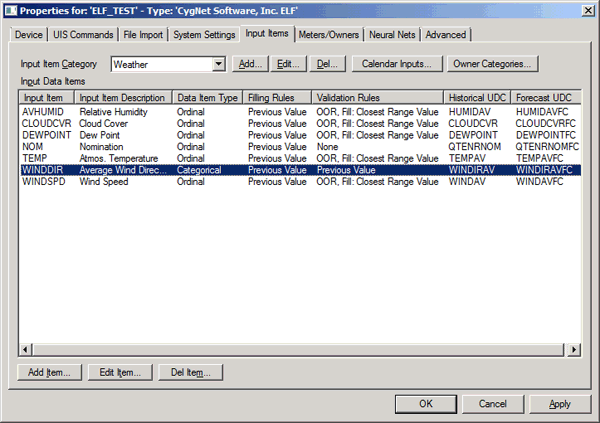
The properties for each section of this page are described below.
Input Item Category
This drop-down menu will list the Input Item Categories that will be accepted as valid from any and all files imported into the system. An Input Item Category is a required text attribute for all input data files imported. An example of an Input Item Category might be Weather.
| Button Name | Description | |
|---|---|---|
|
Add |
Click Add to add a new Input Item Category. |
|
|
Edit |
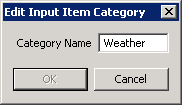
Click Edit to edit an existing Input Item Category.
|
|
|
Del |
Click Del to delete an Input Item Category. |
Calendar Inputs
The Calendar Inputs button is used to configure the built-in and custom Calendar Input types defined in the system. See Configuring Calendar Inputs for more information.
Owner Categories
The Owner Categories button is used to configure the built-in and custom Input Owner Categories defined in the system. See Configuring Input Owner Categories for more information.
Input Data Items
For each defined Input Item Category, this pagele lists the Input Data Items that will be accepted as valid from any and all files imported into the system. An example of an Input Data Item type for the Input Item Category type of Weather might be Wind Speed.
The properties displayed for each Input Data Item include: Input Item name, Input Item Description, Data Item Type, Filling Rules, Validation Rules Historical UDC, and Forecast UDC. See Configuring Input Data Items for a definition of each property.
| Button Name | Description |
|---|---|
|
Add Item |
Click Add Item to add a new Input Data Item. See Configuring Input Data Items. |
|
Edit Item |
Click Edit Item (or double-click) to edit an existing Input Data Item. See Configuring Input Data Items. |
|
Del Item |
Click Del Item to delete an Input Data Item. |
More:
 Configuring Input Owner Categories


