Configuring Meter/Meter Group General Settings
Use the Meter/Group Settings - General page to configure or override the settings for the selected meter or meter group.
To Configure General Meter Settings
- Click the Meters/Owners page of the ELF Editor.
- Add a New Child or New Sibling, or double-click to Edit a configured meter.
- Configure the settings using the properties described below.
|
Meter/Group Settings - General |
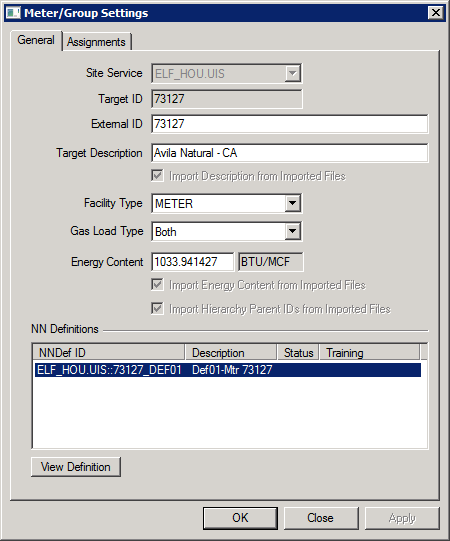
The properties on the Meter/Group Settings dialog box, General page are described below.
Meter/Meter Group Settings
| Parameter | Description |
|---|---|
|
Specifies the CVS where the meter or meter group is maintained. The default value is the Primary UIS/CVS configured on the Systems Settings page. Select a different CVS from the drop-down menu if desired. |
|
|
Specifies the ID of the associated target meter or meter group from which historical and forecast input data will be retrieved. |
|
|
Specifies the unique external ID value provided in the import file that links to this CygNet meter or meter group facility record. The specific facility attribute used to store this value is configured on the System Settings page. See Configuring Facility Attribute Settings. |
|
|
Specifies the meter or meter group Target Description value associated with the meter or group provided in the import file or entered manually. Values provided in the import file will overwrite any existing facility attribute value if Import Description is checked. The specific facility attribute used to store this value is configured on the System Settings page. See Configuring Facility Attribute Settings. |
|
|
Import Description from Imported Files |
Click to indicate whether or not to use the Description value provided in the import file to overwrite the value existing in the facility description for this meter or meter group. The specific facility attribute used to store this value is configured on the System Settings page. See Configuring Facility Attribute Settings. |
|
Specifies the Facility Type for this meter or meter group. Facility Types are configured on the System Settings page. |
|
|
Specifies the gas load type for the meter or meter group. Options include: Use Default, Volume, Energy, or Both. The default Gas Load Type is configured on the System Settings page. See Configuring Facility Attribute Settings. |
|
|
Specifies the Energy Content Factor value associated with the meter or meter group provided in the import file or entered manually. Values provided in the import file will overwrite any existing facility attribute value if Import Energy Content is checked. If the value is blank then the default value configured on the System Settings page is used as needed. See Configuring Facility Attribute Settings. |
|
|
Import Energy Content from Imported Files |
Click to indicate whether or not to use the Energy Content Factor value provided in the import file to overwrite the value existing in the designated Energy Content Factor facility attribute for this meter or meter group. The specific facility attribute used to store this value is configured on the System Settings page. See Configuring Facility Attribute Settings. |
|
Click to indicate whether or not to use the Meter Hierarchy Parent value provided in the import file to overwrite the value existing in the designated Meter Hierarchy Parent facility attribute for this meter or meter group. The specific facility attribute used to store this value is configured on the System Settings page. See Configuring Facility Attribute Settings. |
Neural Network Definitions
| Parameter | Description |
|---|---|
|
NN Definition List |
A list of the Neural Network Definitions assigned to this meter or meter group. Information includes the Neural Network Definition ID, its description, status, and training status. |
|
View Definition |
Click to view the settings for the selected Neural Network Definition (read-only mode). |
Configuration Errors
If the meter or meter groups are misconfigured in any way, errors will be displayed at the bottom of the dialog box. A single error will display directly on the dialog box; if two or more configuration errors exist an All Errors button will display. Errors must be resolved before OK is enabled.
Note:
The configuration errors are usually related to the parent and child relationships and their associated rules. Go to the Assignments page to correct those errors.
Apply Button
You must click Apply for the settings on the General page before moving to the Assignments page.


