Configuring the CygNet ELF Tree Grid Control
The following information enables you to configure the CygNet ELF Tree Grid control to navigate the meters and meter groups, input owners and input owner groups, and neural network templates and definitions configured for your ELF system.
To Add and Configure a ELF Tree Grid
- Create a new CygNet Studio screen.
- Click the ActiveX tool
 on the Standard Tools palette.
 - Click and drag the outline of the trend box on the screen. When the mouse button is released, an Insert OLE Control dialog box appears.
- In the dialog box, double-click on CygNet ELF Tree Grid Control.
- Right-click the control to open its property sheet.
- On the ActiveX page, click … for (OCXProperties).
- The CygNet ELF Trend Grid control contains a single General property page.
|
ELF Tree Grid Control General page |
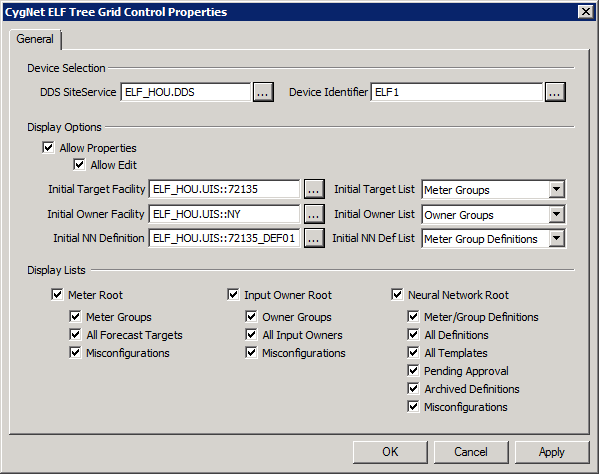
Device Selection
| Parameter | Description |
|---|---|
|
DDS SiteService |
Specifies the DDS site and service from which to get the facility information to display in the tree (in "site.service" format). Click … to select a service. |
|
Device Identifier |
The device ID of the ELF device in the DDS. Click … to select an ELF device. |
Display Options
| Parameter | Description |
|---|---|
|
Allow Properties |
By default users can see (and edit) all properties associated with any node in the tree. Clear Allow Properties to prevent users from viewing (and editing) properties. The right-click Edit menu item will be disabled. |
|
Allow Edit |
By default users can edit all properties associated with any node in the tree. Clear Allow Edit to prevent users from editing properties. Properties will be displayed in read-only mode. |
|
Initial Target Facility |
Specifies an initial target facility that can be used when scripting events on custom CygNet Studio screens. Click … to select a facility. |
|
Initial Target List |
Select the desired initial target facility from the drop-down menu. Options include: Meter Groups or All Forecast Targets. Use with scripting. |
|
Initial Owner Facility |
Specifies an initial owner facility that can be used when scripting events on custom CygNet Studio screens. Click … to select an owner facility. |
|
Initial Owner List |
Select the desired initial target owner list from the drop-down menu. Options include: Owner Groups or All Input Owners. |
|
Initial NN Definition |
Specifies an initial neural network definition that can be used when scripting events on custom CygNet Studio screens. Click … to select a definition. |
|
Initial NN Def List |
Select the desired initial neural network definition list from the drop-down menu. Options include: Meter Group Definition or All Definitions. |
Display Lists
By default all nodes are displayed. Click any check box to hide that node in the tree.
| Parameter | Description |
|---|---|
|
Meter Root |
Select to display the Meter Hierarchies root in the tree. If this root is not selected, any selected child nodes will appear in the tree as root nodes. |
|
Meter Groups |
Select to display Meter Groups in the tree. |
|
All Forecast Targets |
Select to display All Targets in the tree. |
|
Misconfigurations |
Select to display Misconfigured Meters/Groups in the tree. |
|
Input Owner Root |
Select to display the Owner Hierarchies root in the tree. If this root is not selected, any selected child nodes will appear in the tree as root nodes. |
|
Owner Groups |
Select to display Input Owner Groups in the tree. |
|
All Input Owners |
Select to display All Input Owners in the tree. |
|
Misconfigurations |
Select to display Misconfigured Owners in the tree. |
|
Neural Network Root |
Select to display the Neural Networks root in the tree. If this root is not selected, any selected child nodes will appear in the tree as root nodes. |
|
Meter/Group Definitions |
Select to display Meter/Group Definitions in the tree. |
|
All Definitions |
Select to display All Definitions in the tree. |
|
All Templates |
Select to display All Templates in the tree. |
|
Pending Approval |
Select to display Pending Approval in the tree. |
|
Archived Definitions |
Select to display Archived Definitions in the tree. |
|
Misconfigurations |
Select to display Misconfigured Defs in the tree. |


