Setting Facility Filter
Use the Set Facility Filter dialog box to limit the facilities when training all targets or performing variance analysis for all targets. Options include a Tree View and a Text View.
See Using CygNet Filter Rules for a general discussion on using CygNet filter rules.
To Configure a Facility Filter
- Click the UIS Commands page of the ELF Editor.
- Select the command you want to modify and click Properties to view the UIS Command Properties dialog box.
- Select the Facility Filter parameter and click the … button.
- Configure the filter using the properties described below.
|
Set Facility Filter |
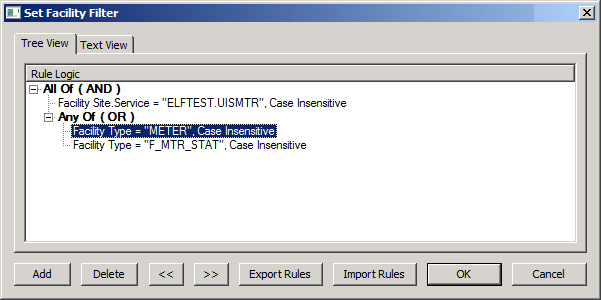
The properties on the Set Facility Filter dialog box are described below.
|
Button Name |
Description |
|---|---|
|
Add |
Click to add a new filter rule. See Configuring Rule Definition below. |
|
Delete |
Click to delete a selected filter rule. |
|
<< |
Click to move a selected filter rule up the hierarchical tree. |
|
>> |
Click to move a selected filter rule down the hierarchical tree. |
|
Export Rules |
Click to export filter rules to an XML file. |
|
Import Rules |
Click to import filter rules from an XML file. |
Configuring Rule Definition
|
Rule Definition |
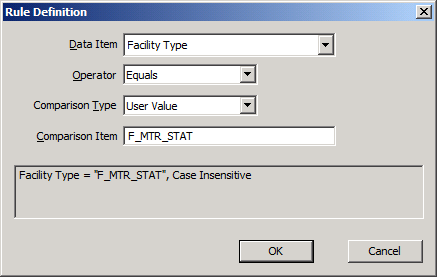
The properties on the Rule Definition dialog box are described below.
|
Parameter |
Description |
|---|---|
|
Data Item |
Select a Facility Attribute to create the first variable for the filter rule to use. |
|
Operator |
Select a filter operator used in the equation to build a complete statement for the filter rule logic. Options include: Equals, Greater Than, Greater Than or Equal, Less Than, Less Than or Equal, Not Equal. |
|
Comparison Type |
Select a Comparison Type to compare against. The only choice is User Value, which will be typed in the Comparison Item field. |
|
Comparison Item |
Type the user value for the comparison. |
|
Text Box |
Displays a visual reference of how the filter rule will be displayed in a multi-line textual string. |


