Enterprise Operations EIE Installation
Installing the Enterprise Operations EIE requires installation of a driver file and an editor file, and inclusion in CygNet Explorer version management.
The driver file (UisEntOpsDeviceDriver.dll) is the Enterprise Operations Device Driver module, used by the UIS. It is stored in the CygNet\Support folder on the host server. The driver file must be registered on the CygNet host in order for the UIS to load any Enterprise Operations devices.
Note: Optionally, the 64-bit driver file (UisEntOpsDeviceDriver64.dll) is stored in the CygNet\Support64 folder on the host server.
The editor file (CxDdsEntOpsEditors.dll) is the Enterprise Operations Device Editor module, used by CygNet Explorer. It must be loaded into the APPS and included in version management for CygNet Explorer.
The response list file (CxDdsEntOpsEditors.rsp) must also be loaded into the APPS to facilitate proper installation and version management.
Note: In order for version management to function properly, the procedures described in Version Management must be followed.
See the CygNet v9.8 System Requirements for more information.
To Install the Enterprise Operations (EntOps) EIE on a CygNet Service Host
Step 1: Install the Driver File
- Copy the driver file:
- For the 32-bit driver file (UisEntOpsDeviceDriver.dll), copy to the CygNet\Support folder on the host server.
- For the 64-bit driver file (UisEntOpsDeviceDriver64.dll), copy to the CygNet\Support64 folder.
- Register the file using regsvr32.exe:
- For the 32-bit driver file, regsvr32.exe is located in Windows\System32 on a 32-bit operating system, or in Windows\SysWOW64 on a 64-bit operating system.
- For the 64-bit driver file, regsvr32.exe is located in Windows\System32 for either operating system.

Step 2: Install the Editor File
The files involved in version management are the .rsp file (CxDdsEntOpsEditors.rsp) and the .rsq file (CxDdsEntOpsEditors.rsq). The.rsp file lists all required files for the Enterprise Operations EIE editor.
- Using CygNet Explorer, upload the editor file (CxDdsEntOpsEditors.dll) and the .rsp file (CxDdsEntOpsEditors.rsp) to the Support group in APPS.
- Download the .rsq file (CxDdsEditors.rsq) from the Support group in APPS.
- Add a line to the .rsq file (CxDdsEditors.rsq) that includes the name of the .rsp file for the EntOps editor:
|
[SUPPORT]..\SUPPORT\CxDdsEntOpsEditors.rsp |
|
Install Editor File Example |
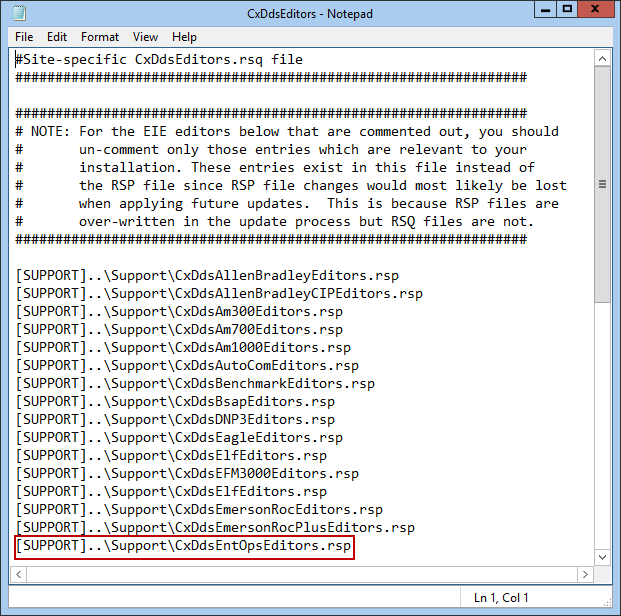
- Upload the edited .rsq file (CxDdsEntOpsEditors.rsq) to the SUPPORT group in APPS.
- Use the TouchBSS utility found in the CygNet\Utilities directory to update the timestamp for .rsp and .rsq files in APPS.
Step 3: Perform Version Management for CygNet Explorer
- Close all instances of CygNet Explorer.
- Launch CygNet Explorer from the CygNet Client Installer to perform version management.


