Native Operations Page
Use the Native Operations page to enable CygNet Native Operations, select operation versions to enable, select security applications and events, and apply service filters. The Enterprise Operations EIE has an opt-in model for operations. By default, no operations are enabled and no services are allowed to provide data for processing requests. You must opt in for every operation and every service.
|
Enterprise Operations EIE - Native Operations Page |
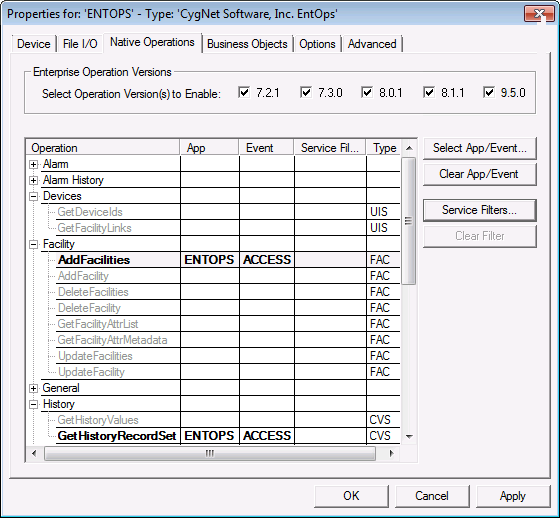
For the device to process a CygNet Native operation, the operation’s version must be Enabled by selecting the associated check box, and the services that are allowed to provide data for processing the request must be included in the service filter.
Enabling Operations
| Field | Description |
|---|---|
|
Operation |
Displays the list of available Native Operations, based on the Enterprise Operation version(s) enabled. Operation types include Alarm, Alarm History, Devices, Facility, General, History, Point, Point Config, and Table. Note: Gas Measurement is not supported. |
|
App |
Displays the Security Application currently being used by the selected operation(s). |
|
Event |
Displays the Security Event currently being used by the selected operation(s). |
|
Service Filter |
Displays the Service Filter currently being used by the selected operation(s). |
|
Type |
Displays the Service Type allowed to provide data for processing requests issued by the selected operation(s). |
| Button | Description |
|---|---|
|
Select App/Event… |
Displays a window for selecting the Security Application and Event to be used with the selected operation. |
|
Clear App/Event |
Clears the security application and event currently being used by the selected operation. |
|
Service Filters… |
Displays a dialog box for creating a new Service Filter or selecting an existing Service Filter to be used with the selected operation. |
|
Clear Filter |
Clears the Service Filter currently being used by the selected operation. |
To Enable Native Operations
- On the Native Operations page Select Operation Version(s) to Enable by clicking the check box corresponding to the version(s) desired. Available operations are displayed in the Operation list.
- Click to select the name of the Operation you would like to enable. The corresponding Service Type is displayed in the farthest right column.
- Click Select App/Event… to display a list of Security Applications and Events.
- Make your security setting selection and click OK.
- Apply Service Filters as described below. Click Apply.
- Click Clear App/Event to clear the security setting selection, if necessary. Repeat steps 3 and 4 to select a new setting.
- Click Clear Filter to clear the filter selection, if necessary. Repeat step 5 to select a new filter.
- Repeat steps 1-5 for additional operations you would like to enable.
- Click OK.
Service Filters
| Option | Description |
|---|---|
|
Filter Name |
Type in the Filter Name of the new Service Filter. |
|
Service Type |
Select the Service Type(s) from the drop-down menu. |
|
Existing Filters |
Displays the Name, Service Type, and In Use? status of Existing Filters. Select an existing Service Filter and choose to Use, Rename, Clear, or Delete the selected Filter. |
|
Restricted Services |
Displays the list of Restricted Services which can be selected to move into the Allowed Services list for the Filter. |
|
Allowed Services |
Displays the Services which have been selected to be Allowed Services for the Filter. |
Creating and Applying Service Filters
You can create multiple filters for service types. For example, you can create one filter specifically for the CVS, and another filter for a FAC.
To Create and Apply a Service Filter
- Select the name of the operation for which you are creating/applying the filter.
- Click Service Filters.
- To create a new filter, click New Filter.
- In Filter Name, enter a name for the filter.
- In the Restricted Services box, select the name(s) of the services that shall be allowed to provide data for processing the requests then click the Allow > arrow to add the services to the Allowed Services box.
- To remove a service from the Allowed Services box, select the name of the service, then click the < Restrict arrow to move the service to the Restricted Services box.
- Click Save.
- To apply a filter to an operation, select the filter name from the Existing Filters field and click Apply.
- To apply a filter to a group of operations, select the group name (that is, the identifier of the group) and then click Service Filters. When you apply the filter it will be applied to all operations in the group.


