Configuring Columns
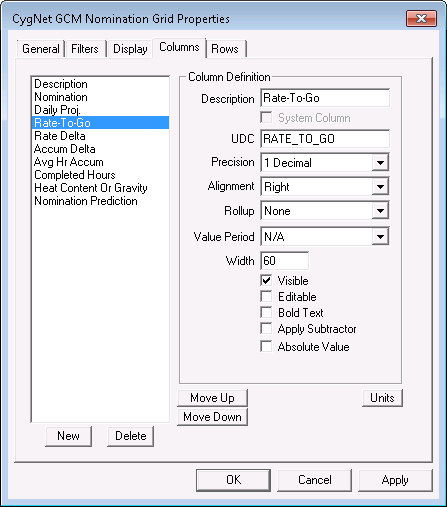
Use the Columns page to configure how columns are displayed in the CygNet GCM Nomination Grid. Numerous system columns can be defined for display. Each column represents a data type and the rows represent facilities. Calculated point values are displayed at the intersection of these columns and rows. To configure units for the output points, use the Units button below the Column Definition pane. See Configuring Units for more information.
Default system columns cannot be deleted, but you can hide them. To hide a column, select it in the list on the Columns page and then clear the check box for the Visible property in the Column Definition section.
You can also add an unlimited number of additional custom columns and change the column order. To change the column order, select a column and use the Move Up or Move Down buttons. The column at the top of this list appears as the leftmost column in the grid.
|
| Sample Columns Page for a Gas Pipeline |
Default Columns
Columns described in the table below are in the CygNet GCM Nomination Grid by default.
| Parameter | Description |
|---|---|
|
Description |
The description of the facility for the row. The actual text that appears here is customizable. System Column. |
|
Nomination |
Provided as a placeholder for a calculated result for Nomination. |
|
Daily Proj. |
Provided as a placeholder for a calculated result for Daily Projection. |
|
Rate-To-Go |
Provided as a placeholder for a calculated result for Rate-To-Go. |
|
Rate Delta |
Provided as a placeholder for a calculated result Rate Delta. |
|
Accum Delta |
Provided as a placeholder for a calculated result for Accumulated Delta. |
|
Avg Hr Accum |
Provided as a placeholder for a calculated result Average Hourly Accumulation. |
|
Completed Hours |
Twenty-four columns are displayed, one for each hour of the day. Each column represents the volume from the previous hour. System Column. |
|
Heat Content Or Gravity |
If the Commodity Type is Gas, this is the static value used to convert between Volume and Energy to allow the volumes displayed on the grid to be represented as Energy. With Heat Content as an input, Volume * Heat Content gives Energy. If the Commodity Type is Liquids, this is the static value used to convert between Volume and Mass to allow the volumes displayed on the grid to be represented as Mass. With Gravity as an input, Volume * Gravity gives Mass. System Column. |
|
Nomination Prediction |
Provided as a placeholder for a calculated result for Nomination Met Time. System Column. |
Column Definition Properties
The following properties allow you to define how to display individual system columns.
| Parameter | Description |
|---|---|
|
Description |
The name of the column as it appears in the grid. Customize any column name as desired. |
|
System Column |
Indicates which columns are system or pre-defined columns. This attribute cannot be changed. |
|
UDC |
The UDC for the column. |
|
Precision |
The numerical precision of the data shown in the column. Options are:
|
|
Alignment |
The alignment of the text in the column. Options are:
|
|
Rollup |
Determines how the data is rolled up from the source up to the top node. Options are:
|
|
Value Period |
Sets value period to N/A, Hourly or Daily. |
|
Width |
The width of the column. |
|
Visible |
If disabled, the column will not be visible and will not be rendered. Some system columns depend upon the presence of others so if certain columns are not visible, then other columns may appear blank. To make a system column appear hidden without affecting other columns, set the width to 0. |
|
Editable |
If enabled, users may edit the value of the cells whose data is populated from a point. Rollup data may not be edited. |
|
Bold Text |
If enabled, the text will be in bold. |
|
If enabled, values in this column are affected by facilities with a Yes value in the Subtractor attribute specified on the General page. Note: You must have already selected an attribute from the Subtractor drop-down menu on the General page for this to take effect. |
|
|
Absolute Value |
Check this option to always display all data values as positive numbers. |
|
New |
Use this button to add user-defined columns. |
|
Delete |
Use this button to delete user-defined columns. You cannot delete the default system columns. |
|
Move Up |
Use this button to reorder your columns. To do so, select a column name and click Move Up until the column appears where you want in the list. |
|
Move Down |
Use this button to reorder your columns. To do so, select a column name and click Move Down until the column appears where you want in the list. |
|
Units |
This button opens the Units Configuration dialog box where you can create multiple unit sets, which can be used to define unit types for the output points. For example, you can create different unit sets for different commodity types. For more information, see Configuring Units. |
More:


