Defining Components
Note: Although both rule-based views and component-based views are supported by CygNet, best practice recommends using rule-based views instead of component-based views. Rules provide a more comprehensive and fine-tuned way to create views.
A component-based view relies on components specified for each hierarchy level to indicate which facility records to include. Along with rules, components are one of the building blocks of navigation hierarchies. Components specify which attributes are used to filter facilities. Components can be device or facility attributes. Choose these attributes carefully to help ensure that the navigation hierarchy built from them organizes facilities in the most meaningful way. Attributes reside in the Facility Service (FAC) or Device Definition Service (DDS).
See the following subsections below for more information:
- To Add a Component
- To Link a Component
- To Edit a Component
- To Delete a Component
- New Component Definition Entry Properties
For high-level information about components, see Groups Concepts.
Note: For details about properties mentioned in the procedure below, see the following properties table below: New Component Definition Entry Properties.
- Using the Group Manager utility, click Edit > Define New Component or right-click in the hierarchy pane and click Define New Component. The following dialog box appears:
|
New Component Definition Entry |
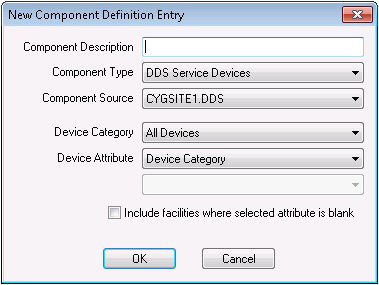
- Type a Component Description. If this field is left blank, the Component Description defaults to the attribute description.
- Select the Component Type. Options are DDS Service Devices and FAC Services Facilities.
- Select the Component Source. Select the service from the correct site.
- Select the Device Category or Facility Category.
- Select the Device Attribute or Facility Attribute.
- If the Component Type is FAC Services Facilities, the Interpret Entry As drop-down menu becomes available. Select either Actual Value or Facility Tag.
- To include facilities even if the Device Attribute or Facility Attribute value is blank, check Include facilities where selected attribute is blank.
- When you are finished defining this component, click OK.
- Continue adding new components to suit your needs.
Note: This feature enables you to link components to a preexisting level in a component view as well as to create a component level that pulls data from more than one device (DDS) or facility service (FAC).
- Using the Group Manager utility, select an appropriate preexisting level, right-click, and select Link Component to Level.
- Select components:
- To select defined components, press Ctrl+Click to select all required components in the Select Components for This Level dialog box, and click OK.
- To select undefined components, click Add and follow the steps in To Add a Component above, then press Ctrl+Click to select all required components in the Select Components for This Level dialog box.
- Using the Group Manager utility, double-click the component you want to edit.
- Make required changes to the component. For information about component properties, see New Component Definition Entry Properties.
Important: Use caution when deleting a component. First determine where the component is used to ensure that you do not delete an important component used for grouping facilities.
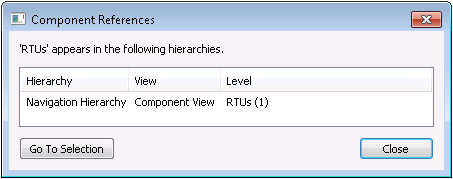
- Using the Group Manager utility, right-click the component you want to delete and select View Component References. The Component References dialog box displays information about component location(s) within hierarchies.
|
Component References |
- If you still want to delete the component, delete it by doing one of following actions:
- Right-click on the component and select Delete.
- Right-click on the component and select
 on the toolbar.
- A confirmation dialog box appears. If you are certain you want to delete the component, click Delete.
New Component Definition Entry Properties
The following table lists and describes properties of the New Component Definition Entry dialog box.
| Property | Description |
|---|---|
|
Component Description |
Free-form text field. If this field is left blank, the Component Description defaults to the attribute description. |
|
Component Type |
Two options are available:
|
|
Component Source |
Name of the DDS or FAC from which attributes derive. The selection is dependent upon Component Type. |
|
Device/Facility Category |
The types of devices or facilities to include in the hierarchy. Device Category options are as follows:
Facility Category options are as follows:
|
|
Device/Facility Attribute |
The attributes of devices or facilities to include in the hierarchy. You can add the same attribute twice, as long as the Component Description is unique. For example, you might want to add a table attribute and in one instance use the table entry and in the other instance use the table description. Device Attribute options are as follows:
Facility Attribute options are as follows:
|
|
Interpret Entry As |
This option only appears if you selected FAC Services Facilities for your Component Type. Interpret Entry As options are as follows:
|
|
Include facilities where selected attribute is blank |
When selected, the hierarchy includes devices or facilities for which the value of the selected attribute is blank. |


