Defining Rules
Note: Although both rule-based views and component-based views are supported by CygNet, best practice recommends using rule-based views instead of component-based views. Rules provide a more comprehensive and fine-tuned way to create views.
A rule-based view requires a user to set up rules that define which facility records to include in a level and how to relate those records to the other level(s) of the view hierarchy. Unlike components, which are FAC or DDS single attribute based, a rule can use multiple attributes arranged in a variety of ways to include facility information.
Features of the rule-based view include the following:
- A set of rules can specify what facilities are included in a level.
- A level can consist of a composite of several unique attributes.
- Source facilities can be specified by CVS (HSS, OPCIS, SVCMON) or UIS.
- Display text can consist of facility attribute values or fixed text.
- A level can be iterative. For example, a facility attribute can be used to denote a parent facility tag.
- A level may include child views. A child view is a normal view that is linked to a level of a different view.
- Unbalanced trees are supported.
Important: Unbalanced trees are a product of iteratively-created levels based on a parent tag attribute or by including a child view. No CygNet tools recognize unbalanced trees or iterative levels. For example, on the Group Navigation Bar Tool, the Auto Detect feature does not detect the actual number of iterative levels; it only knows the number of levels in the hierarchy definition.
See the following subsections below for more information:
- To Define a Rule-Based Hierarchy Level and Views
- Hierarchy Level Properties
- Group Rule Properties
- Rule Definition Properties
For detailed examples about using rules, see Rule Use Cases.
For high-level information about using rules, see Groups Concepts.
Defining a Rule-Based Hierarchy Level
The Group Manager utility utilizes hierarchy levels that can be rule based, and that can include child views. A child view enables you to link predefined views to hierarchy levels, which creates the child view. Any view can be linked to a level of another view in the same navigation hierarchy. This enables a view to be displayed independently or as part of another view. Use the following procedure to configure a hierarchy level.
To Define a Rule-Based Hierarchy Level
- In the Group Manager utility, right-click on a rule-based view and click Add Level to access the Hierarchy Level dialog box. See Hierarchy Level Properties for details about the properties.
|
Hierarchy Level |
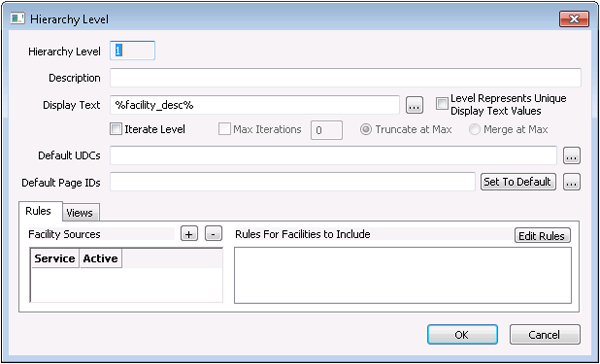
- Describe the new hierarchy level.
- The Hierarchy Level indicates what level the selected view occupies in the hierarchy.
- Type a Description for the level. This Description only describes the name of the level within your view.
- Define the Display Text. The Display Text field defines what text you want to use to identify facility data for this hierarchy level. The display text derives from any number of facility attributes, which can be dynamically built using tokens on the Edit Display Text for Level n dialog box. See Using Text Tokens for more information about building dynamic text using tokens.
- If the level represents display text values unique to itself, check Level Represents Unique Display Text Values. Doing so makes the Iterate Level option unavailable.
- If you did not check the Level Represents Unique Display Text Values box and you want to iterate this level, check Iterate Level and define Max Iterations and whether to truncate or merge once the maximum is reached.
- If this level is for a Web-based hierarchy, select the following. Note: The CygNet Web application has reached its End of Life with the release of CygNet v9.8. Some options have been deprecated, but remain configurable for backwards compatibility.
- Use the browse button to select Default UDCs.
- Use the browse button to select Default Page IDs.
- Configure the rules for the level. After you have defined properties for a level, click Rules to access the Rules page, to define the facility sources and rules to include.
- Define the Facility sources. Click
 to add a service or services from which to collect associated facility data. Multiple Facility Sources can be added.
 - Define the rules for Facilities to include. Click Edit Rules to access the Group Rule dialog box to create new rules (or edit existing ones). See Group Rule Properties for details about the properties.
|
Group Rule |
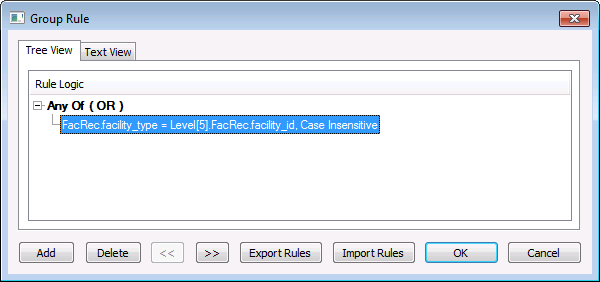
- On the Tree View page, click Add to access the Rule Definition dialog box. See Rule Definition Properties for details about the properties.
|
Rule Definition |
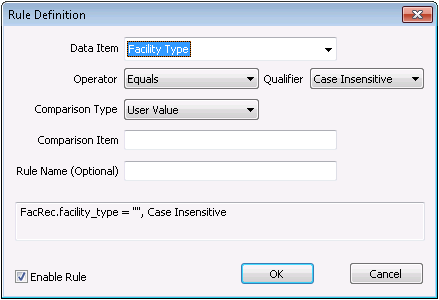
- Select a Data Item and other properties to define this rule. Depending on the properties you select, additional options might appear. As you define the rule, the rule is generated in string format in the text field toward the bottom of the dialog box.
- Click the Enable Rule check box to select/clear enabling of the rule.
- When you are finished creating a rule, click OK. Create as many rules as you require for a level (if this is a compound rule) or a view.
- If you define multiple rules for a single view, also define the logic governing the rules. On the Tree View page, double-click the root of the rule tree to access the Compound Rule Properties dialog box.
|
Compound Rule Properties |
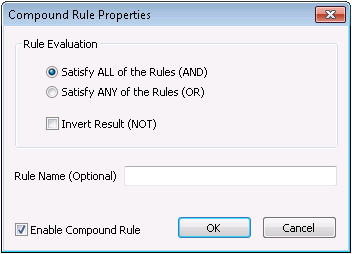
- In the Rule Evaluation box, select Satisfy ALL of the Rules (AND) or Satisfy ANY of the Rules (OR). Rules can be combined using AND and OR, and can be nested within other rules. For example, ((a OR b OR c) AND d). You can also use the
 and
and  controls on the Tree View of the Group Rule dialog box to define rule logic.
 - Click the Invert Result (NOT) check box to select/clear whether or not to exclude items from your level.
- Optionally assign a Rule Name. Names can be helpful when navigating complex hierarchies.
- Click the Enable Compound Rule check box to select/clear enabling of the compound rule.
- When you are finished, click OK on all open rule dialog boxes to save your newly-defined rule(s).
- Configure the views for the level. After you have defined properties and rules for a level, click Views to access the Views page, to define the child views and rules to use.
- Define the views.
- Click to add a predefined view to the parent level. This makes the view a child of the level. All child nodes of the added view become child nodes of the parent level.
- Highlight the view you want to add and click OK.
- Define the rules.
- Click Edit Rules to define rules that govern the relationship between the new child view and its parent level.
- Define the rule(s) to suit your needs. See steps 9 - 14 above.
- When you are finished, click OK on all open rule dialog boxes to save your newly-defined rules and child views.

Hierarchy Level Properties
The following table lists and describes properties available on the Hierarchy Level dialog box.
| Property | Description | |
|---|---|---|
|
Hierarchy Level |
Indicates the priority of a level within its respective view. If you only have one level in a view, the Hierarchy Level is 1. If you have two levels in a view, the Hierarchy Level for the highest priority level is 1 and the other level is 2. |
|
|
Description |
A free-form, useful description of the level. This Description only describes the name of the level (node) within your view. |
|
|
Display Text |
The Display Text field defines what text you want to use to identify facility data for this level. Choose tokens using the Browse button or enter fixed text directly into the field. Multiple tokens can be selected. The technique for specifying a display value is the same one used in CygNet Studio for the Text property. For example, a Display Text value of %facility_desc% (%facility_attr1%) results in a hierarchy entry like New Haven 4-11U (Route 33). For more information, see Using Text Tokens. |
|
|
Level Represents Unique Display Text Values |
A level can consist of a unique set of attributes for all facility records that match its rules. For example, setting the Display Text to %facility_attr1% could yield many records with the same value. But if the level is configured to show a unique set of Display Text values, the hierarchy consists of a single entry for each unique value. If the level following a unique level has no rules defined, it consists of all facilities that were represented by the unique display text. That is, there is an implicit link between a unique level and its child level. If this level is not unique and it is not Hierarchy Level 1, you must define its relationship to its parent facility within its rule definition. |
|
|
Iterate Level |
A level may be defined as iterative. This means that the same rule is applied over and over again, until there are no facilities that meet the criteria. This is designed to support the case where a single facility attribute is used to represent the facility tag of the parent. It is possible to cap the number of iterations performed. |
|
|
Max Iterations |
If you iterate levels, check Max Iterations and specify the maximum number of times to iterate or the maximum number of levels to create using the definition for this one level. When the maximum number of iterations has been performed, there are two choices: Truncate at Max and Merge at Max. |
|
|
Truncate at Max |
To simply stop iterating once the maximum iterations number is met, select to Truncate at Max. |
|
|
Merge at Max |
To continue iterating once the maximum iterations number is met, but merge all lower levels together with the last level, select Merge at Max. |
|
|
Default UDCs |
List of UDCs to display on the Web History Report page. For each specified UDC, specify the rollup type that is used to calculate history information. Use only if this is a Web-based hierarchy. Note: The CygNet Web application has reached its End of Life with the release of CygNet v9.8. This option has been deprecated, but remains configurable for backwards compatibility. |
|
|
Default Page IDs |
Page IDs are used by the GRP service to organize available Web pages for each level of a Web hierarchy. Use only if this is a Web-based hierarchy. Note: The CygNet Web application has reached its End of Life with the release of CygNet v9.8. This option has been deprecated, but remains configurable for backwards compatibility. |
|
|
Set to Default |
Sets the default page IDs to the default. Overrides any user-defined page IDs defined here. Use only if this is a Web-based hierarchy. Note: The CygNet Web application has reached its End of Life with the release of CygNet v9.8. This option has been deprecated, but remains configurable for backwards compatibility. |
|
|
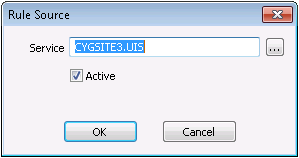
A facility source represents the data source for a facility; it is the service specified in a facility's property sheet. You can assemble a set of several facility sources for a level. Facility sources are the types CVS (HSS, OPCIS, SVCMON) and UIS. At least one facility source is required on the first level of a view. Subsequent levels can either specify a new source or sources or be left blank to use the source(s) from a previous level. If all levels of a hierarchy use the same source(s), only define the source(s) at the first level (Hierarchy Level = 1). Double-click an existing facility source to open the dialog box below. Check the Active box to activate a Rule Source. Uncheck the Active box to deactivate a Rule Source. A deactivated Rule Source is not evaluated when a hierarchy is built. Example
|
||
|
Rules for Facilities to Include |
Click Edit Rules to add or edit rules that define what facilities to include at this level. |
|
|
Views |
Enables you to link a view to a level, which creates a child view. Any view can be linked to a level of another view in the same navigation hierarchy. This enables a view to be displayed independently or as part of another view. Once linked, the child view is subordinate to the level to which it was added, but it maintains all of its definitions. |
|
|
Rules to Connect View to Parent Level |
Click Edit Rules to add or edit rules that define the relationship between a child view and its parent level. |
Group Rule Properties
The following table lists and describes properties available on the Group Rule dialog box. Drag and drop individual rules to position them correctly.
Note: Rules can be combined using AND and OR, and they can be nested within other rules. For example, ((a OR b OR c) AND d). See Rule Use Cases.
| Property | Description |
|---|---|
|
Tree View |
Displays rule(s) in a collapsible/expandable tree view. |
|
Text View |
Displays rule(s) in a string format. |
|
Add |
Click Add to access the Rule Definition dialog box to configure a rule. This option is available in Tree View. |
|
Delete |
Click Delete to delete the selected rule. This option is available in Tree View. |
|
|
Click to move the selected rule within the rule logic hierarchy. This option is available in Tree View. Once you have moved a rule, you can change its operators to redefine the rule's purpose in the level. |
|
|
Click to move the selected rule within the rule logic hierarchy. This option is available in Tree View. Once you have moved a rule, you can change its operators to redefine the rule's purpose in the level. |
|
Export Rules |
Click Export Rules to save a rule as an XML file to a specified file location. This option is available in Tree View or Text View. |
|
Import Rules |
Click Import Rules to navigate to a selected file location to import a rule as an XML file. This option is available in Tree View or Text View. |
Rule Definition Properties
The following table lists and describes properties available on the Rule Definition dialog box.
| Property | Description |
|---|---|
|
Data Item |
Click to select the Data Item for the rule from the drop-down menu. Expand categories in the list to see available options. These items correspond to (usually pre-defined) facility attributes. |
|
Operator |
Click to select the Operator for the data item from the drop-down menu. Options include the following:
|
|
Qualifier |
Click to select a Qualifier for the operator from the drop-down menu. Options include the following:
|
|
Comparison Type |
Click to select a Comparison Type for the operator from the drop-down menu. Options include the following:
|
|
Level |
Choosing Absolute Level for the Comparison Type generates a Level drop-down menu with all relevant level selections for this rule. Choosing Relative Level for the Comparison Type generates a Level drop-down menu with all relevant level selections for this rule. |
|
Comparison Item |
Enables you to compare (substitute) a data item with another item. When you choose User Value for the Comparison Type, enter a text value here. When you choose Absolute Level or Relative Level for the Comparison Type, a drop-down menu enables you to choose from a number of available facility attributes. |
|
Rule Name (Optional) |
A free-form text field for naming the rule. |
|
Enable Rule |
Click to enable the defined rule. A rule that is disabled is not acted upon. Some scripts have been written to enable/disable rules by name based on real-time considerations. |
More:


