Group Service Explorer
The Group Service Explorer enables you to view, edit, compare, and export hierarchy and node information using a modeless dialog box. It combines useful features of the Group Manager utility and the GRP property sheets, giving you simultaneous access to the tree view of the Group Manager along with node-level granularity available in the GRP.
|
Sample Group Service Explorer |
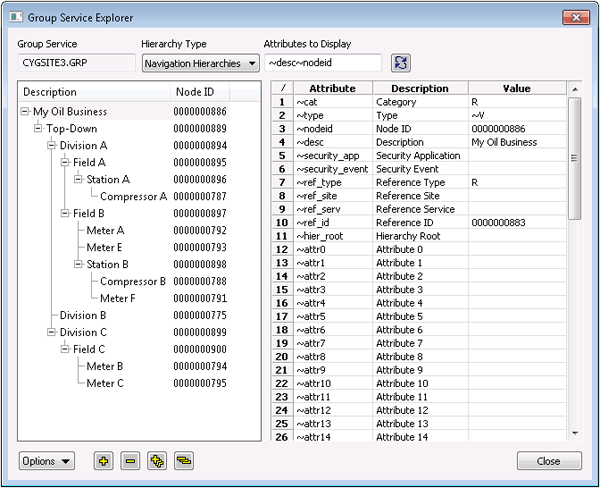
Access the Group Service Explorer by clicking View > As-Built Hierarchies or by right-clicking in the white space of the Group Manager and clicking View As-Built Hierarchies. To see another version of the Group Service Explorer as a CygNet Studio screen, open GRPEXP72.csf in the APPS SCRADMIN folder.
Group Service Explorer Properties
The following table lists and describes Group Service Explorer properties.
| Property | Description |
|---|---|
|
Group Service |
The name of the GRP to which the hierarchies, components, and other nodes displayed belong. |
|
Hierarchy Type |
The Hierarchy Type drop-down menu provides five ways of displaying built GRP hierarchies for a selected GRP. Once displayed, you can highlight any node in a hierarchy to display details about its GRP attributes, description, and values if the Show Details option is selected. The five Hierarchy Types are as follows:
|
|
Attributes to Display |
Type one or more GRP attributes in this text box to determine how the hierarchy in the hierarchy pane displays. The default is ~desc~nodeid, which causes the hierarchy pane to display hierarchies in two parallel columns: Description and Node ID. For instance, if you wanted to display Description, Category, and Node ID columns, type ~desc~cat~nodeid in the Attributes to Display text box and click Attributes for the various hierarchy types can be found in the Attribute column of the details pane made available by clicking Options > Show Details. |
 .
.Group Service Explorer Options
The following table lists and describes Group Service Explorer options.
|
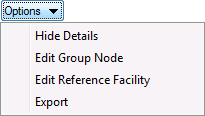
Options Menu |
| Property | Description |
|---|---|
|
Show/Hide Details |
If you click Show Details, a new Group Service Explorer pane opens with a table made up of Attribute, Description, and Value columns. The details in these columns change depending on the node selected in the hierarchy pane. If you click Hide Details, the details pane described above disappears. |
|
Edit Group Node |
Click this option to edit the node selected in the hierarchy pane. It opens the property sheet for the selected node, which can also be accessed from the GRP. |
|
Edit Reference Facility |
Select to edit a reference facility in the Facility Service (FAC) for a selected node. The option opens the Properties dialog box for the relevant facility. This option only appears when a node directly references a facility. The option is useful for making ad hoc changes to nodes, like changing a GRP attribute value to reassign a leaf node to a different parent node or checking which devices a facility references. If you make changes, be sure to click Save. |
|
Export |
Click Export if you want to export GRP attributes for a selected node to an XML file. Once you click Export, you can Include All Attributes in Hierarchy or Include Selected Attributes. Include All Attributes in Hierarchy saves all GRP attributes and their values for a selected node. Include Selected Attributes saves only selected GRP attributes and their values for a selected node. Press Ctrl+Click or Shift+Click to select attributes. If you check Create Node Details, you also save all attributes and their values for a selected node. The XML Node Identifier drop-down menu presents two options: None and Group Node ID. |


