Configuring Thinning Models
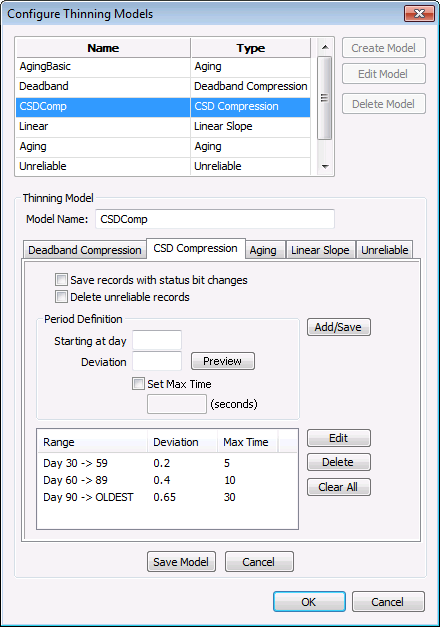
Thinning Models specify the method of thinning that will be applied to data in the VHS. At least one model must be created before any rules can be saved. There is no limit to the number of thinning models that can be created. Once changes to a model have been made, click Save Model to save the changes.
Warning: If a model is in the process of being modified, then clicking OK or Cancel will cause those changes to be lost.
There are five types of thinning models:
All models have the ability to thin data deeper as entries get older. The thresholds are set by day, defined as the number of days between the day the thinning begins and the timestamp of the entry.
|
Sample Thinning Models |
Creating a Thinning Model
At least one thinning model must be created before any rules are specified.
To Create a Thinning Model
- Select Configure Thinning Rules from the File menu.
- Click Create Rule.
- Click View/Edit Models.
- On the Configure Thinning Models dialog box, click Create Model.
- Type a Model Name. This name should fully identify the model to ease selection of the appropriate model when creating rules.
- Select the appropriate model type and define it. See specific model type for options below.
- Click Save Model. To discard all changes click Cancel.
- To make changes to an existing model, select the model from the list and click Edit Model.
- To delete an entire model highlight the model name and click Delete Model. Models may only be deleted if no rules are currently set to use the model.
- Click OK to return to the Configure Thinning Rules dialog box.
More:
 Deadband Compression Thinning Model
CSD (CygNet Swinging Door) Compression Thinning Model


