Configuring Thinning Rules
Rules determine what groups of problem points are targeted for deletion by the VHS Data Thinner. The Rule Properties define which points will be thinned and how they will be thinned. Once changes to a rule have been made click Save Rule to save the changes.
Warning: If a rule is in the process of being modified, then clicking the Save to File or Cancel buttons will cause those changes to be lost.
|
Sample Thinning Rule |
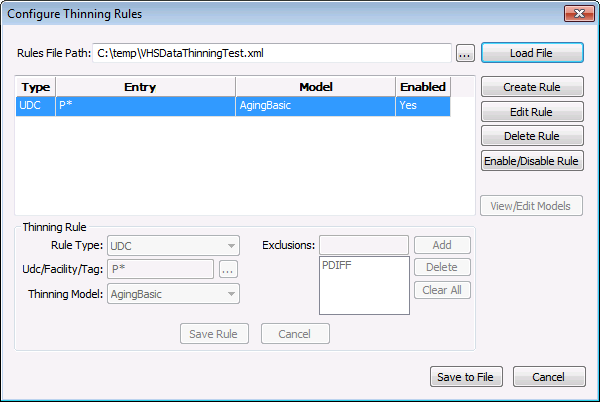
Rule Properties
| Property | Description |
|---|---|
|
Rule Type |
Determines to which part of the tag for each point in the VHS the sorting criteria will be applied. Options are UDC, Facility or Tag. If Tag is used then the Long ID will be used for the comparison. |
|
Udc/Facility/Tag |
Determines the criteria for sorting. Wildcards may be used. For example, if the rule type is UDC and the string is P* then all points that have a UDC of P* will be considered a match to this rule. |
|
Exclusions |
Since the matching criteria can include wildcards, there may be cases where specific points need to be excluded even though they match the criteria. Multiple exclusions can be used, and they may also contain wildcards. Points can only be excluded based on the same Rule Type. For example, if the UDC string is P*, PDIFF can be excluded from selection by entering its UDC in the exclusions field, or a wildcard such as PD*. In the example above, the AgingBasic thinning model would be applied to all points with a UDC beginning with P, except for points with the UDC PDIFF. |
|
Thinning Model |
Determines which thinning model will be applied to all points that match the criteria of the rule. See Configuring Thinning Models. |
Rule Precedence
Since rules use wildcards to match points, it is possible for multiple rules to match the same point. If this happens, the rule type will determine which rule is used. Any rule with Tag as the rule type has the highest precedence, rules of type UDC are next, and rules of type Facility have the lowest precedence. If multiple rules of the same type match a single point, then it is unknown which rule will be used.
To Create a Thinning Rule
- Click Create Rule.
- Select Rule Type from the drop-down menu.
- Specify UDC/Facility/Tag criteria by clicking … or typing directly into the field. Wildcards may be used to select larger groups of points.
- To exclude data from thinning that would otherwise be included in the wildcard grouping type an exclusion string into the Exclusions field and click Add. Wildcards may also be used.
- To delete a previous exclusion highlight the exclusion from the list and click Delete.
- To remove all exclusions click Clear All.
Note: An exclusion applies only to the same rule type.
- Select a Thinning Model from the drop-down menu. You must have at least one thinning model defined before the rule can be saved.
- Click Save Rule. To discard all changes click Cancel.
- To make changes to an existing rule, highlight the model name and click Edit Rule.
- To delete an entire rule highlight the rule row and click Delete Rule.
- To enable or disable a rule click Enable/Disable Rule. This may be useful to see how individual thinning rules will affect the totals, or to stop thinning on certain points without losing the rule. Only enabled rules will affect the totals on the main page of the data analyzer and will be used by the VHS Data Thinner.
- To save all changes to the XML file, click Save to File.


