Configuring the Thinning Simulator
Simulator Modes
The thinning simulator has two modes: one simulates thinning models and one is used for optimizing CVS compression. Each is described below.
Simulate Thinning Models
|
Simulate Thinning Models |
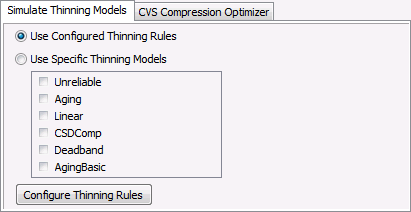
In this mode of the simulator, the selected points will be thinned either according to their configured thinning rules, or using specific pre-defined thinning models.
- If Use Configured Thinning Rules is enabled, then only the points with configured rules will be simulated.
- If Use Specific Thinning Models is enabled, then any number of models may be selected and each point will be simulated with all the models. This means if you have 100 points in your simulator and you select 5 models, then 500 simulations will occur.
To view or modify the thinning rules and/or thinning models, click Configure Thinning Rules below.
CVS Compression Optimizer
|
CVS Compression Optimizer |
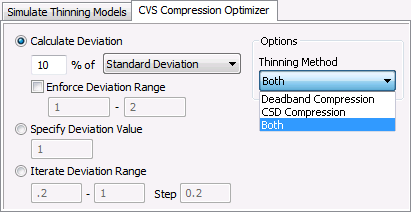
In this mode of the simulator, the selected points will be analyzed for the purpose of calculating a useful deviation for the Deadband Compression, the CSD Compression, or Both. A secondary use for this mode is to view before and after statistics that show how thinning would affect the data. The statistics available are minimum value, maximum value, delta min/max, standard deviation, minimum setpoint, maximum setpoint, and delta min/max setpoint.
Once the simulation is complete, the simulator can be used to update the compression setting in the point record with the deviation. This would prevent the need for future thinning since only values that fall outside the deviation will be sent to the VHS. See Applying Compression Settings for more information.
| Property | Description |
|---|---|
|
Calculate Deviation |
The deviation for each point will be calculated as a percentage of the selected statistic. Type the percentage and select the desired statistic from the drop-down menu. Options include Minimum Value, Maximum Value, Delta Min/Max, Standard Deviation, Minimum SetPoint, Maximum SetPoint, or Delta Min/Max SetPoint. |
|
Enforce Deviation Range |
If enabled and the calculated deviation for a point does not fall inside the specified range, then an error will be displayed. |
|
Specify Deviation Value |
The deviation value to use in the thinning method. |
|
Iterate Deviation Range |
Will iterate the deviation range in the steps provided. This provide a useful method to see how the data is affected by minor changes in the deviation. |
|
Thinning Method |
Select the thinning method to simulate: Deadband Compression, CSD Compression, or Both. |
Simulator Options
|
Simulator Options |

Date Range to Analyze
These options define the date range of the data which will be analyzed. All the statistics and thinning will be based upon the data in this range. Limiting the range is useful to minimize the quantity of data being analyzed and to guarantee that only the most representative data is used.
Temporarily Store Entries For Trending
These options define if and how to store the simulated thinning entries. If enabled, then each point that is thinned in the simulator will save the thinned values out to a temporary point in the specified VHS. The temporary point will have a LongID that starts with the specified Entry Prefix and the point ID will start from the maximum value and decrement from there.
Temporarily storing the entries allows the original and thinned data to be trended side by side for quick comparison. All temporarily stored points are deleted when the simulator is closed.
Misc
These options define additional simulator settings. The Avg Time Slices to Calc Stats option determines whether or not the statistics are based upon the entire time window, or little slices averaged together. By breaking up the data into smaller slices, it helps filter out extreme values. The Throttle property determines how much load the simulator puts on the main VHS. Options are Slow, Medium, and Fast. If running against a production VHS, it might make sense to put the throttle on Slow to minimize the impact of reading values. If performance isn’t an issue, then set the throttle to Fast to complete the simulation as quickly as possible.


