VHS Data Analyzer Utility
The VHS Data Analyzer utility helps determine those points in the VHS that are taking up the most hard-drive space. Some points may be taking up space because they have a high frequency of input, while others may have a high number of retention days. The VHS Data Analyzer provides statistics to help determine a management strategy for thinning unnecessary bulk from the VHS. As problem points are identified, the analyzer can be used to create thinning rules to determine how entries will be deleted from the VHS. Once created, these thinning rules may only be executed by a separate utility, the VHS Data Thinner.
The Data Analyzer utility allows VHS data to be filtered and grouped into logical sets to simplify screen displays. It also provides statistics based on these groupings to help determine which sets of points are requiring the most storage space. The main indicators calculated for each point are the
- Daily Average — the number of new entries per day, and the
- Potential — the total number of entries in a steady state.
A point in a steady state is one that has reached its history capacity; that is, the number of days of data is equal to the number of retention days set for the point.
As thinning rules are created, the analyzer calculates the estimated size savings realized from each thinning rule. This information helps you to test and compare different thinning models to determine the best course of action in reducing the VHS to a specific size before deleting any entries. Note that not all models can be approximated. To prevent old or temporary data from skewing the steady-state potential, users can define what constitutes an active point.
Due to the size of the average VHS, it is impossible for the analyzer to determine the exact impact of each point. Certain assumptions are used to allow the analyzer to run in timely manner. At first pass, the daily average for each point is calculated by taking the number of entries currently in the VHS and dividing by the date range between the first and last entry. It is assumed that for each point, values are added to the VHS in a somewhat consistent manner. For points that have thinning rules, the accuracy is enhanced by sampling the most recent 500 entries and extrapolating the frequency and data quality. This option can also be enabled on points that meet the minimum requirements set in the initial VHS analysis.
Once information is gathered or calculated for a point, it is stored for the duration of the execution of the analyzer and will not be re-read from the VHS. This caching of the data greatly increased performance, but prevents recent changes to the VHS from being reflected in the results. To incorporate recent changes to the VHS in your analysis, you must reload the VHS in question.
Data from the historian can be filtered and grouped to simplify its display. This utility provides a range of statistics based to help illustrate which points are taking up the most space in the VHS. Point’s can also be trended directly out of the data analyzer view to help illustrate data trend for an individual point. Based on the storage space statistics generated thinning rules can be configured to determine what data will be deleted from the historian using the VHS Data Thinner utility.
The maximum number of points that you can simulate thinning in any single analysis is approximately 1000.
The VHS Data Analyzer is stored in the CygNet\Utilities directory (VhsDataAnalyzer.exe) on the host server.
Starting VHS Data Analyzer
Installing and Launching
To install and launch (start) the application or utility using version management:
- Use CygNet Client Installer to install and launch the application. Once installed you can use CygNet Client Installer to start the application.
-OR-
- If previously installed, click Start > All Programs > CygNet > <name of the application or utility> or double-click the desktop shortcut.
Alternatively, browse to the CygNet\Utilities directory using Windows Explorer and double-click the program icon. You can also start an application or utility from a command line. These methods do not provide version management.
The VHS Data Analyzer dialog box appears.
|
VHS Data Analyzer Screen |
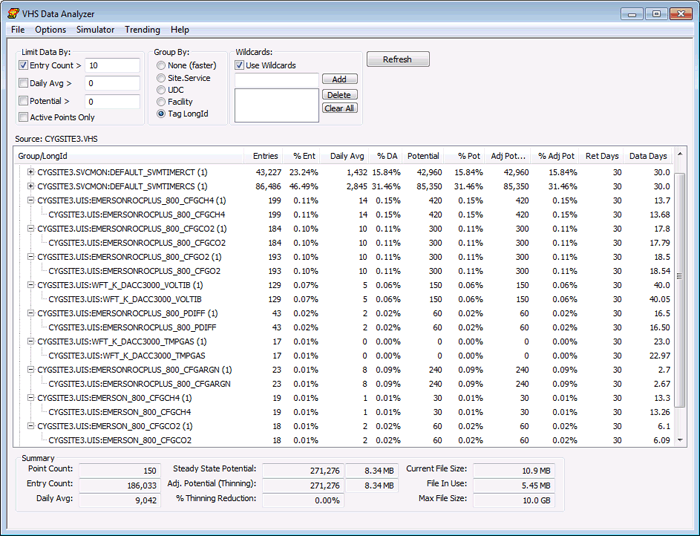
Interface
- The fields at the top of the screen are used to set filter and grouping options. Options include Limit Data By, Group By, Wildcards, and Refresh.
- The central pane displays the points that meet the filtering criteria as well as their associated size and space statistics. See Point or Group Statistics.
- The Summary area at the bottom shows cumulative statistics of the output for the whole VHS. See VHS Summary Statistics.
Menu Bar
The following table lists and defines the options accessed using the VHS Data Analyzer utility menu.
| Menu | Description |
|---|---|
| File Menu | |
|
Load From VHS |
Select File > Load from VHS… to read history data from a live VHS. |
|
Load From File |
Select File > Load from File… to read data from an Data Analyzer file (.vda). |
|
Save |
Select to save the raw data in a .vda file for future analysis. See Analyzing the Data for more information. |
|
Export to CSV |
Select to export the data analysis displayed in the view to a CSV (comma-separated values) file. See Analyzing the Data for more information. |
|
Configure Thinning Rules |
Select to determine how you might thin (delete) data in your VHS. See Thinning Rules for more information. |
|
Exit |
Select to exit the VHS Data Analyzer utility. |
| Options Menu | |
|
Enhanced Accuracy |
Select to analyze points in greater detail. See Setting Analysis and Display Options for more information. |
|
Highlight Thinned Points |
Select to highlight points that meet the thinning model criteria in blue. See Setting Analysis and Display Options for more information. |
|
Active Point Definition |
Select to define an active point. See Setting Analysis and Display Options for more information. |
|
Simulator Menu |
|
|
Run Simulator |
Select to run the simulator after you have selected the points you wish to simulate. See Thinning Simulator for more information. |
|
Add Points With Thinning Rules to Simulator |
Select to add all the points which are configured for thinning. See Thinning Simulator for more information. |
|
Clear Simulator |
Select to remove all points from the simulator. See Thinning Simulator for more information. |
| Trending Menu | |
|
Time Range |
Select to specify the time range to use when trending values. See Configuring Trend Defaults for more information. |
|
Mark Data Points |
Select to mark individual data points on the trend line. See Configuring Trend Defaults for more information. |
|
Extend Last Value |
Select to extend the last value to the end of the trend window. See Configuring Trend Defaults for more information. |
|
Overlay Y-Axis |
Select to display multiple trended points on the same graph. See Configuring Trend Defaults for more information. |
| Help Menu | |
|
About |
Click to open the About CygNet VHS Data Analyzer Utility dialog box to view application information. Available information includes the following:
In addition to information about the application, the About box includes the following buttons:
|
Choosing the Data Source
The VHS Data Analyzer utility can read data from either a live VHS or from a file that was generated by a previous run of the utility.
- Select File > Load from VHS… to read history data from a live VHS.
- Select File > Load from File… to read data from an Data Analyzer file (.vda). The .vda files are unique to the VHS Data Analyzer utility. Multiple .vda files can be opened simultaneously and the contents of the files will be combined. This is useful for offline or offsite analysis and analysis of multiple services.
More:
 Setting Analysis and Display Options


