Limiting Data
The VHS Import/Export utility allows you to limit which data is imported and exported. You can choose to filter data in any or all of the following ways:
- By date and time — see Limit Data to a Time Range below
- By value count (last n values) — see Limit Data by Value Count below
- By point tag (by individual selection) — see Limit Data by Selected Point Tag below
- By point tag (by including or excluding) —see Limit Long Point Tags using Wildcards below
The data limitations options differ depending on the data source selected on the parent VHS Import/Export utility dialog box:
- If you select a Value History Service as the source for your data, you can limit data to a time range, a number of values, a subset of point tags, wildcarded long point tags, or any combination of these options. When you select a Value History Service on the VHS Import/Export utility, then click Limit Data, the Limit Source Data dialog box will open and display all available points in the Limit Points section of the dialog box.
- If you select a CSV file or an offline datastore as the source for your data, you can only limit source data to a date range and/or a number of values. When you select a CSV file or an offline datastore on the VHS Import/Export utility, then click Limit Data, the Limit Source Data dialog box will open in a reduced state.
Limit Data to a Time Range
|
To limit data by date and time, perform the following steps in the Limit Time Range field:
An absolute timestamp is an actual date and time (for example, 04/15/2023 9:00). A relative timestamp is days from today (date only; time specification not supported) designated using date and time wildcards. T represents today at midnight; T-1 is yesterday at midnight; T+1 is today up to the current time. See Date and Time Wildcards for more information about using these types of wildcards. |
|

Limit Data by Value Count
|
To include all values or to limit the data to only the last n values for each point, selected the desired radio button in the Limit Value Count field:
- or -
|
|

Limit Data by Selected Point Tag
|
Use this option to limit the operation to selected point tags. Note: This option is not available if your source is a CSV file or an offline datastore. The Limit Points field of the dialog box contains two lists:
Tip: Use the View by Long Point ID/View by Point ID context-menu options to view the list of points by point ID or long point ID. Or use Jump To Point to go directly to a known point. To limit data by point tag
|
|
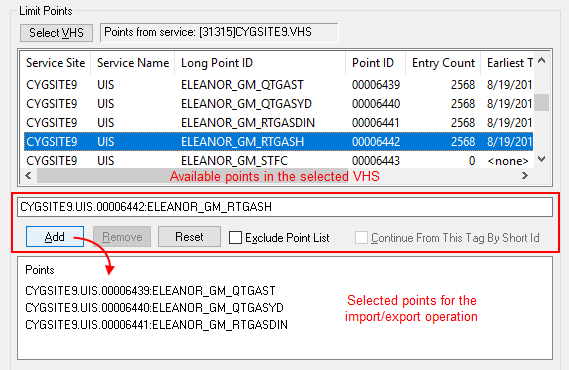
Limit Long Point Tags using Wildcards
|
Use the Include and Excude filters to limit the point tags list based on long point tag wildcards. Note: This option is not available if your source is a CSV file or an offline datastore. If you want to use wildcards to determine the list of point tags on which to perform an operation, use the Long Point Tag Wildcard Limiting option. The key identifier here is Long Point Tag and the correct tag string format to use is the Long Tag String format or Site.Service:LongID. To limit point tags using a wildcard criteria, do the following:
Usage Notes
|
|
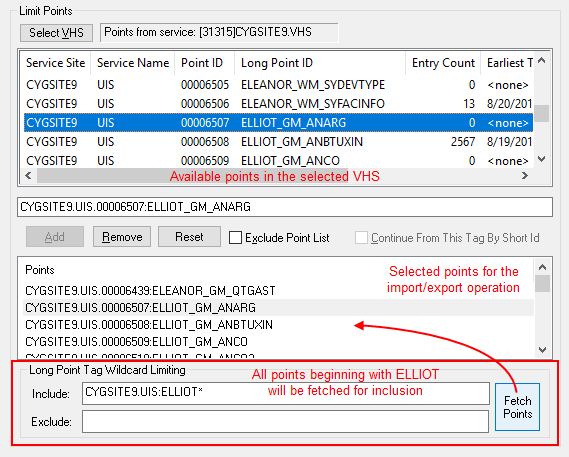
Saving, Loading, and Executing, a Limit Data Operation
Once you have refined the list of point tags to limit the import or export operation, do the following:
- Click Save to save the configuration to an .xml file, if you think you might use it again later.
- Click Load to open a previously saved configuration. Browse to find the saved .xml file and click Open.
- Click OK to apply the limit data configuration and return to the parent the VHS Import/Export dialog box. Configure the destination and click Run.
- Click Cancel to cancel all actions.


