VHS Import/Export Utility
The VHS Import/Export utility provides a way to import and export data from a production or offline VHS. Data can be transferred from one VHS to another or it can be exported from a service to a comma-separated values (CSV) file for review. Data files can also be used to import data into a service or they can be created from a running VHS as a backup.
The VHS Import/Export utility is stored in the CygNet\Utilities directory (VHSImportExport.exe) on the host server.
Alternatively, some utility functions can be performed using command-line options. See Command-Line Parameters for more information.
64-bit VHS Import/Export Utility
A 64-bit version of the VHs Import/Export utility (VhsImportExport64.exe) is also available. It can handle larger data sets associated with 64-bit services. The 64-bit utility can be installed using the CygNet Client Installer: select CygNet VHS Import Export - 64-bit from the APPS/UTILS folder.
Starting VHS Import/Export
Installing and Launching
To install and launch (start) the application or utility using version management:
- Use CygNet Client Installer to install and launch the application. Once installed you can use CygNet Client Installer to start the application.
-OR-
- If previously installed, click Start > All Programs > CygNet > <name of the application or utility> or double-click the desktop shortcut.
Alternatively, browse to the CygNet\Utilities directory using Windows Explorer and double-click the program icon. You can also start an application or utility from a command line. These methods do not provide version management.
The VHS Import/Export Utility dialog box appears.
|
VHS Import Export Utility |
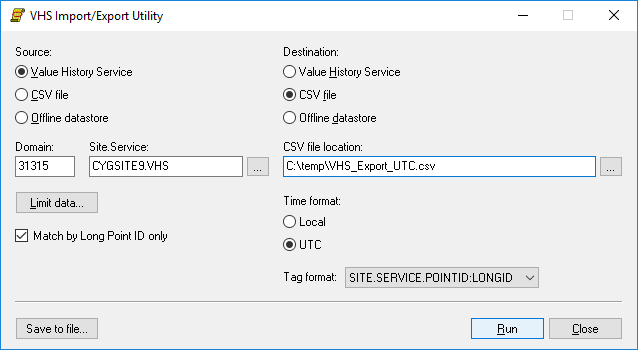
To Use VHS Import/Export
- Open the utility.
- Click to select the Source. Options are: Value History Service, CSV file,or Offline datastore. See Configuring Source Options for more information.
- Click to select the Destination. Options are: Value History Service, CSV file, Offline datastore. See Configuring Destination Options for more information.
- To export the configuration settings for the VHS Import/Export Utility to an .xml file for future use, click Save to file… and specify a file name. If you start the utility from a command line with the /config parameter and include the file name, the VHS Import/Export utility will restore those saved settings. See Command-Line Parameters.
- Click Run.
- As the import or export is running process details will display in the bottom of the dialog box. An informational dialog box will display when the process is complete. Click OK.
Notes:
- You must have admin rights on the VHS to import points.
- You must have read rights on the VHS to export points.
Import and Export of Extended Entry Values
The VHS Import/Export utility supports extended entry values. Note the following caveats:
- Import from and export to a CSV file will not support binary large objects (Blob). The utility will display a warning if a Blob length is encountered in the CSV when exporting.
- CSV files will be incorrectly formatted if the extended entry value contains any of the following characters: '\n', '\r', or '\x1a'.
- Legacy services (a non-extended VHS) and v8.1.1 ESE-based VHSs will no longer be supported as an export destination in the v8.2.0 CygNet VHS Import/Export utility. If you require an export destination to be a legacy service, you may use the v8.1.3 CygNet VHS Import/Export utility to accomplish this.
- Legacy data files (non-extended data) will no longer be supported as an offline datastore destination in the v8.2.0 or later CygNet VHS Import/Export utility. If you require an export destination to be legacy data files, you may use the v8.1.3 CygNet VHS Import/Export utility to accomplish this.
- If you use the v8.1.3 CygNet VHS Import/Export utility to export to a legacy destination, as described above, and your export source is a VHS or datastore that includes extended data (ESE-based v8.1.2 or later), using v8.1.3 of the CygNet VHS Import/Export utility will not export the extended data from the source to the legacy destination.
See VHS Extensibility for more information about extended data.
Importing to a Replicated VHS
The VHS Import/Export utility can be used to import data from a live source VHS to a replicated destination VHS for the purpose of backfilling replication data. This works only when importing from a source VHS; if the source is a CSV file, or an offline datastore, the import will fail. The replicating VHS must be able to communicate with the source VHS across a firewall, subnet, etc.
Additionally, when importing data from a source VHS to a replicated destination VHS:
- The Map points option for mapping CVS points does not work
- The Assign new retention period option only works when creating new points in the destination VHS.
More:
 Configuring Destination Options


