VHS Recovery Utility
The VHS Recovery utility can be used to restore history data from journal files and backed-up history database files. This utility is most commonly used to restore data to the new database after the VHS Quick Recovery process. The VHS must be running to restore data to it.
VHS Recovery utility is stored in the CygNet\Utilities directory (VhsRecover.exe) on the host server. To start the utility, browse to the directory using Windows Explorer and double-click the program icon.
Note: You can also set up this utility to be installed and launched (started) via CygNet Client Installer so that the application can be version managed. See Version Management for instructions on how to do this.
|
VHS Recovery utility |
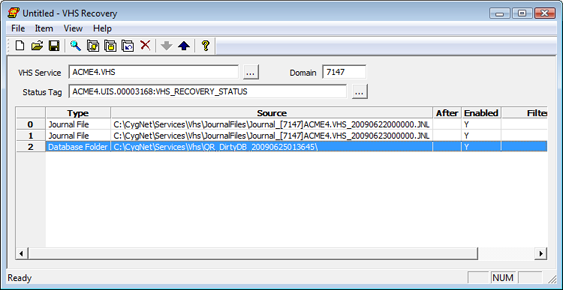
The VHS Recovery utility allows the administrator to create a multi-step recovery plan that restores data from different locations. This recovery plan can then be saved as an .xml file so that the same recovery plan may be used at another time. This also allows multiple recovery plans to be developed and saved to meet the needs of different situations. History recovery can be initiated using the VHS Recovery utility or it can be initiated via a command line. See the VHS SVCINFO Security Event for information about security access levels for performing recovery tasks.
Recovery steps are executed in the order they appear in the utility. For example, if journal files are listed before a database folder, the data stored in the journal files will be restored before data from the database is restored. Once data sources have been configured they may be re-ordered to produce the desired recovery plan configuration. Also, individual recovery steps may be selectively enabled or disabled without deleting them from the plan. When the configuration is saved to file, each step’s enabled status is also preserved.
Note: If restoring data to a replicated VHS service, the service must be running in non-replicated mode during the recovery. After the recovery is complete the service can be put back into replication mode. See VHS Replication for more information about changing the service’s replication mode.
When data is restored to a VHS, those updates are not recorded by the VHS in its incremental change queue or current journal file. The updates are not forwarded to a destination VHS or propagated to a replicated VHS.
Filtering History Data to be Recovered
Data items to be recovered can be filtered on timestamp or any component of a point tag: Site, Service, Point ID, Point ID Long, Facility, or UDC. The filter criteria are specified using the rich syntax of standard CygNet Rules. Since journal files do not have timestamps, a journal file timestamp filter is applied to a block of entries. If any entry in the block is within range, the entire block will be considered for recovery. A timestamp filter for a database recovery is applied to every value of every point.
When restoring history data for any reason, CygNet recommends using filtering only where absolutely necessary. Unnecessary filter criteria can dramatically slow the recovery process. This is especially true when the filter contains UDC or Facility as the history service does not store this information and must cross reference against the Point service to obtain it.
Menu and Toolbar
The items available on the toolbar can also be found on the utility’s File and Item menu. To hide the toolbar, clear it from the View menu.
| Option | Toolbar Icon | Description |
|---|---|---|
| File Menu | ||
|
New |
|
Creates a new blank recovery plan/configuration. If you have an existing recovery plan open you will be prompted to save it before a new plan can be created. |
|
Open |
|
Opens an existing recovery plan. |
|
Save |
|
Saves the current recovery plan to an .xml file for later use or use by scheduled recovery. |
|
Save As |
|
Saves the current recovery plan to an .xml file with a different name. |
|
Execute |
|
Execute the recovery to begin writing history data to the specified service. |
|
Recent File |
|
|
|
Exit |
|
Exit the VHS Recovery utility. |
| Item Menu | ||
| Edit |
|
Edits the selected recovery item. |
|
Add > Journal Item |
|
Adds a journal file recovery item. |
|
Add > Database Item |
|
Adds a database folder recovery item. |
|
Copy Recovery Item |
|
Copies the selected recovery item. This may be useful if you wish to copy an existing item and then modify its properties such as the filter. |
|
Delete Recovery Item |
|
Deletes the selected recovery item. |
|
Move Up |
|
Moves the selected recovery item down in the list. This will cause the selected recovery step to be executed later in the process. |
|
Move Down |
|
Moves the selected recovery item up in the list. This will cause the selected recovery step to be executed earlier in the process. |
| View Menu | ||
|
Toolbar |
|
Hide or show the toolbar. |
|
Status Bar |
|
Hide or show the status bar. |
| Help Menu | ||
|
About Vhs Recover |
|
Click to open the About CygNet VHS Recovery dialog box to view application information. Available information includes the following:
In addition to information about the application, the About box includes the following buttons:
|


Status Tag
A status tag can be specified to monitor the status of the recovery. This point must be created in the Point service (PNT). If a status tag is supplied, the recovery status will be recorded upon completion. Status values include Complete, Connect failed, and Error and User canceled.
More:
 Configuring the VHS Recovery Utility


