Managing CALs
To view Client Access License (CAL) information, click the CAL button. Each row in the view represents a CAL record.
A CAL is automatically created the first time that a CygNet client on a user’s computer initiates messaging with the ARS. The CAL is marked as Temporary and is valid for 30 days. A temporary CAL does not count against licensed components and there is no limit to the number of temporary CALs; however once the 30 days expires the CAL is disabled. Once the CAL is disabled, CygNet applications can no longer be run from that computer. License Manager must be used to make the temporary CAL Permanent for the client computer to be able to run CygNet applications longer than 30 days.
If you are licensed for the Audit Service and the ARS is configured for maximum auditing, audit records for CAL record changes can be viewed in the License Manager utility. See Viewing Audit History for more information.
The Status column in the CAL view shows the status of the CAL. The column may contain more than one status letter. For example, if a temporary license is not made permanent or disabled within 30 days, its status will show as ETX. The status of an enabled, permanent record shows as E.
| Status | Description |
|---|---|
|
E |
The CAL is enabled. |
|
D |
The CAL is disabled. Disabling a CAL is a manual task. A disabled CAL cannot access the CygNet system and does not consume a license. |
|
T |
The CAL is temporary. |
|
X |
The CAL is expired. This applies only to Temporary CALs. |
|
L |
The CAL is locked. A CAL is locked by the ARS when excessive changes are made to two or more of the computer-specific fields (OS Version, Computer Name, or UUID) between uses of CygNet. A locked CAL cannot access the CygNet system and consumes a license. |
|
S |
The CAL is a support seat. Support seats do not consume a license. Support status is given to users who require access to a CygNet installation, but are not permanent users at the site (for example, CygNet Support personnel). |
To Make a CAL Permanent
- Click the CAL icon in the left panel.
- Select the Temporary CAL(s) from the list. Use Ctrl+Click to select multiple CALs.
- Click the Update Status button.
- Select the Make Record(s) Permanent option.
- Click the Send Update button.
Or
- To make a single CAL permanent, click to select the desired record, click the Edit button and click the Make Permanent button in Record Editor box. Click Done.
To Enable a CAL
- Click the CAL icon in the left panel.
- Select the Disabled CAL(s) from the list. Use Ctrl+Click to select multiple Disabled CALs.
- Click the Update Status button.
- Select the Enable Record(s) option.
- Click the Send Update button.
Or
- To enable a single CAL, click to select the desired record, click the Edit button and click the Enable button in the Record Editor box. Click Done.
To Disable a CAL
- Click the CAL icon in the left panel.
- Select the Enabled CAL(s) from the list. Use Ctrl+Click to select multiple Enabled CALs.
- Click the Update Status button.
- Select the Disable Record(s) option.
- Click the Send Update button.
Or
- To disable a single CAL, click to select the desired record, click the Edit button and click the Disable button in the Record Editor box. Click Done.
To Unlock a CAL
- Click the CAL icon in the left panel.
- Select the Locked CAL(s) from the list. Use Ctrl+Click to select multiple Locked CALs.
- Click the Update Status button.
- Select the Unlock Record(s) option.
- Click the Send Update button.
To Assign Support Status to a CAL
- Click the CAL icon in the left panel.
- Obtain an authorization key from CygNet Support.
- Select an Enabled CAL from the list.
- Click the Update Status button.
- Select the Make Record(s) Support option.
- Enter the support authorization key then click OK. If the authorization key was valid, the CAL’s status will show as S (Support).
Viewing CAL Audit History
Changes made to individual CAL records including time of change, attributes changed, attribute values and user IDs, can be viewed in the License Manager utility. In order for CAL record changes to be audited the ARS must be configured for level 2 auditing. See Auditing for more information about configuring auditing.
|
CAL Audit History |
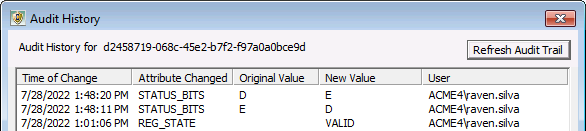
To View CAL Audit History
- Click CAL icon in left pane of the License Manager utility.
- Click to select CAL record for which you wish to view audit history.
- Click the Edit button.
- Click the View Audit History button.
- Click the Close button to exit the Audit History view.


