Associating Facilities and Points
A key feature of a CygNet note is its ability to be associated with facilities and points, although this is not required.
Note: Default note associations are pre-added for all notes created from a Trend Tool. The default associations are a collection of all points and facilities for all series in the selected axis group. Merely remove the association(s) not relevant to your note.
For more information, see the subsections below:
- To Add an Association
- To Associate a Note with a Facility
- To Associate a Note with a Point
- To Associate a Note with Items on Unassociated Services
- Associations Properties
- Select Facility Properties
- Select Point Properties
For information about associating services, see NOTE Configuration File Keywords.
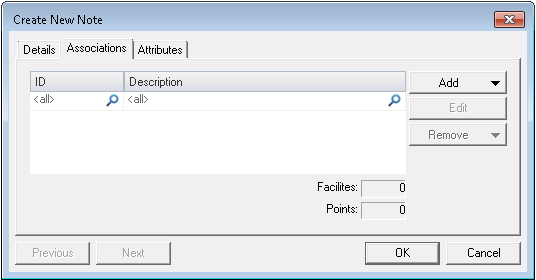
- Open the Create New Note or Note Properties dialog box and click the Associations page. The Associations page looks like the following:
|
Associations page |
- Click Add and click the Select Facility or Select Point option.
- Associate the note with facilities and/or associate the note with points.
See also Associations Properties.
To Associate a Note with a Facility
- If you click Select Facility on the Associations page, the Select Facility Service dialog box appears. Select the relevant facility.
- Upon selection of a facility, a Select Facility dialog box like the following appears:
|
Select Facility dialog box |
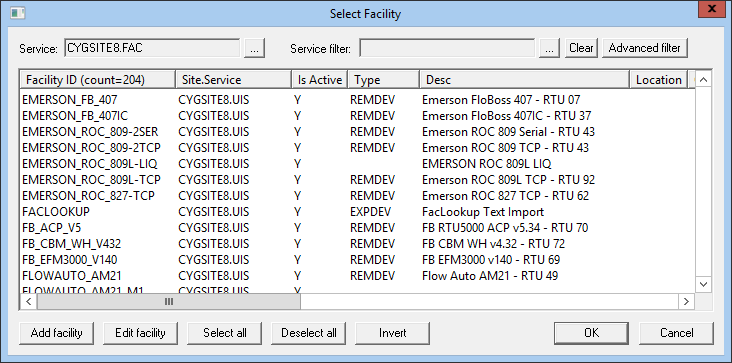
- Use the options at the top of the dialog box to filter sites and/or services to narrow your association options.
- Use the options at the bottom of the dialog box to add and edit associated facilities. Multi-select is available. If you want to associate a note with facilities that are on unassociated services, see also To Associate a Note with Items on Unassociated Services.
- If you are done, click OK to save and exit.
See also Select Facility Properties.
To Associate a Note with a Point
- If you click Select Point on the Associations page, the Select Point dialog box appears.
|
Select Point dialog box |
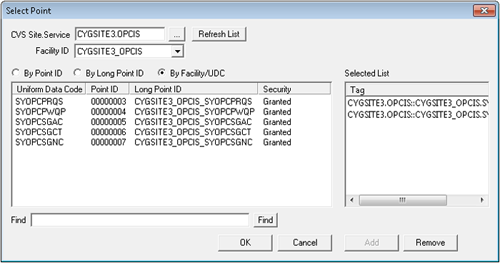
- Use the options at the top of the dialog box to filter sites and/or services to narrow your association options.
- Use the other options on the dialog box to add and edit associated points. If you want to associate a note with points that are on unassociated services, see also To Associate a Note with Items on Unassociated Services.
- If you are done, click OK to save and exit.
See also Select Point Properties.
To Associate a Note with Items on Unassociated Services
Note: You may refer to facilities and points that are not on services associated with a given Note Service. However, such items have limited functionality. For example, they are included in a note record, but they do not generate note labels on a Trend Tool.
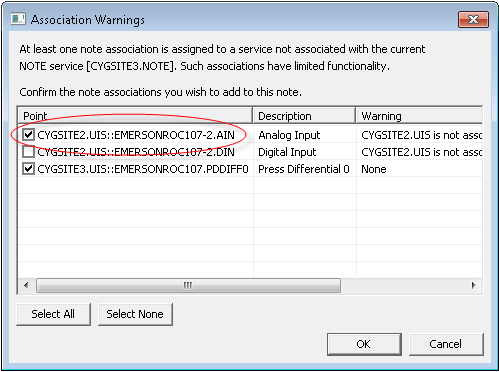
- If you attempt to add facilities and/or points that are not on services associated with a given Note Service, the Association Warnings dialog box appears.
- To add associations from unassociated services, select the box beside the association item and click OK.
|
Association Warnings dialog box |
- Associations from an unassociated service appear in red, italic font. They also display an infotip on mouse-over.
|
Unassociated service |
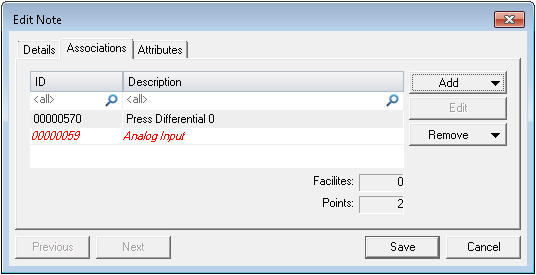
- Click Save to save your associations and exit the note record.
For information about associating services, see NOTE Configuration File Keywords.
Associations Properties
The following table lists and describes Associations page properties.
| Property | Description |
|---|---|
|
ID |
Identifies the associated item by facility ID or point tag, depending on type of item. |
|
Description |
Brief description of the associated item. |
|
Add |
Click to add new associations to a note. Two options appear:
|
|
Edit |
Click to edit a selected association. |
|
Remove |
Click to Remove Selected or Remove All associations. |
Select Facility Properties
The following table lists and describes Select Facility properties.
Note: The columns that appear in the Select Facility dialog box depend in part on facility attributes you've defined for your FAC.
| Property | Description |
|---|---|
|
Service |
Filters the service from which the desired facility derives. |
|
Service Filter |
Filters the various possible services. |
|
Clear |
Click to clear the selected Service Filter. |
|
Advanced Filter |
Click to display the Advanced Filter. The Advanced Filter provides a way to filter by a number of facility attributes. |
| Grid | |
|
Facility ID |
Displays an item's facility ID. |
|
Site.Service |
Displays an item's Site.Service. |
|
Is Active |
Displays whether or not an associated facility is active. |
|
Type |
Displays the type of facility. |
|
Desc |
Displays a brief description of a facility. |
|
Location |
Displays the location of a facility, if configured. |
|
Contact |
Displays the contact for a facility, if configured. |
|
Category |
Displays the category of a facility. |
|
Add Facility |
Click to associate a facility. |
|
Edit Facility |
Click to edit an associated facility. |
|
Select All |
Click to select all facilities. |
|
Deselect All |
Click to clear all facilities. |
|
Invert |
Click to invert the order of displayed facilities. |
Select Point Properties
The following table lists and describes Select Point properties.
| Property | Description |
|---|---|
|
CVS Site.Service |
Filters the current value service (CVS) from which the desired point derives. |
|
Facility ID |
Filters based on relevant facility. |
|
By Point ID |
Enables the display of points in the point ID format. |
|
By Long Point ID |
Enables the display of points in the long point ID format. |
|
By Facility/UDC |
Enables the display of points in the facility/UDC format. |
|
Find |
Enables searching for items from within the selected point field. |
|
Add |
Click to add items to the Tag field for association with a note. You can also double-click an item to add it. |
|
Remove |
Click to remove items from the Tag field for disassociation from a note. You can also double-click an item to remove it. |


